MRSware Logo MRSware Web Web & Mobile Guide
💻 Desktop Guide 📱 Web & Mobile Guide

MRSweb - Lesson 8.5 - Appointments - Sort, Filter | MRSweb Online Training

← Back to Web Training Curriculum Hub Lesson 39 of 69
Lesson 8

Chapter 5 - Appointments - Sort, Filter

​
You are able to sort, and filter your projects in the tables of MRSweb.

Sort
​

Sorting data makes it easier to see and review the data displayed.  

Here's how to sort in a table: 

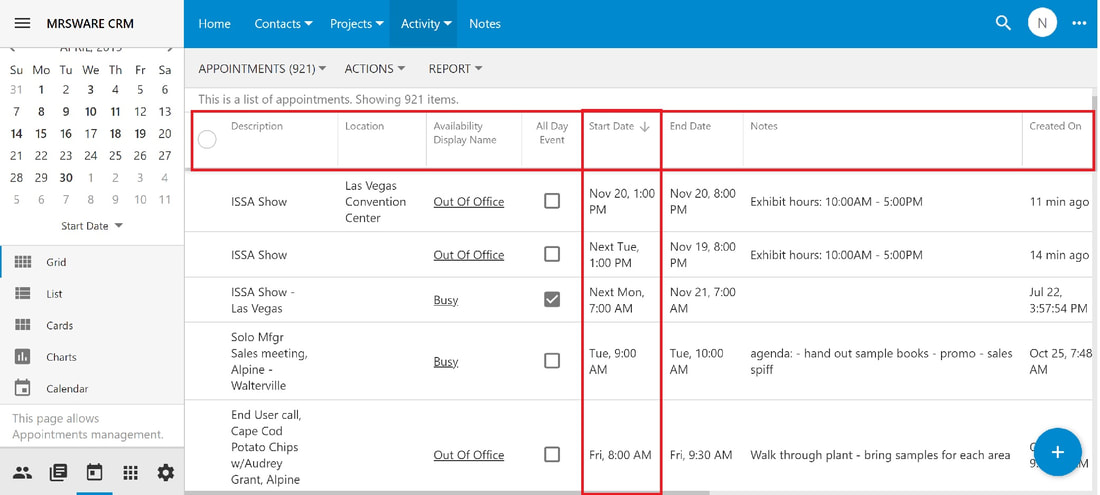
The screenshot seen below is sorted by Start Date (Latest on Top) so that the listing displays appointment start dates with the latest on top.

Note the down arrow in the Start Date column header.
​


​Filter

​Filtering data separates out the unwanted information, hiding the information that doesn't meet your filter criteria.

Here's how to filter in a table:

​​In the Grid view you can filter by any of the column headers.

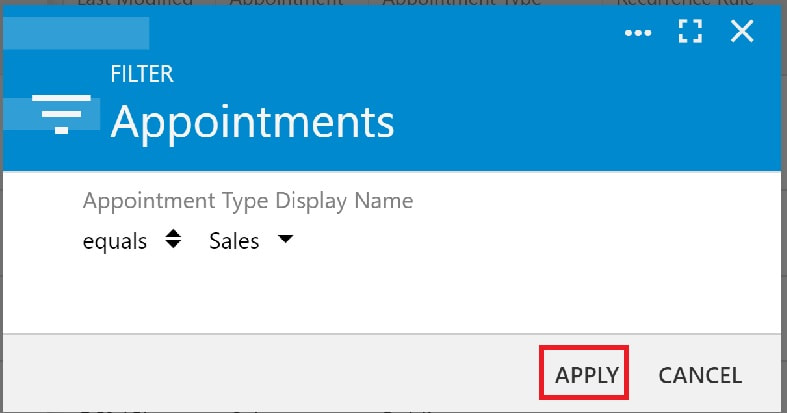
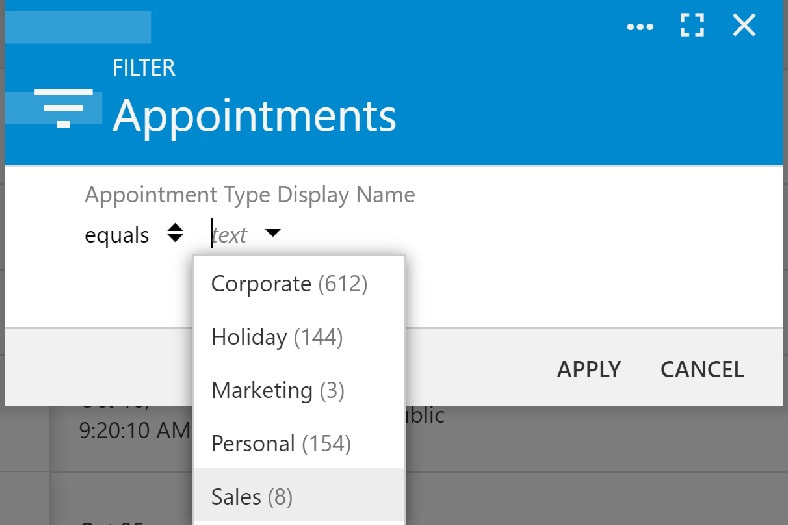
In the example shown in the following screenshots, we want to show only the appointments that are Sales appointments.  So we will filter the Project Type Display Name column.
​
Option 2:

1 - Click on the 3 dots on the top right of the Menu bar

2 - Select "Filter" from the slidebar

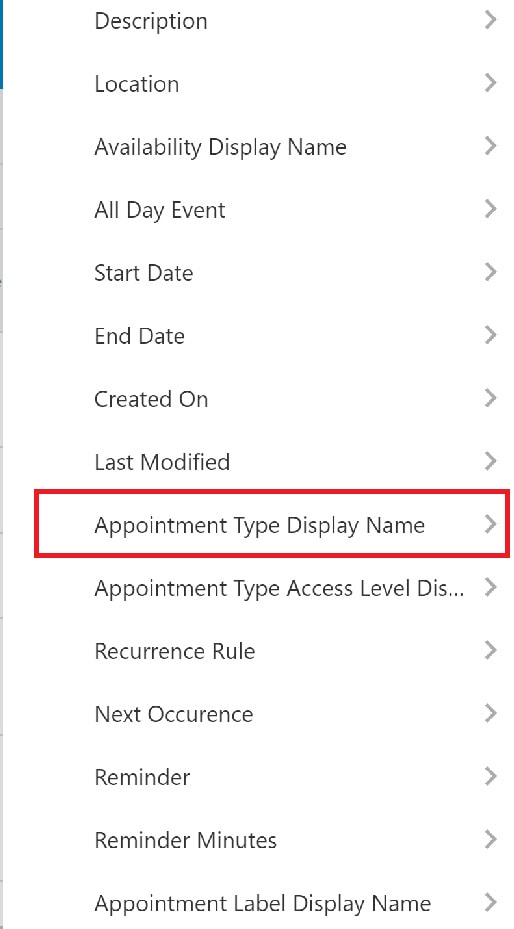
3 - Select "Appointment Type Display Name"

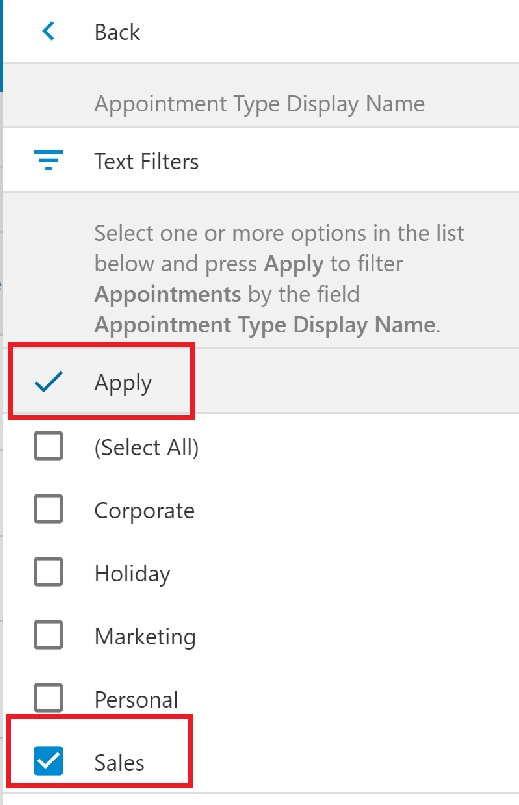
4 - Select "Sales" (for our example)

5 - Select "Apply"

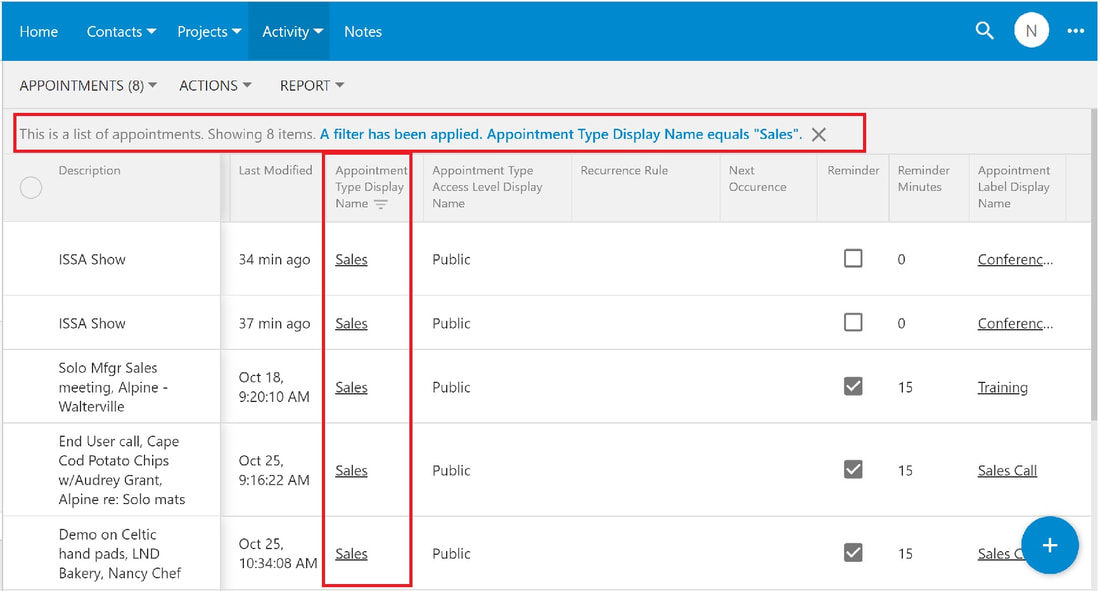
The filtered listing will show only the sales (type) projects


​The screenshot below is filtered by Appointment Type "Sales", so that the listing displays only the sales appointments.
 
Note the filter explanation above the table and the Filter icon next to "Type".


Picture


​Categories
​
Categories are attributes created and assigned by you to aid in searches (think of them as keywords for your searches and grouping).  In MRSweb you will find categories on Contacts, Projects, and Activities - Appointments, Journals and Tasks.  Each of these has their own Categories list, so that you can have entries that just apply to each one.

i  Your company administrator sets up the Categories in MRSweb.

Ready for the next lesson?
Continue through the structured MRSweb online training curriculum.
All Lessons Next Lesson →