
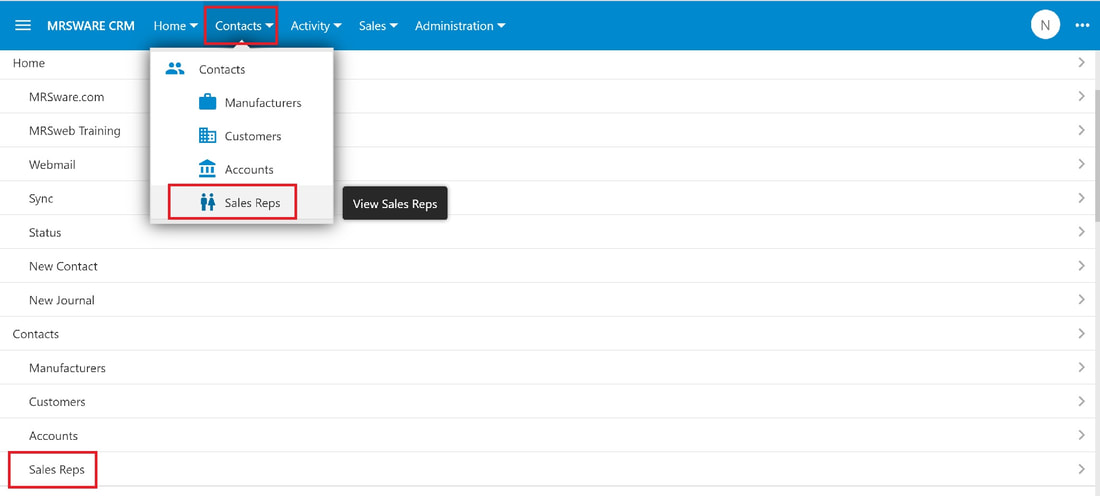
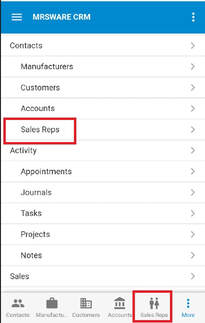
When you want to add a new sales rep or territory, go to "Sales Reps", found under the Contacts menu.
 |  |
Here's how to add a new sales rep or territory:
i - As in the MRSware desktop client there is more than 1 way to add a new sales rep or territory
Desktop options
| | Option 1: 1 - Click or tap on "Contacts - Sales Reps" on the Menu bar or Menu list |
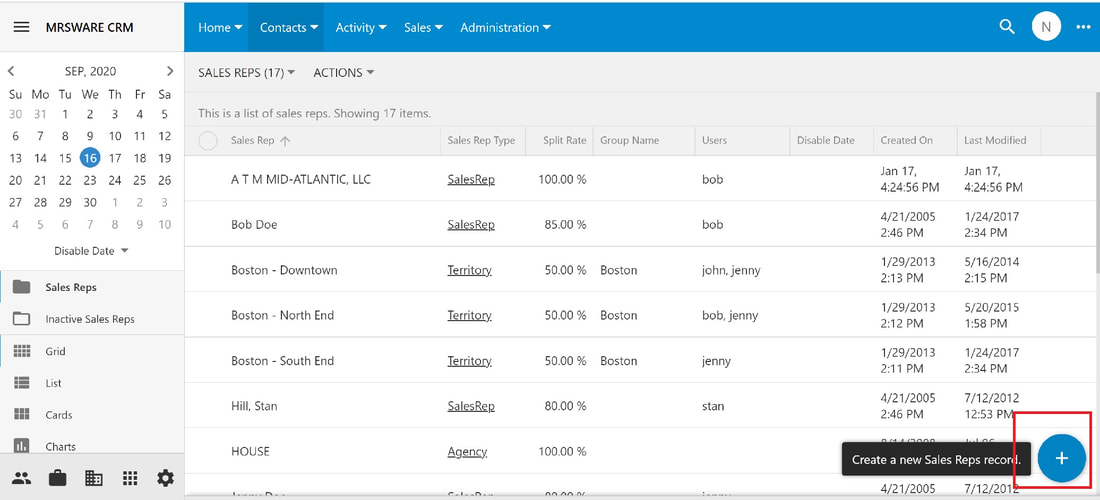 | 2 - Click or tap on the "Plus" sign on the bottom right of the page to open a New Sales Rep form |
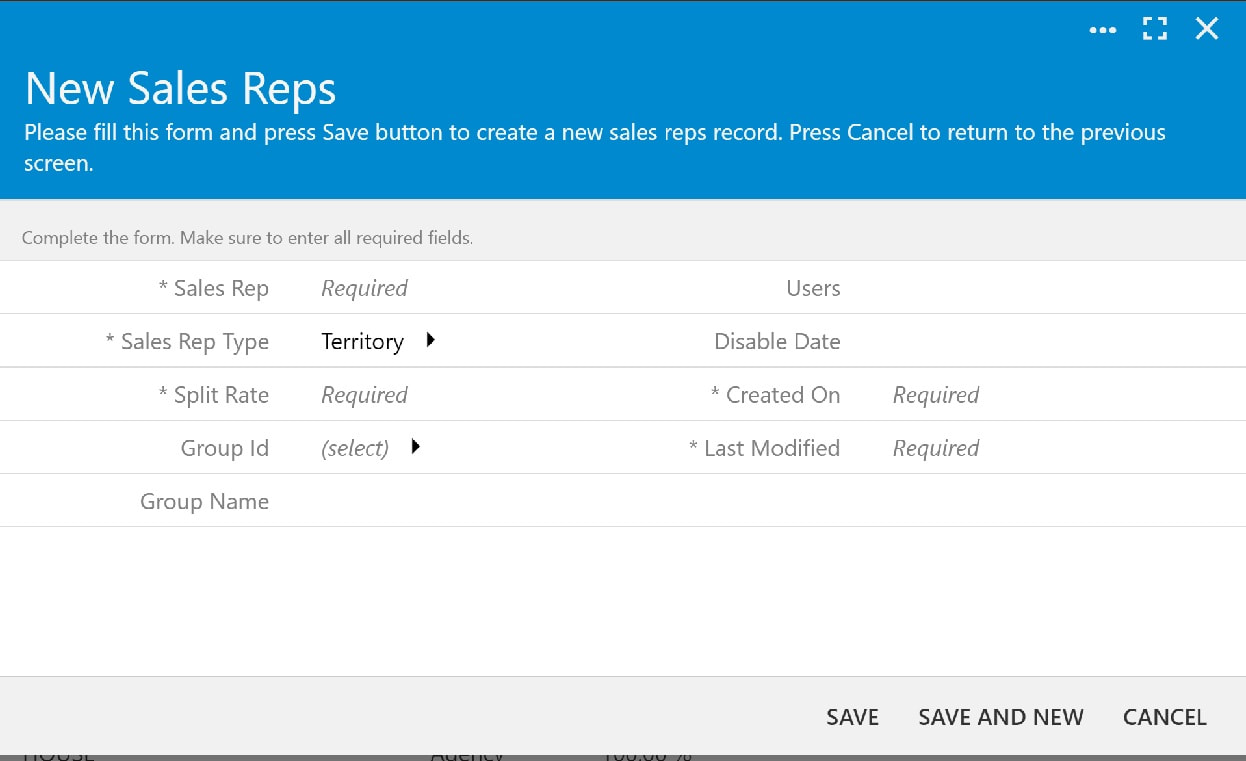 | 3 - The New Sales Rep form opens 4 - Fill out the form 5 - When finished, click or tap "Save" |
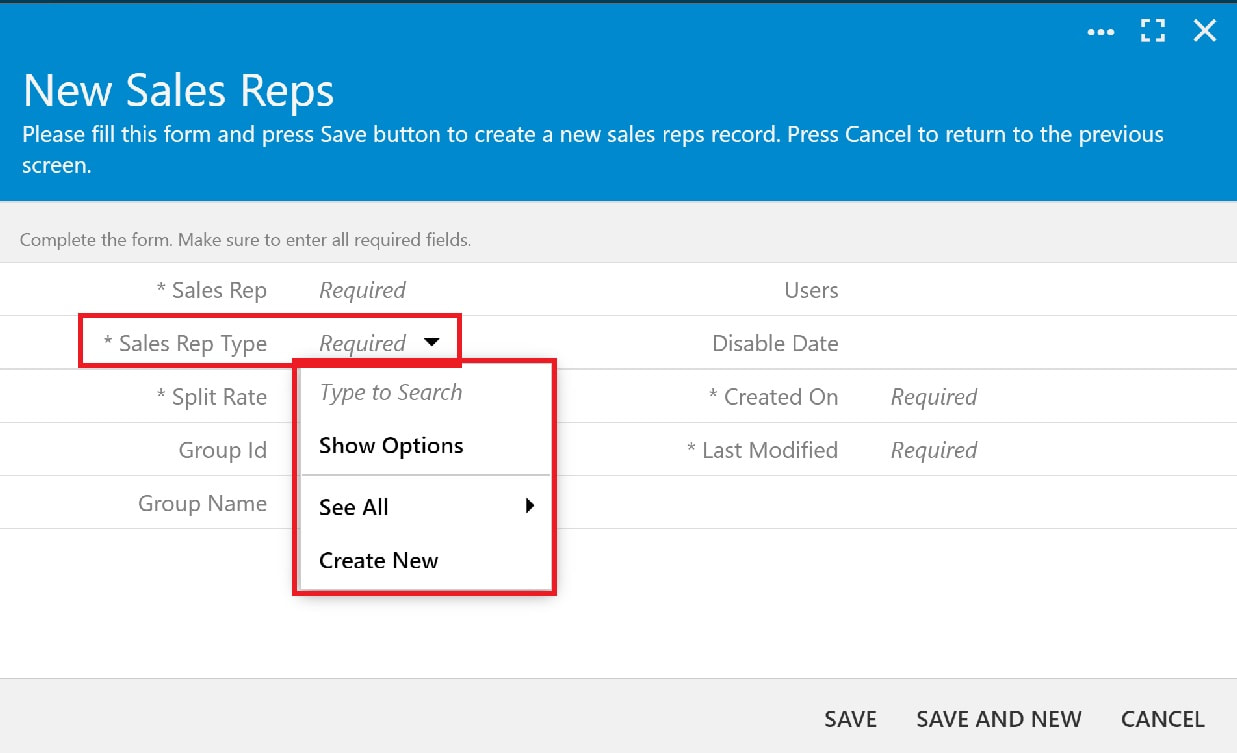 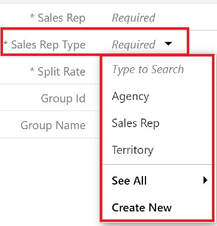 | During step 4: You must select a Sales Rep Type. When you tap on "Show Options", you will see the 3 Types: - Agency - used when Customers are assigned as House accounts - Sales Rep - used when Customers are assigned to individuals - Territory - used when Customers are assigned to a geographic area |
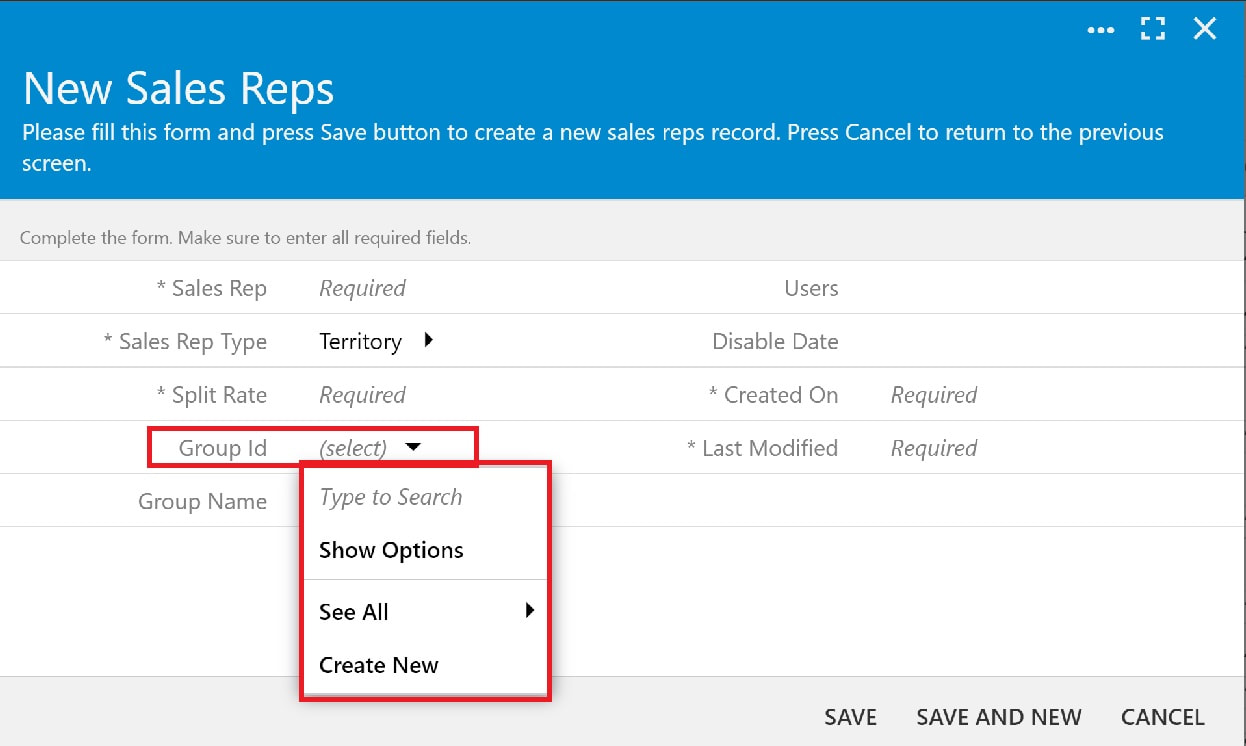 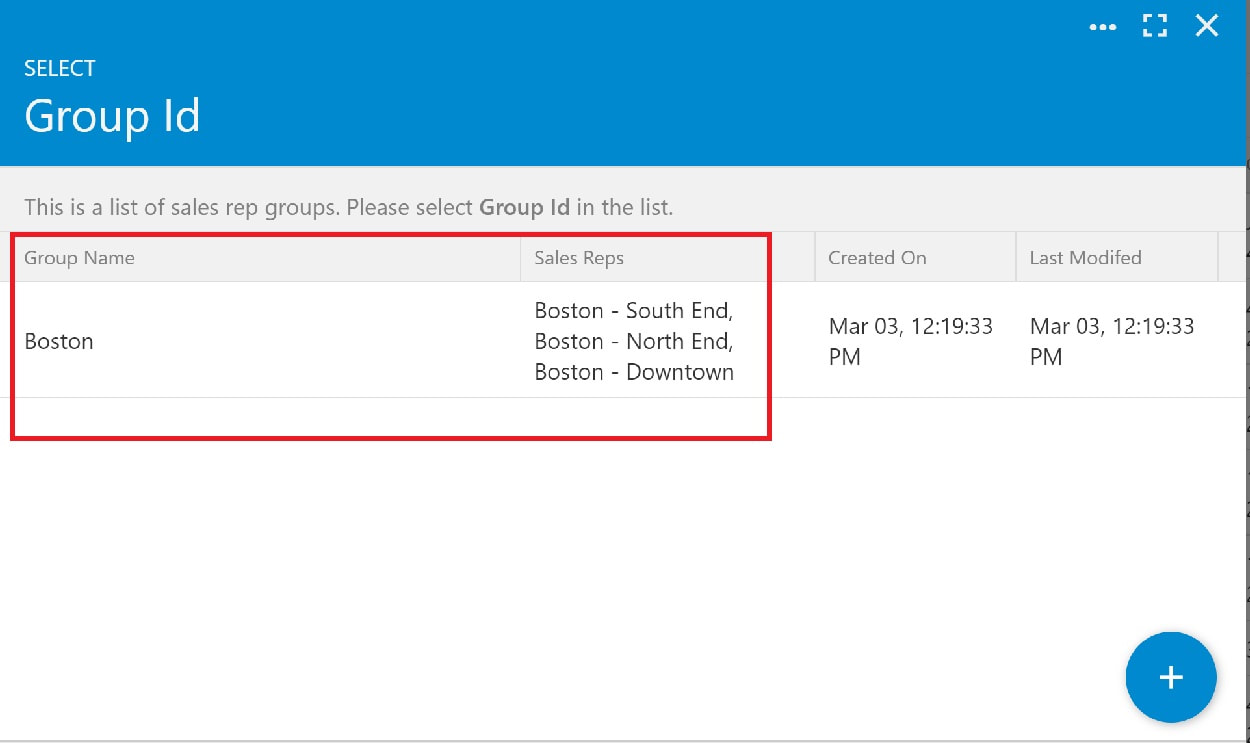 | Also, during Step 4: You have the option of assigning a Group Id and Name. This is used when Customers are assigned to a Territory. You can give the Territory a name and assign Sales Reps to the Territory. |
| Option 2: 1 - Click or tap on the "3 dots" on the right of the Menu bar | 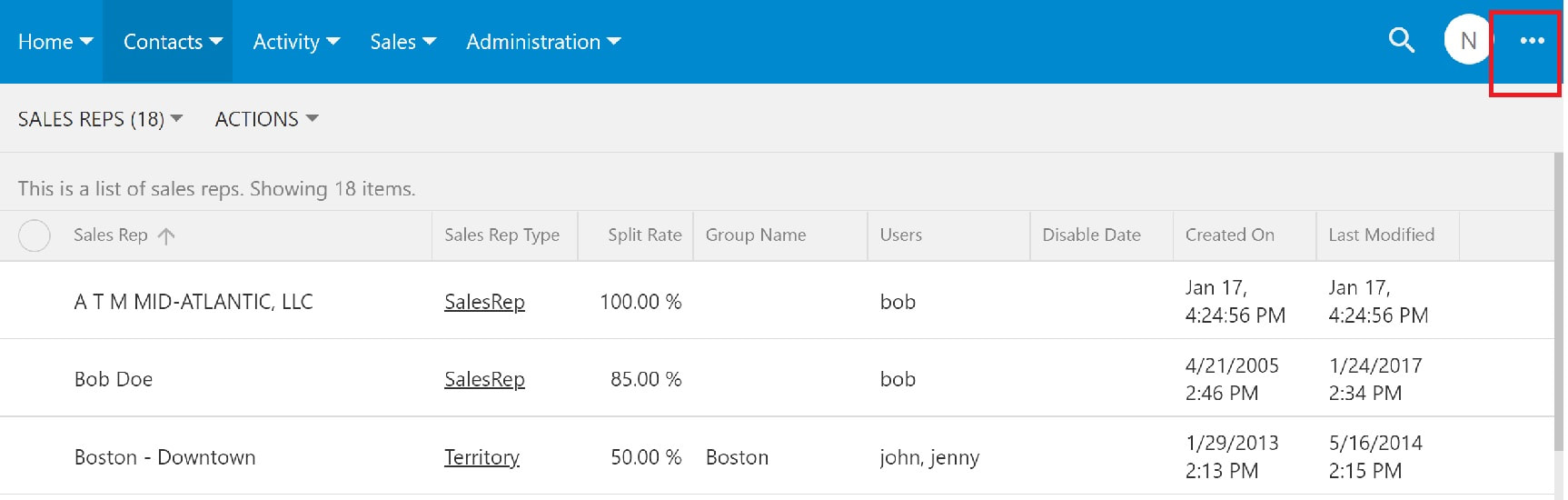 |
| 2 - Click or tap on "New Sales Reps" when the slidebar on the right opens to open the New Sales Rep Form 3 - The New Sales Rep form opens. 4 - Fill out the form 5 - When finished, click or tap "Save" | 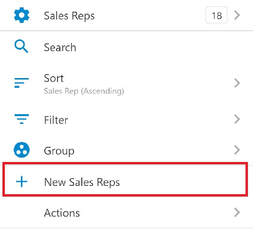 |
Mobile Options:
| | Option 1: 1 - Tap on "Contacts - Sales Reps" on the Menu bar or from the Tab bar (bottom of the page) |
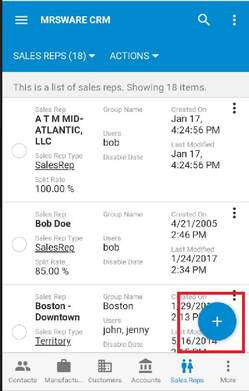 | 2 - Tap on the "Plus" sign in the Sales Reps table to open a New Sales Rep form. |
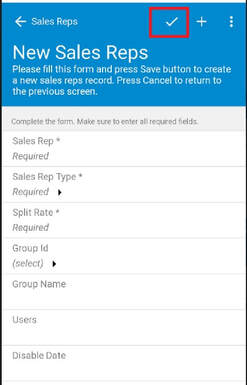 | 3 - Fill out the form 4 - When finished, tap the "checkmark" on the Menu bar (top of the page) to save the new sales rep |
| Option 2: When adding more than one new sales rep: After completing the first New Sales Rep form Instead of tapping the "checkmark" to save the new sales rep 1 - Tap the 3 dots to the far top right of the Menu bar on the New Sales Rep form. | 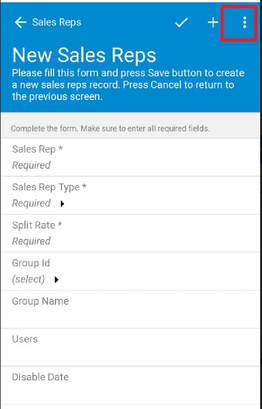 |
| 2 - Tap "Save and New" to save the just completed new contact and open a New Sales Rep form. 3 - Fill out the form 4 - Tap the 3 dots to the far top right of the Menu bar on the New Sales Rep form. Repeat steps 2 and 3 Continue to add new sales reps When finished 5 - Tap the "checkmark" to save the new sales rep Or 5 - Tap "Save" on the slidebar menu | 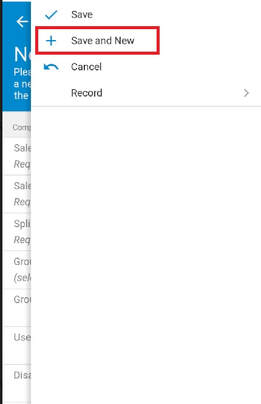 |
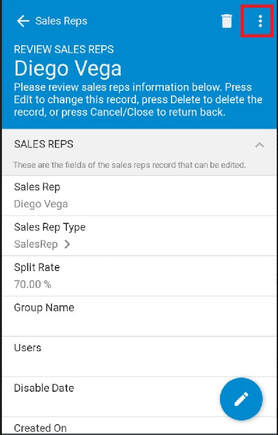 | Option 3: When adding a new sales rep from a Review Sales Rep form: 1 - Tap on the 3 dots on the Menu bar on the Review Sales Rep form |
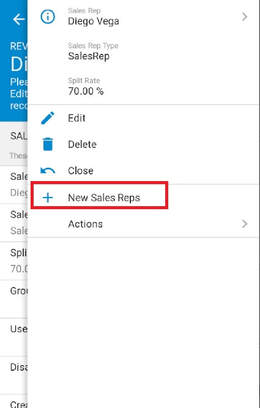 | 2 - Tap on "New Sales Reps" 3 - Fill out the New Sales Rep form When finished 4 - Tap the "checkmark" to save the new sales rep Or 4 - Tap "Save" on the slidebar menu |