
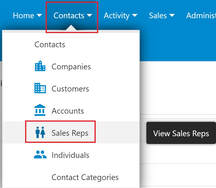
When you want to edit a current Sales Rep or Territory, go to "Sales Reps" under the Contacts menu.
 |
Here's how to edit a current sales rep:
i - As in the MRSware desktop client there is more than 1 way to edit a sales rep
Desktop options
i - As in the MRSware desktop client there is more than 1 way to edit a sales rep
Desktop options
| Option 1: 1 - Click or tap "Contacts - Sales Reps" on the Menu bar or Menu list | 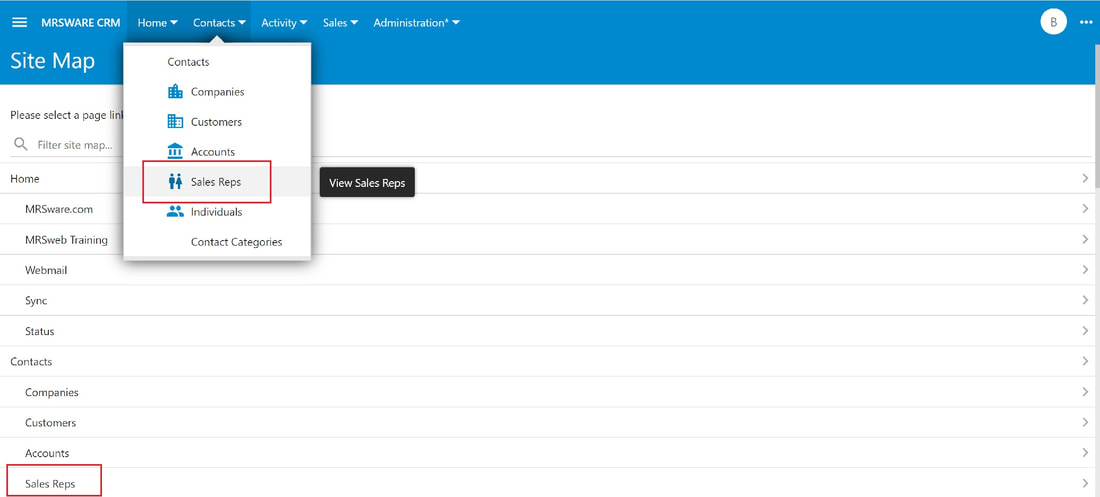 |
| 2 - Click or tap a current sales rep to open a Review Sales Rep form | 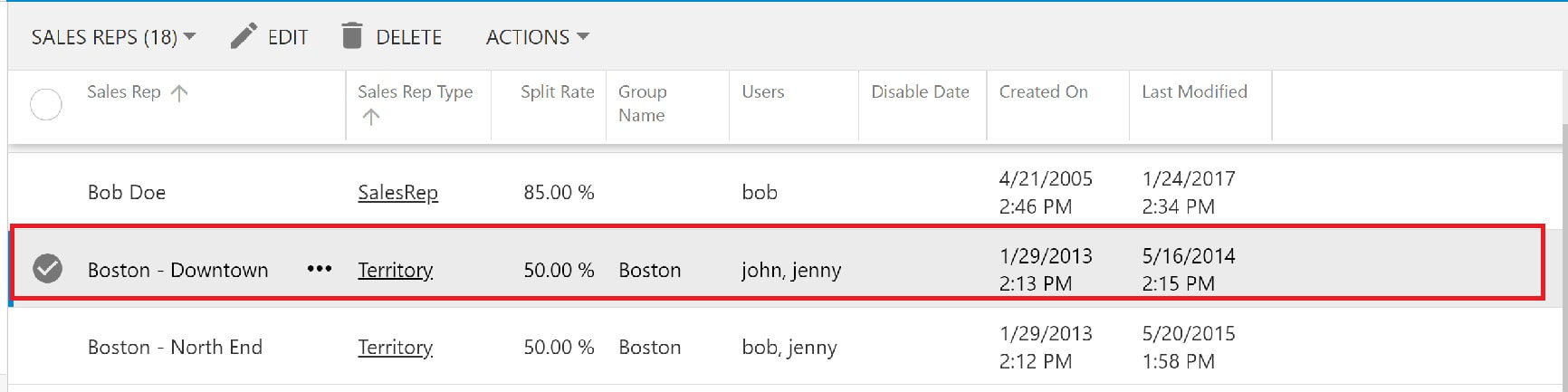 |
| 3 - The Review Sales Rep form opens 4 - Click or tap "Edit" | 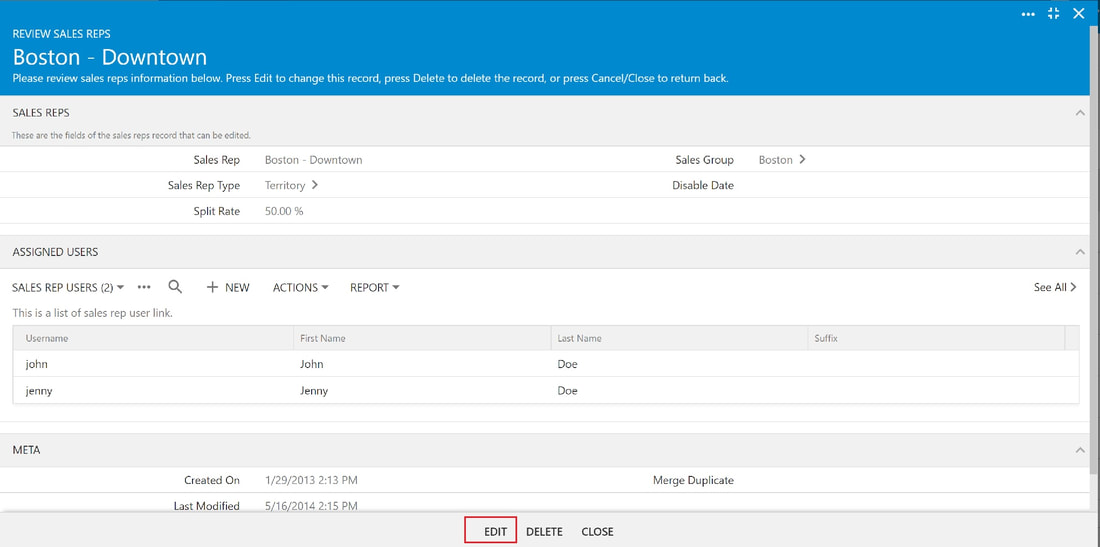 |
| 5 - Change or add information to the form (we changed the Split Rate in the screenshot example to the right) 6 - Click or tap "Save" | 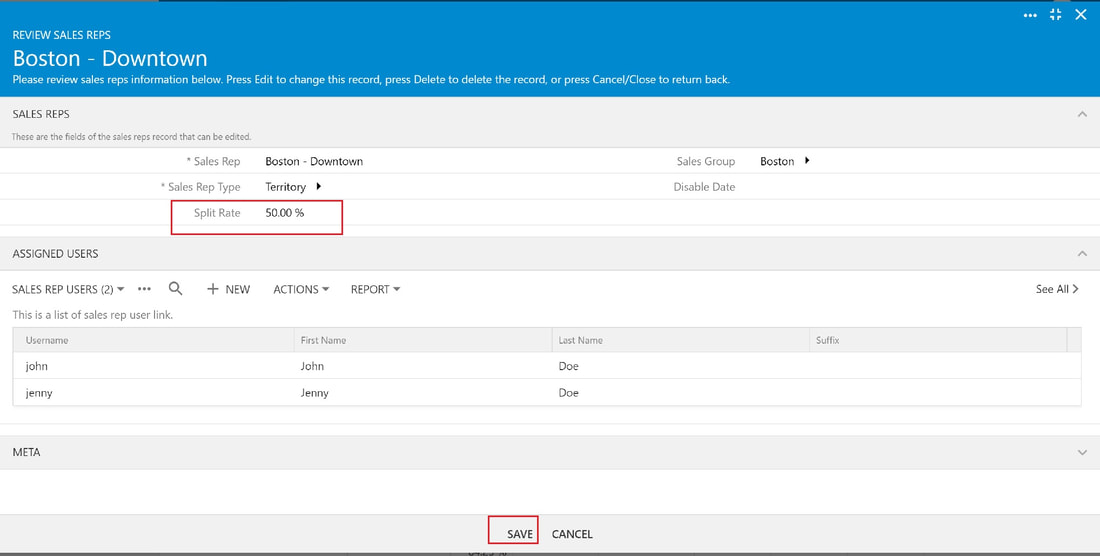 |
| Option 2: 1 - Click or tap the 3 dots icon to the right of a current sales rep 2 - Click or tap "Select" to open a Review Sales Rep form (see screenshot to the right) 3 - The Review Sales Rep form opens 4 - Click or tap "Edit" 5 - Change or add information to the form 6 - Click or tap "Save" | 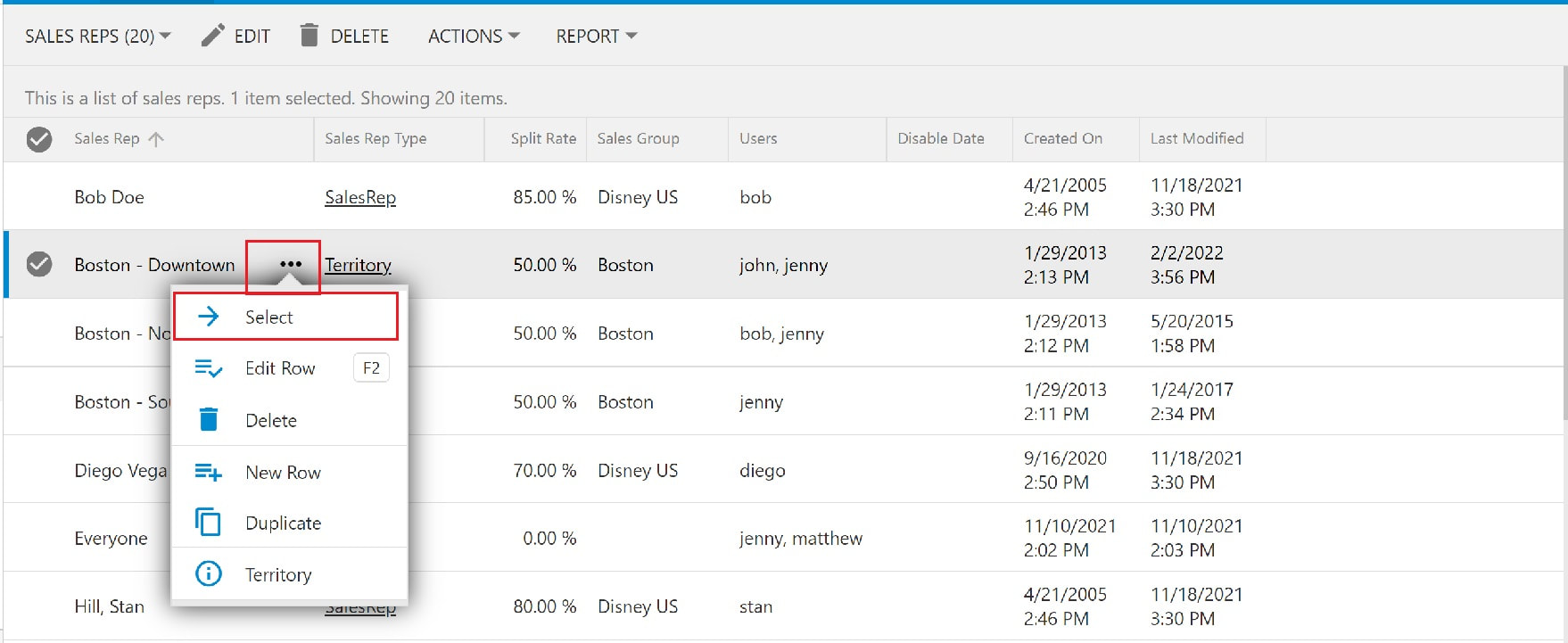 |
| Option 3: 1- Click or tap the sales rep to edit 2 - Click or tap the 3 dots icon on the Menu bar, to the right of your Initial (see screenshot on the top right) 3 - Click or tap "Select" from the Slidebar menu to open a Review Sales Rep form (see screenshot on the bottom right) 4 - The Review Sales Rep form opens 5 - Click or tap "Edit" 6 - Change or add information to the form 7 - Click or tap "Save" | 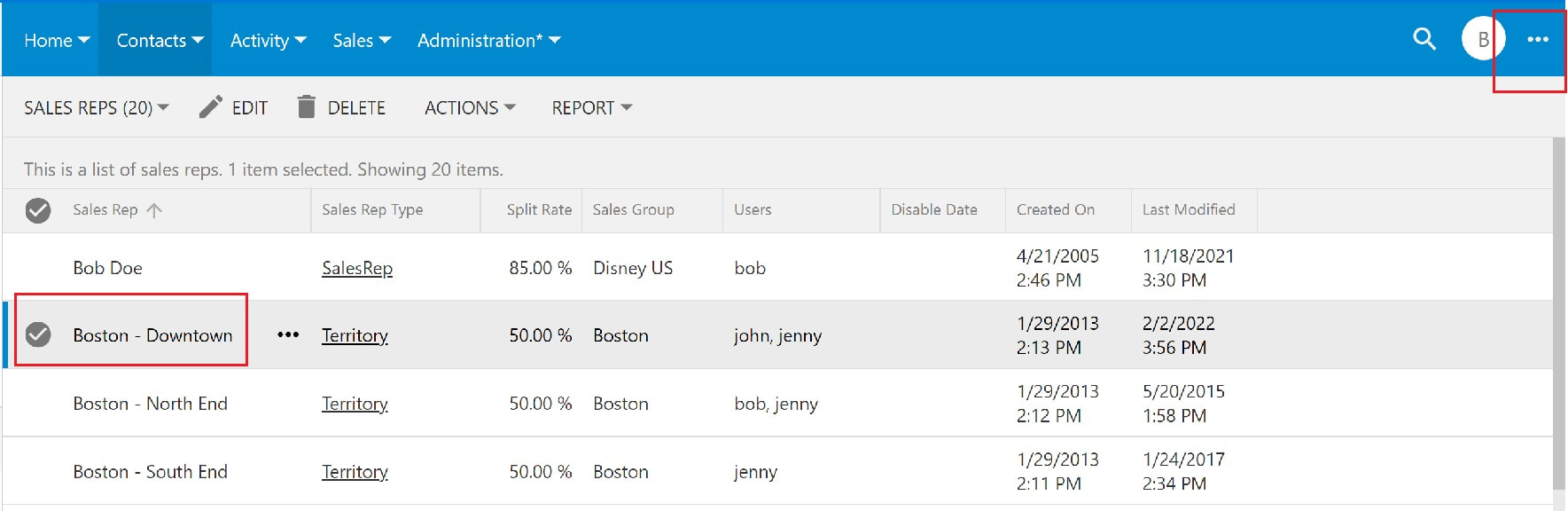 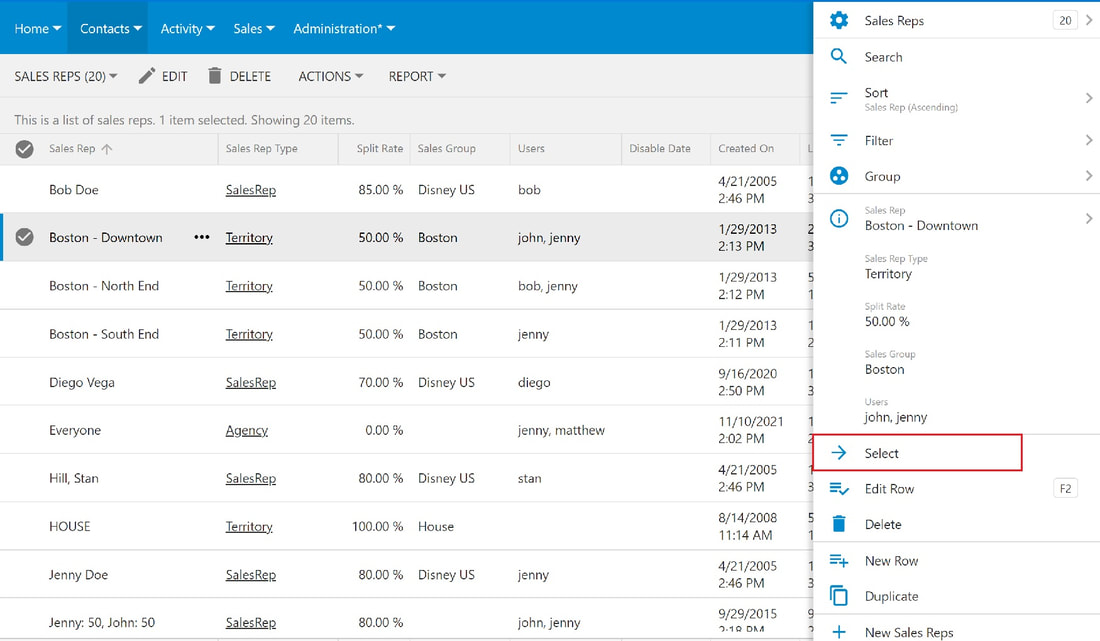 |
Mobile options:
Option 1:
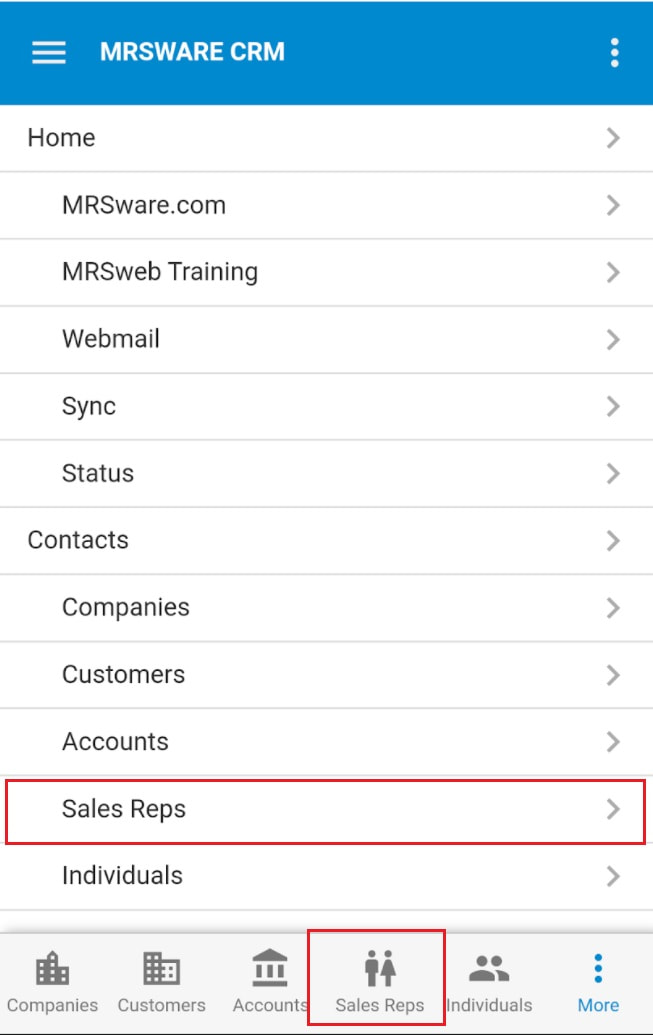
1 - Tap "Contacts - Sales Reps" on the Menu list or "Sales Reps" in the Tab bar (screenshot below left)
2 - Tap a current sales rep
3 - The Review Sales Rep form opens
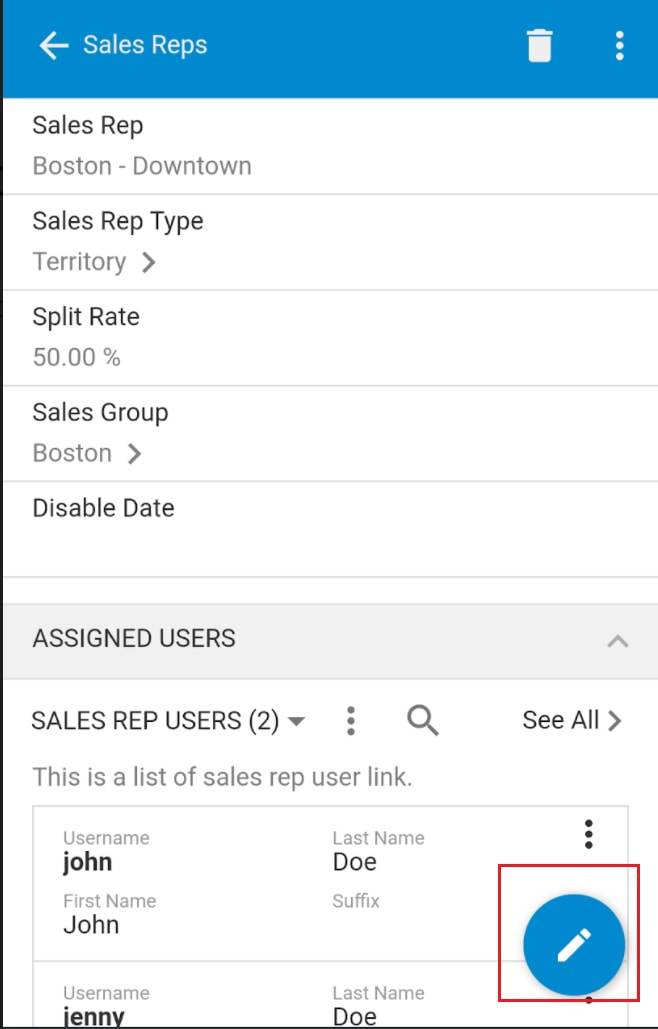
4 - Tap the pencil icon (Edit) in the bottom right of the page (see the screenshot below middle)
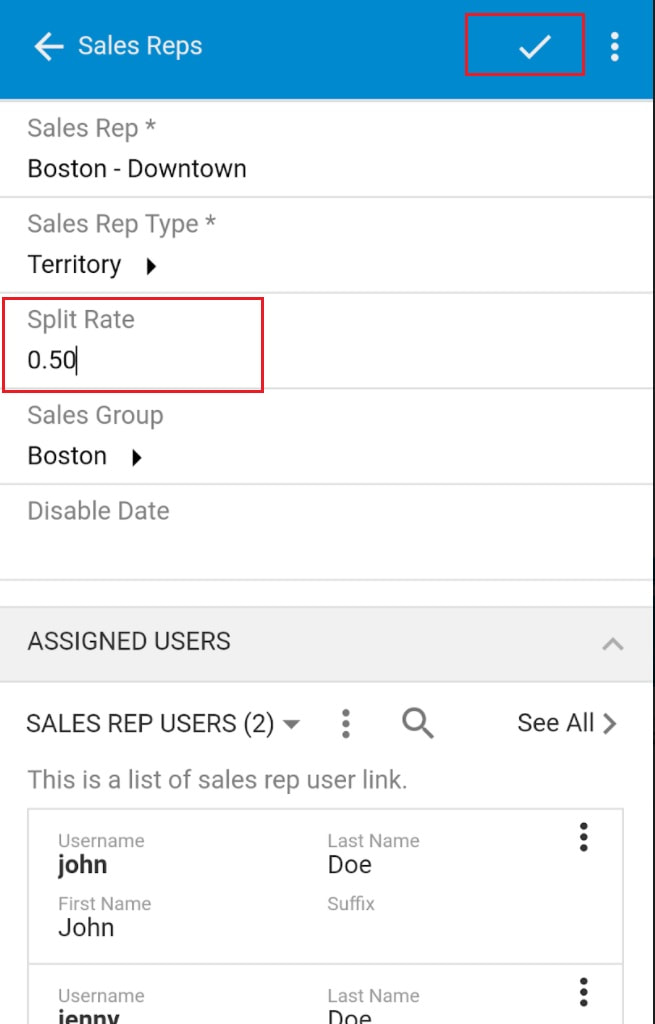
5 - Change or add information to the form (we changed the Split Rate in the screenshot example below right)
6 - Tap the checkmark (Save) at the top right (see the screenshot below right)
Option 1:
1 - Tap "Contacts - Sales Reps" on the Menu list or "Sales Reps" in the Tab bar (screenshot below left)
2 - Tap a current sales rep
3 - The Review Sales Rep form opens
4 - Tap the pencil icon (Edit) in the bottom right of the page (see the screenshot below middle)
5 - Change or add information to the form (we changed the Split Rate in the screenshot example below right)
6 - Tap the checkmark (Save) at the top right (see the screenshot below right)
 |  |  |
| Option 2: 1 - Tap the circle, to the left of a current sales rep 2 - Tap the pencil icon (Edit) on the Menu bar (see the screenshot to the right) 3 - The Review Sales Rep form opens 4 - Change or add information to the form 5 - Tap the checkmark (Save) | 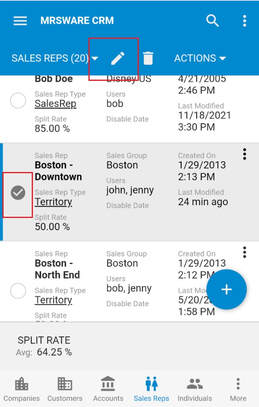 |
| Option 3: 1 - Tap the 3 dots to the right of a current sales rep 2 - Tap "Select" on the Slidebar from the bottom of the screen (screenshot to the right) to open a Review Sales Rep form 4 - The Review Sales Rep Form opens 5 - Tap the pencil icon (Edit) 4 - Change or add information to the form 5 - Tap the checkmark (Save) | 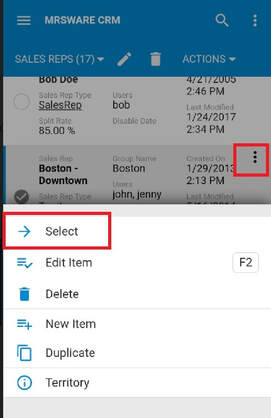 |
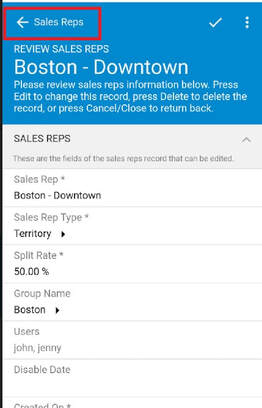 | i To get back to the Sales Rep listing, without making any changes, tap the back arrow at the top of the Edit page. |