
There are certain areas in MRSware where it makes sense to use industry specific words or terms that are used by your company rather than generic terms. In Opportunity Tracking there are three places to customize MRSware for your company - Type, Opportunity Phase, and Close Reason.
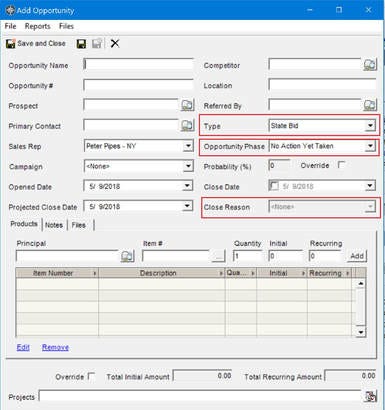
Opportunity Type
This field describes the kind of opportunity you are working on.
Opportunity Phase
This field indicates the sales steps your sales team uses in order to close the opportunity.
Opportunity Close Reason
This field lists various reasons why you won or lost the business.
Each of these areas have drop down menus that you can add to, edit, or delete from.
! Be careful when deleting as the deletion may affect more than a single opportunity.
! After you come up with the terms you want to use, we recommend one person - usually your System Administrator - make the additions or edits in your system.
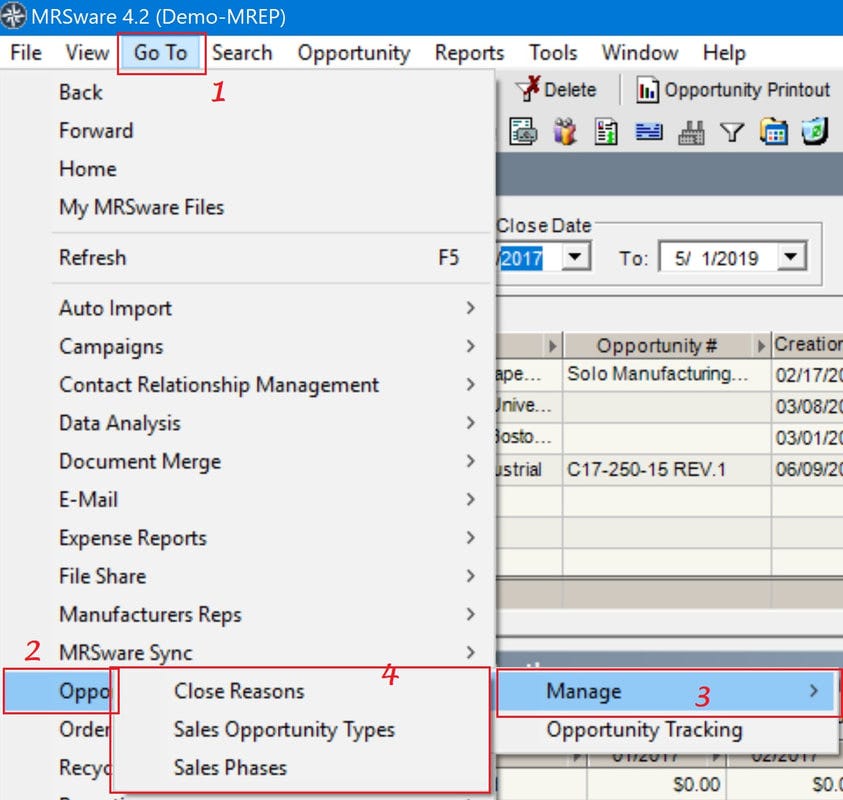
To access the areas for you to "manage" (customize), use Go To on the main menu bar.
Here's how:
1. Click on "Go To" on the main menu bar
2. Navigate down the list, hover your mouse over "Opportunity Tracking"
3. Move your mouse to "Manage"
4. Click on one of your 3 options:
Close Reasons
Sales Opportunity Types
Sales Phases
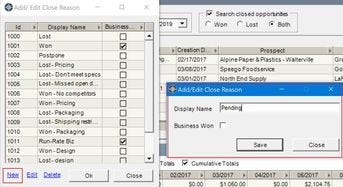
Close Reasons - Add a new reason
When you add a close reason, follow the steps above to access your Add/Edit Close Reasons dialog, then:
1. Click "New"
2. In the Display Name field (in the pop-up dialog), type in your new reason and click "Save"
3. In the original dialog, click "Ok"
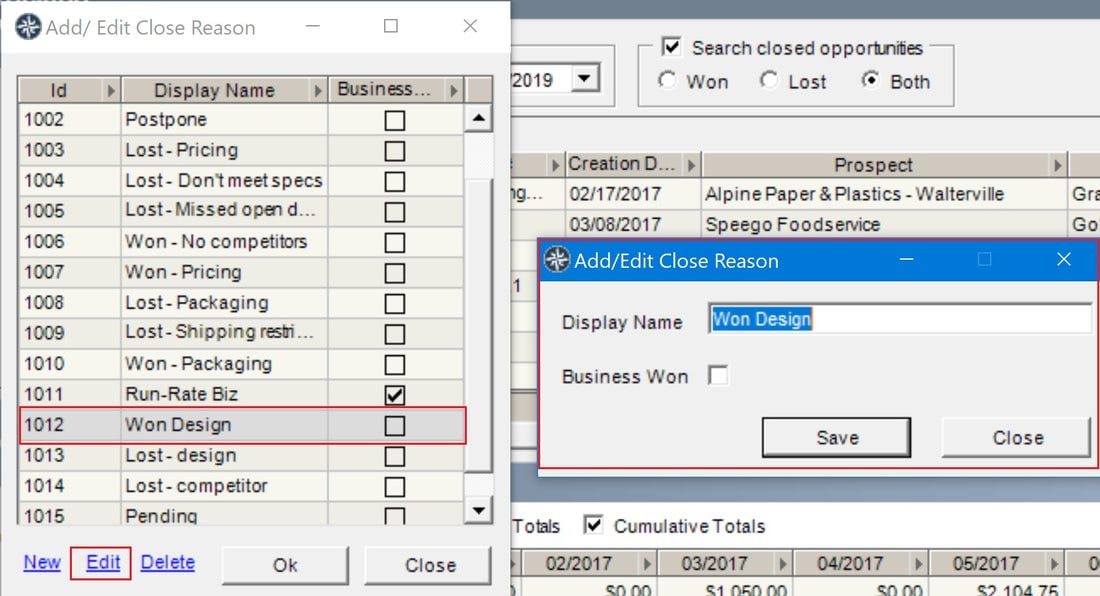
Close Reasons - Edit a current reason
If you decide to edit a current close reason, follow the steps above to access your Add/Edit Close Reasons dialog, then:
1. Highlight the close reason you want to edit, by clicking on the reason
2. In the Display Name field (in the pop-up dialog), type in the changes to your current reason and click "Save"
3. In the original dialog click "Ok"
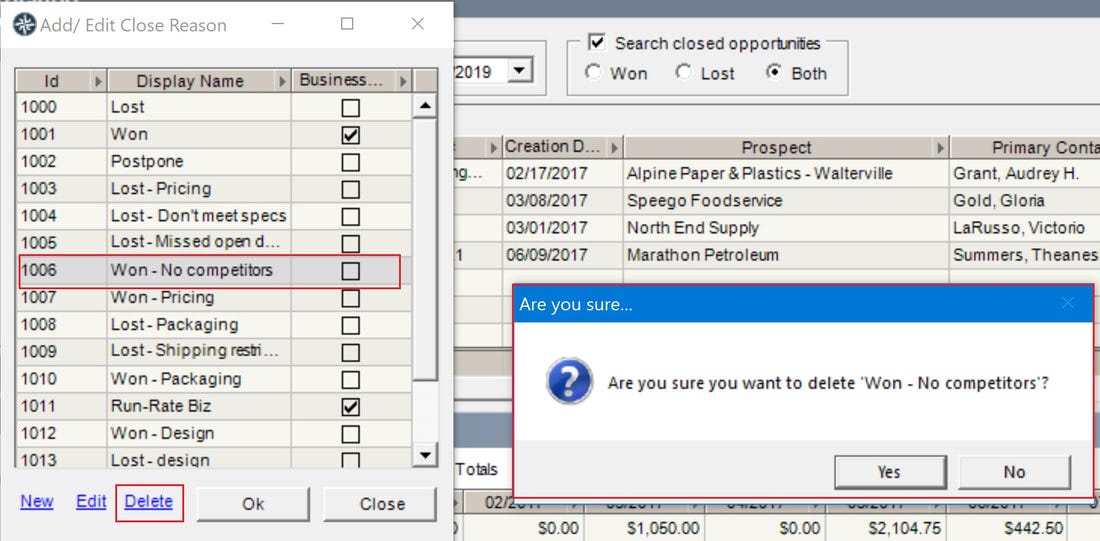
Close Reasons - Delete a current reason
! Again, we caution you when deleting a current reason, as anything deleted will affect more than a single opportunity.
If you decide to delete a current close reason, follow the steps above to access your Add/Edit Close Reasons dialog, then:
1. Highlight the close reason you want to delete, by clicking on the reason
2. A pop-up dialog "Are you sure" will open asking you " ? Are you sure you want to delete "the name of your current reason?"
3. If you are sure you want to delete the close reason, click on "Yes" and then in the original dialog, click "Ok"
When you want to add a new, edit or delete a current Sales Opportunity Type or Sales Opportunity Phase, you follow the same steps as shown above.
You may have noticed that both of these dialogs have a "Probability" column.
The probability field, indicates the likelihood of closing the opportunity. Both the Type and the Phase probabilities combine to factor into the "Probability %" to close shown in the Opportunity itself. The higher the numbers in the dialogs, the higher the likelihood you will be successful in winning the business.
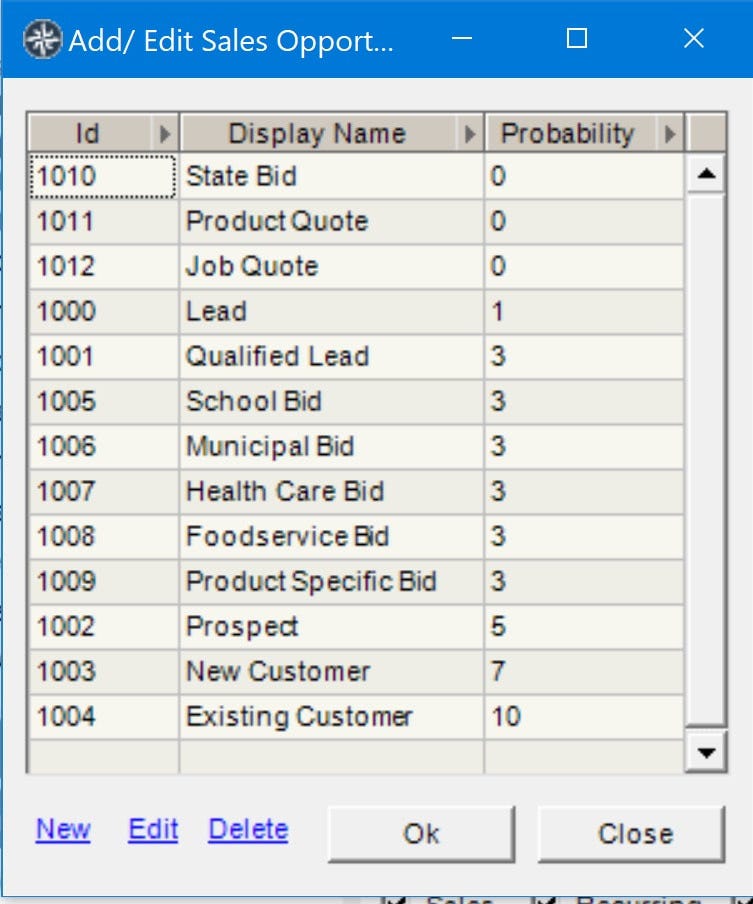
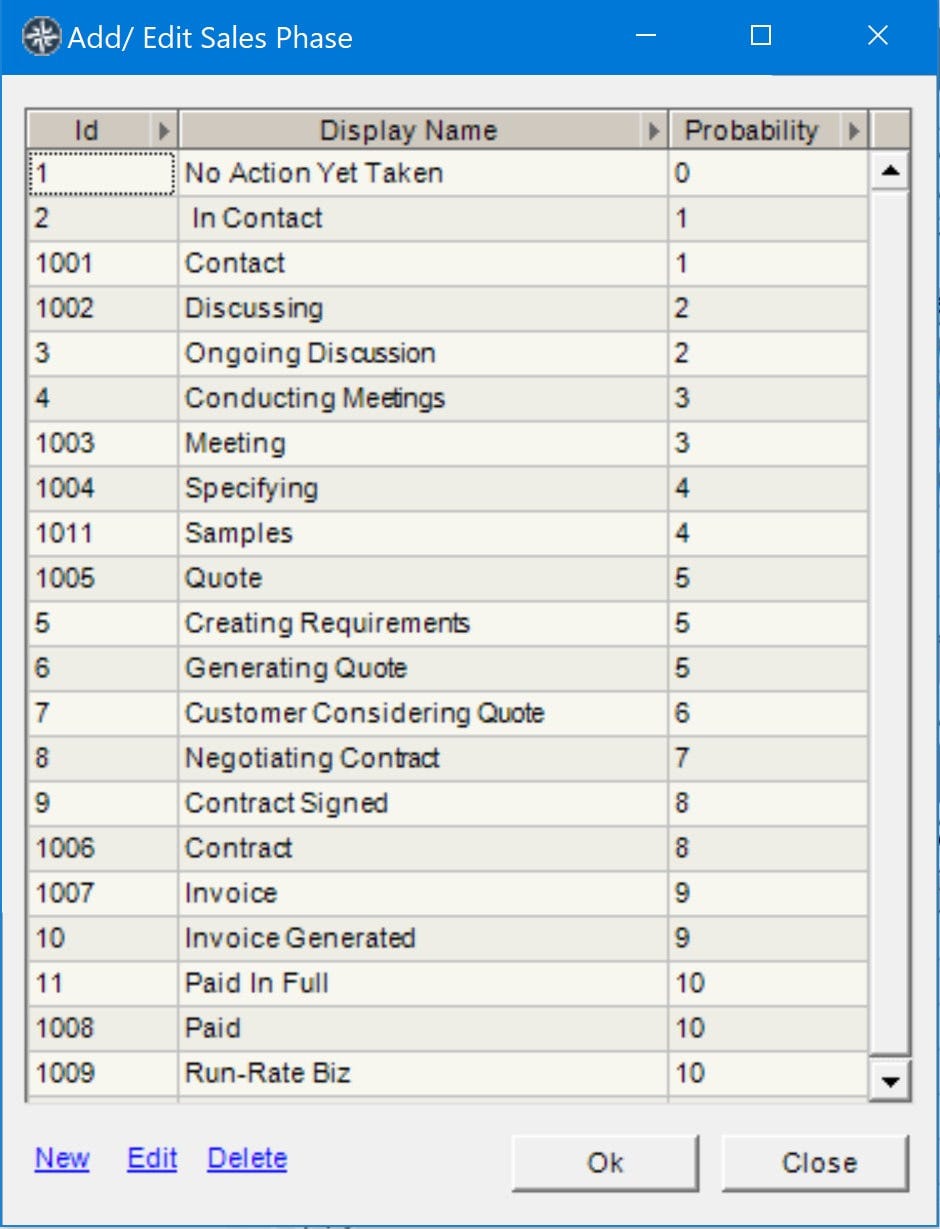
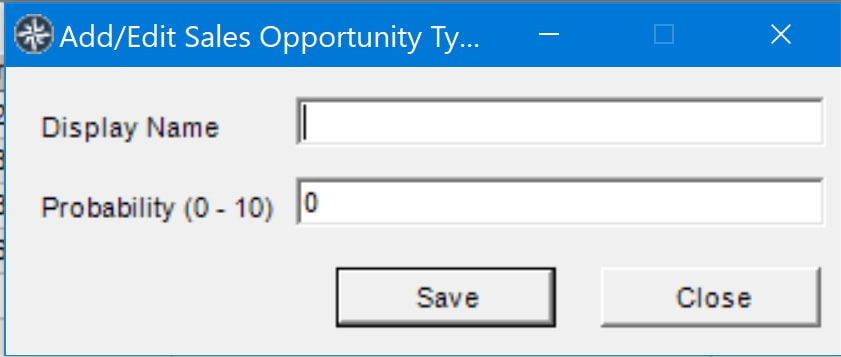
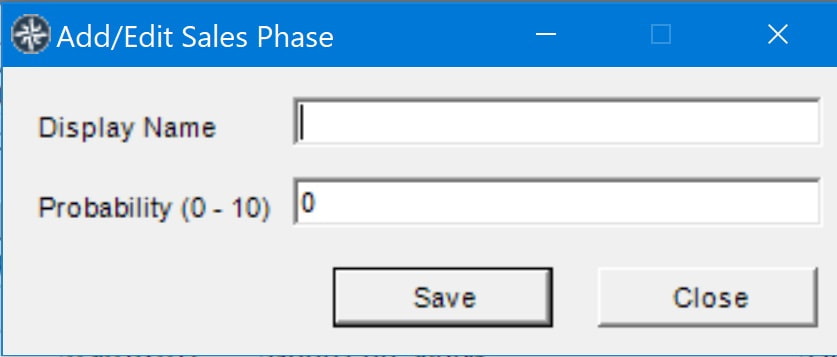
You will take one additional step when adding or editing a type or phase - you will add a number in the Probability field.
Let's call this step 2a.
2a. Add a number from 0 - 10 in the Probability (0-10) field. Think about how the type or sales phase will effect the outcome of the opportunity when entering a number.
There are many other areas in MRSware that you can customize to make the system more usable. To view the other areas, read "Creating and Assigning Types, Categories, and Other Attributes within MRSware", found in under the Support menu, Documentation.