When searching for information, you can sort and filter the table column headers or you can use the Search feature found on each page.

Click or tap the Search icon to open the Search field.
To access the Advanced Search features, click or tap the 3 dots to the far right of the Search field.

In the example below, you are looking for journals entered by the sales team so you can report to your manufacturer on the activity that has taken place during a specified period of time.
1 - Click or tap the Search icon to open the Search field
2 - Click or tap the 3 dots at the far right of the Search field
This opens the Advanced Search form
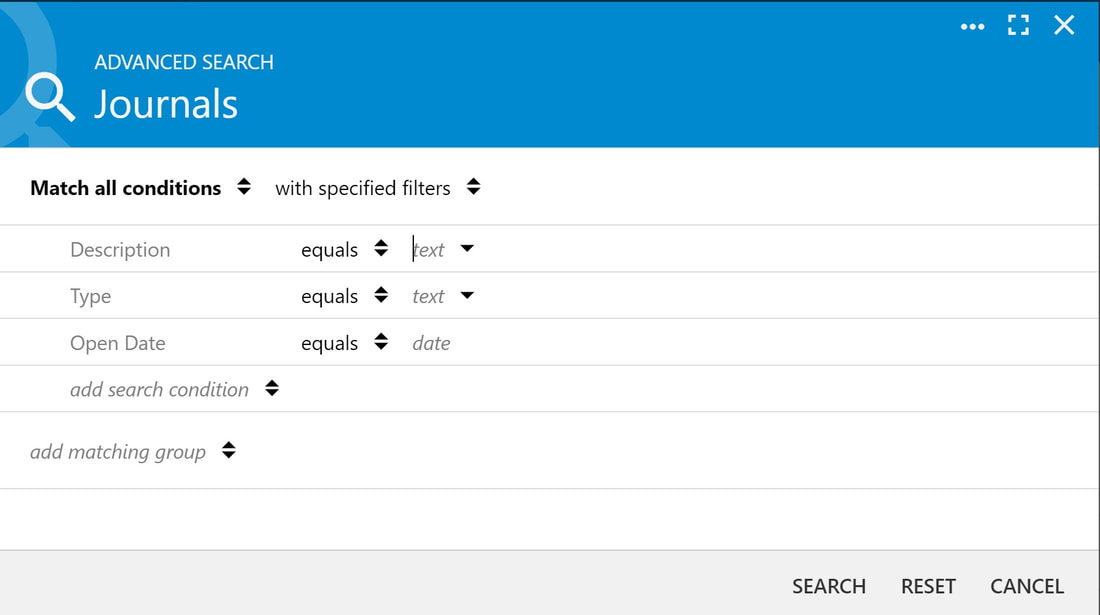
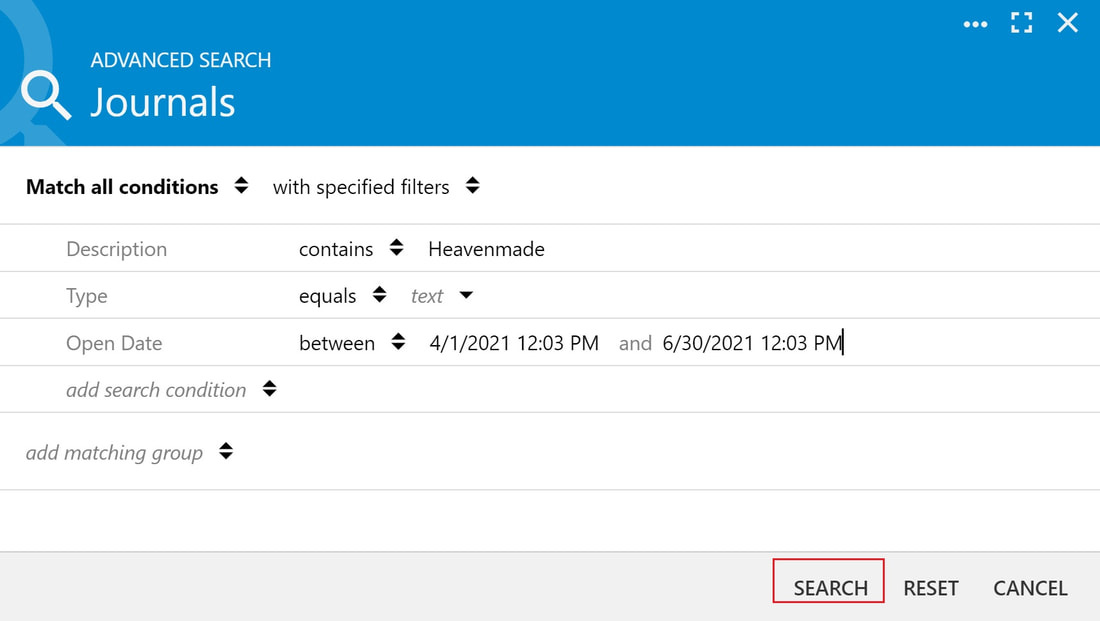
3 - Fill out the form
i Click or tap on the up/down arrows to access various parameters
4 - Click or tap "Search" when done
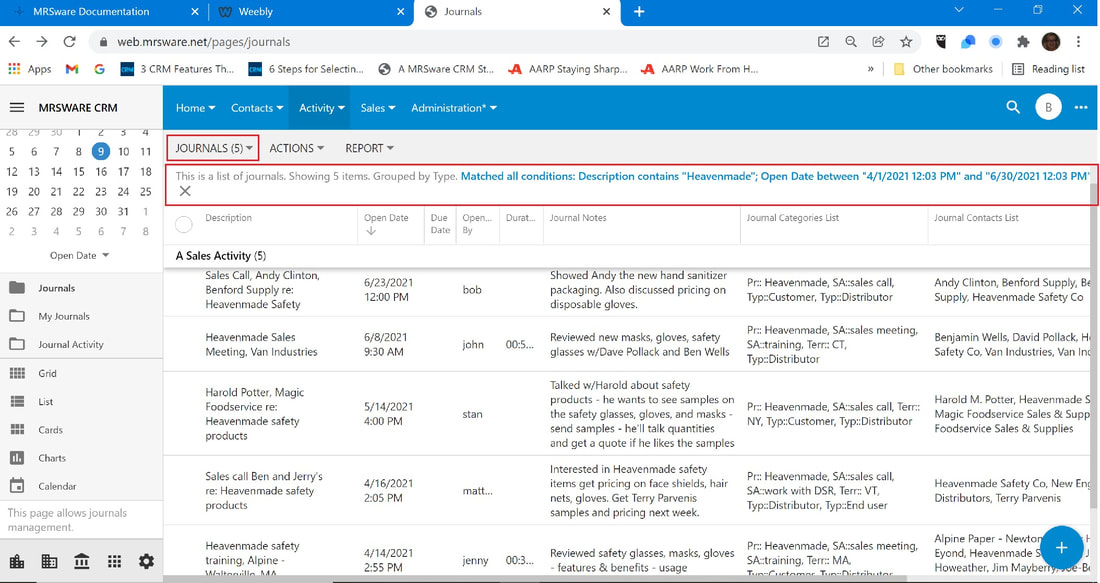
Your Search results will show in your table.
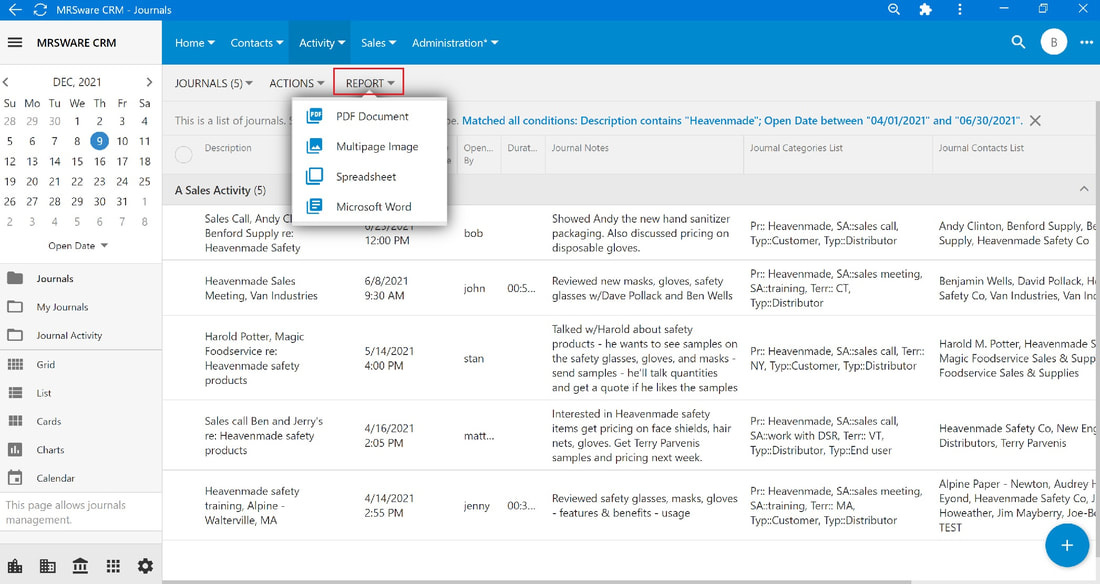
To share the results with your manufacturer,
5 - Click or tap the "Report" menu and select how you want to print it.