
There may be times when you have started to do a Sales Import and want to save a it for completion at a later date, without having to remove it and start again. For example, in the file you've just imported, you notice:
some new customers and you want to first import them to Customers list and assign a Sales Rep to each new customer
some new product items and you want to first import them to the Product Catalog
pricing inconsistencies and you want to verify the correct prices
an incorrect commission rate which you want to check on
some incorrect quantities and you want to double check the original orders
Basically any time you notice something that doesn't look right or you want to take other action first, you can save the entire import, or just some of the entries for completion at another time.
You've taken the first steps in the import process already, by selecting a file to be uploaded to MRSweb and mapping the fields from the file to MRSweb's fields. Once the fields are matched you notice, as an example, that the commission rates / amounts don't match what you had anticipated for these orders.

You want to look into it before you complete the import process, so you're going to save all the Sales Import items and complete the import at another time.
Here's how:
1. Multi-select the sales import items to save
a - Click or tap the circle to the left of the Manufacturer's Name, which selects all the items in the table
2. Select "Batch Edit"

3. Scroll down in the Batch Edit form, until you see "Preprocessed"
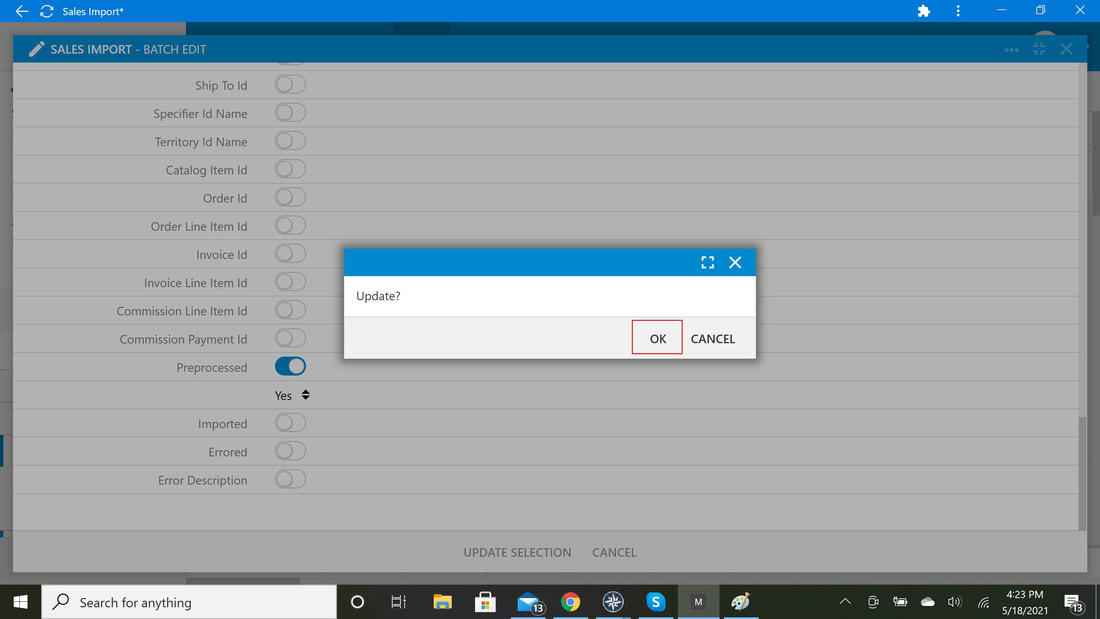
a - Click or tap the button to select "Preprocessed" as the field you are changing on the selected records.
b - Click or tap the arrows and select "Yes".
c - Click or tap "Update Selection".
d - Click or tap "Ok".

Notice there are no records in the Sales Import folder.
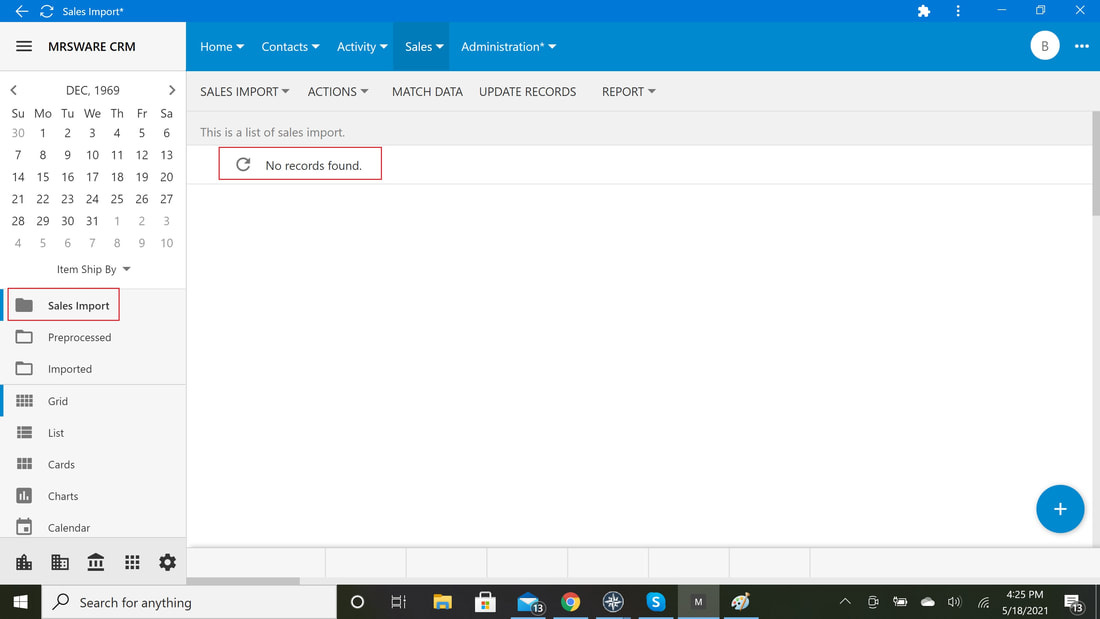
The import items have moved to the Preprocessed folder.

When you're ready, you can return to the Preprocessed folder and move these import items back to the Sales Import folder to complete the import. You move them back in the same way -- once again edit the Preprocessed field on multiple records, and this time mark them "No".