
Perhaps you've run into a situation where a company you do business with decides to change their Email address and that means you have to update all of your records -- not just a company Email address (and there may be branch locations that need to be changed, so not just a single address) -- but also everyone who works for the company (all of the individuals' Email addresses). In some cases this may be 100's, while in others it may be a dozen or so.
The number of addresses to be changed may determine how to change the addresses:
If there are 100's of addresses that need to be changed, you may want to make the change in a spreadsheet and then import the sheet into MRSware. MRSware will update the addresses during import.
If there are only a dozen or so addresses to change you may want to make those changes directly in the system. This is where Inline Editing can be very useful.
The traditional steps to edit an entry, whether working in Desktop or Web, are: Open the contact record, enter the new address, Save and Close, repeat.
In MRSweb you can use Inline Editing to save time. The steps are: Click or Tap next to the email address you want to change, enter the new address, repeat.
Watch the screencast below to see how In-Line Editing works:

You can use it in any table, and once you activate it you can click on any cell in the table to edit the values directly -- basically turning your listing into a spreadsheet, so that you don't have to open each entry individually to edit the fields.
Here are the steps:
1. In the Sidebar Views, click or tap "Grid" to select the spreadsheet view
2. Click or tap on "Individuals -> Inline Editing" to activate the inline editing feature
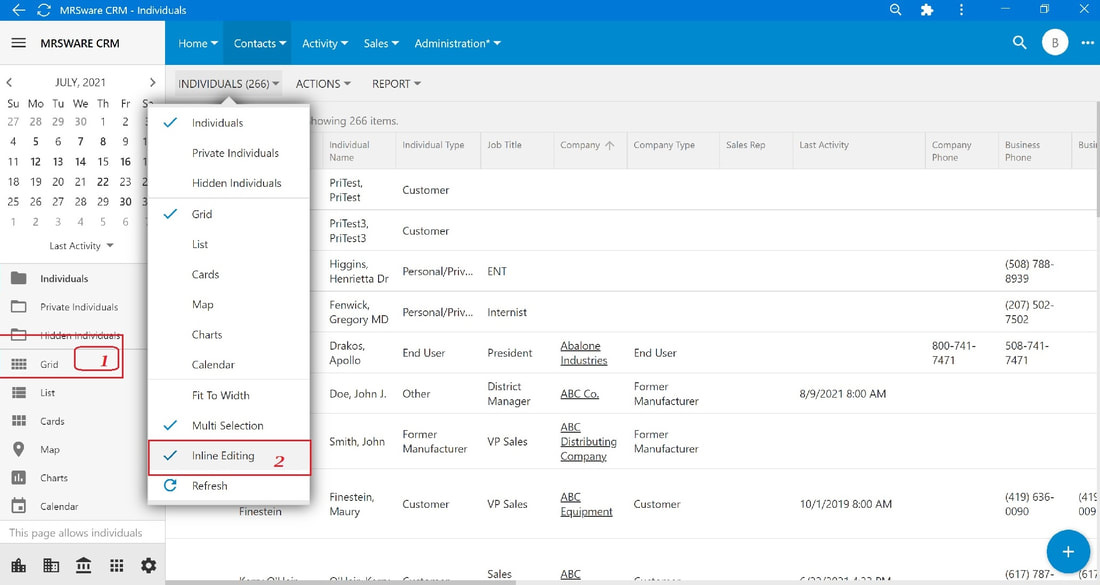
You will see a rectangular blue box that indicates the cell to be edited
3. Navigate to the email address(es) to change
4. Click or tap in the email address column cell
5. Enter the new email address
! Double-click on the cell, if you want to select or change part of the text instead of typing out the whole again
i If the text in the cell is underlined, click anywhere but on the underlined text
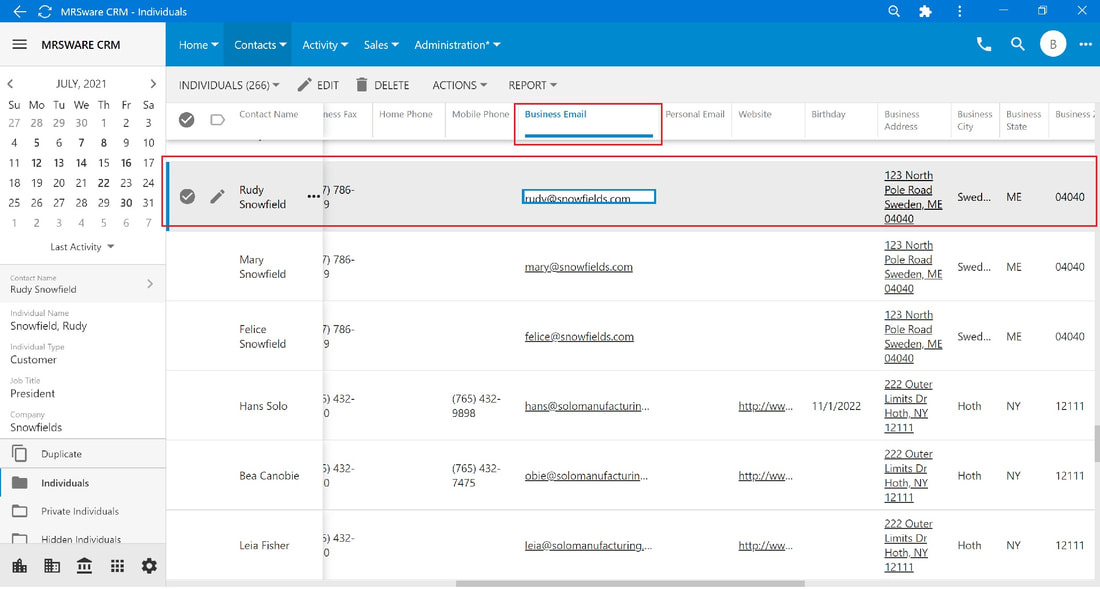
Repeat steps 3 - 5 until all addresses have been updated.
6. Click or tap "Individuals -> Inline Editing" to deactivate the feature.