Link Documents to Companies
When you have an important file you want to retain for your records, you can link the file, from whatever you use to store and share your files currently, e.g. Google Drive, Dropbox, OneDrive, etc., to a Company. For instance, you want to keep a quote you provided to a company, or you want to hang onto a credit application for a new customer so you don't have to ask for the information when they buy from a second or third manufacturer you represent.
The best place to keep a link to the file is in Companies. Read on to learn how.
How to link a file to a Company:
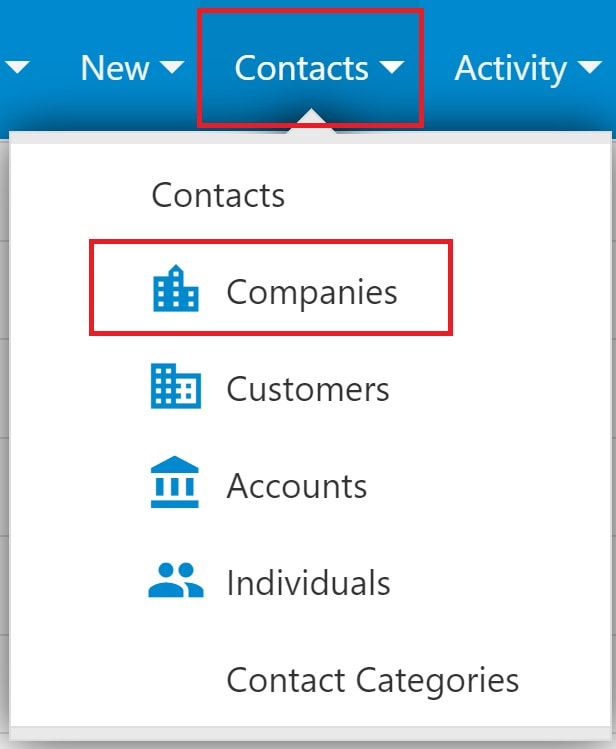
1. Go to the Contacts menu, select "Companies"
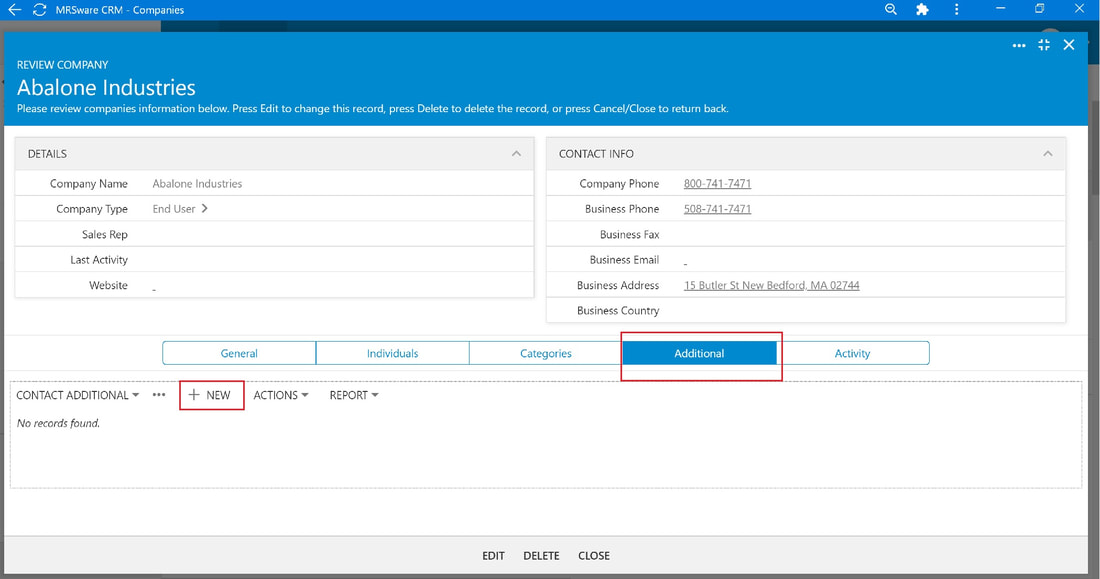
2. Select a Company and open the form by clicking or tapping the Company name
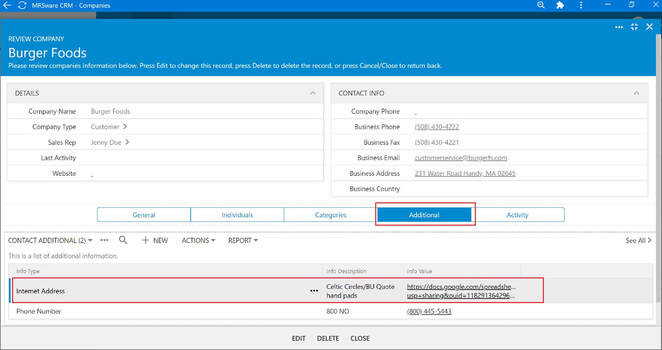
3. Click or tap the "Additional" tab
4. Click or tap "New" in the Contact Additional table menu
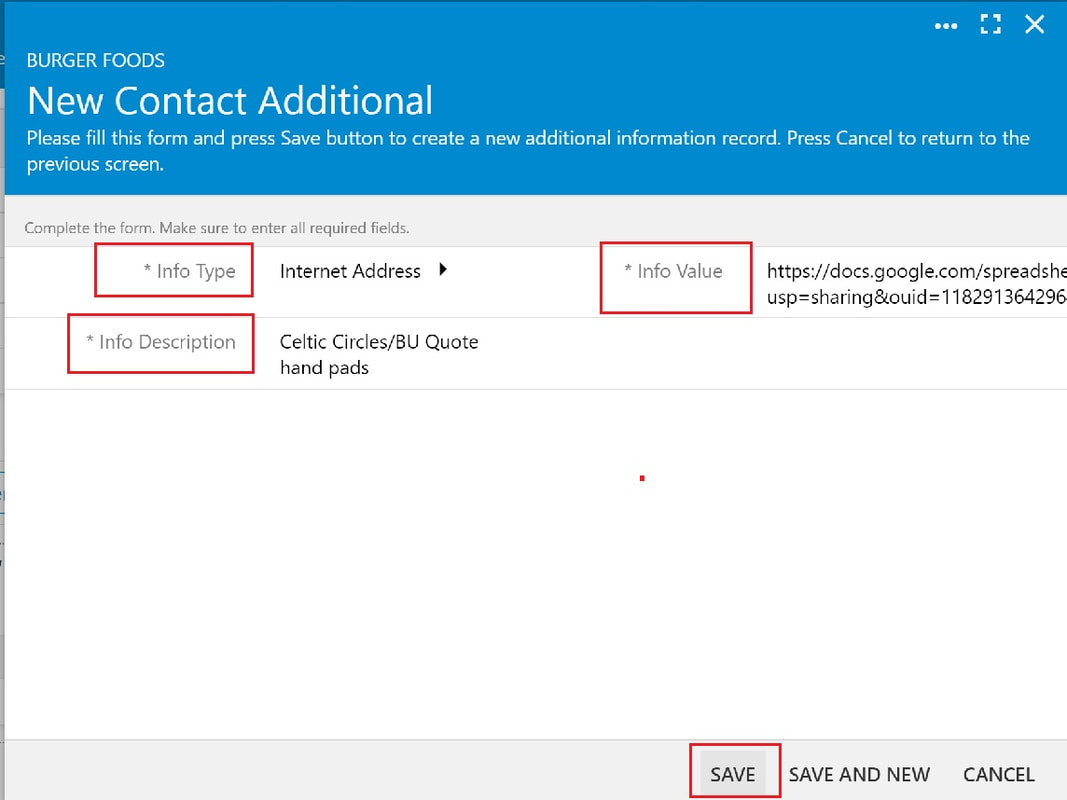
5. When the New Contact Additional form opens, click or tap on the following fields:
Info Type - click or tap "Show Options" to select type
Info Description - enter specific name for the information
Info Value - paste link here
6. Click or tap "Save"
Once you click or tap "Save" the link appears in the Additional tab.
Click or tap the link to open the file.
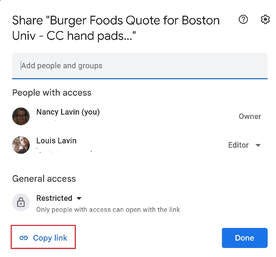
Using Google Drive, here's how to copy the link:
1. Go to Google Drive
2. Open the file
3. Click "Share"

4. Click "Copy Link"
5. Right Click -> Paste to enter link into "Info Value" (see Step 5, above)