MRSweb Orders
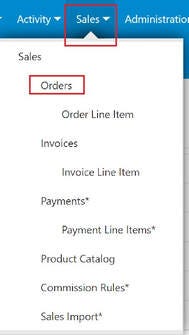
Orders can be found under the Sales menu in MRSweb. Orders are entered in MRSweb once the manufacturer acknowledges the receipt of the purchase order from the customer.
If the order acknowledgements are received from the manufacturer in a spreadsheet you can import the orders using MRSweb's Sales Import. If they are received from the manufacturer via email (one at a time), fax, or paper, you can manually enter them into Orders.
To enter orders using Sales Import, follow the instructions found in this post:
MRSweb Sales Imports - Orders, Invoices, Payments
Here's how to manually enter orders in MRSweb:
1. On the Home Page, navigate to "Sales -> Orders"
2. Click or tap the Plus button (lower right corner) to open a New Orders form.

3. Enter the order in the form
i When an asterisk appears to the left of the field name (e.g. * Order Number) it means the field is required and has to be filled. If you have other information and want to enter it into the form you may do so.
4. When done entering, click or tap "Save" to continue.

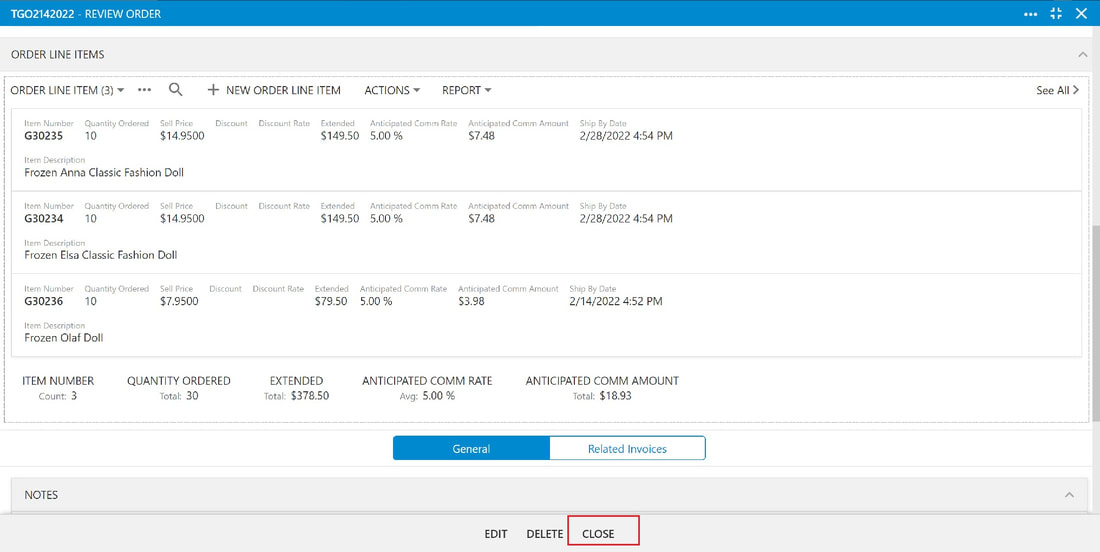
When you click or tap "Save" the Review Order form opens, which allows you to enter line items.
5. Click or tap "+ New Order Line Item"

6b. Click or tap the Product to select it from the list

6a. In the New Order Line Item form, click or tap the right arrow next to Item Number to select the product

7. Fill out the form
8a. To add additional items,
click or tap "Save and New"
Repeat steps 6 - 7
8b. After entering the last item,
click or tap "Save"

9. After reviewing the order, click or tap "Close"