
Sales and commission tracking is one of the major reasons rep firms use MRSware. For those who are entering commissions from a Commission report, the tracking process used to take two steps - entering invoice data into Invoice Entry, and then reconciling commissions in Payment Entry. MRSweb simplifies this process to a single import — enter the commission statement from Invoice to Payment all at the same time.
Sales Import
Follow the normal process for import Invoices into MRSweb:
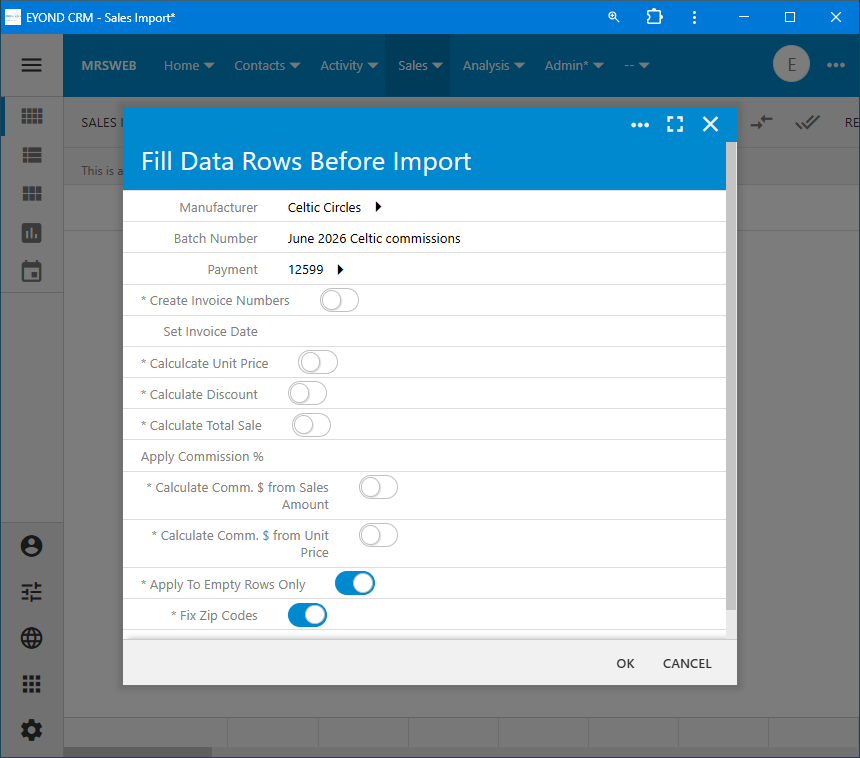
In Step 10, the Fill Data screen, we’ll use the Payment field to fill in the check/commission statement that these invoices belong to.
Adding a Commission Payment:
On the Fill Data page, click in the Payment box (3rd from the top). An existing Payment can be chosen from the list, or select Create New to add a Payment.
Create a New Payment entry:
Type part of the Manufacturer's name (let autofill complete it)
Add a Reference Number (can be the date entered or the check number)
Add the Issue Date (again can be the date entered or the date on the check or the date the check was deposited)
Add the Check Amount
Enter a Memo (e.g. Name of Manufacturer, the Month & Year the commission is paid)
Click or tap "Save" on the New Payment:

To complete the process and add all of the invoices that are being imported to this payment, click Ok back on Fill Data screen. You will see the Commission Payment Id column for all entries fill in with the Reference Number you entered:

When you're finished matching the data and/or completed any updates and the file looks correct, click or tap "Update Records". This will import the data into MRSware.

A notification will pop up from the bottom, stating "Records Updated".
The Sales Import folder will now be empty and the table area will show "No records found".

To view the payment, go to "Sales -> Payments".
To view the details of the payment, go to "Sales -> Payment Line Items"

Go to "Payment Line Items"
Filter on the Manufacturer column to select the manufacturer's name of the payment made
Filter on the Payment Ref. No. column, using the Text Filter to enter the reference number you entered during the import.
* The filters selected are shown (in blue) above the table
All payments from the commission report imported will be shown in the table.
Note in the Sidebar, the 3 Pre-filtered views:
Payment Line Items (table shown in the screenshot below)
Partially Paid Line Items (any invoices partially paid will appear in this view)
short View (a "less-wide-View" to fit better on the smaller dialog screen)

The Invoices appearing on the commission statement that was just imported have all been marked as related to the payment you just entered. Note the totals to make sure everything matches and the process is complete.