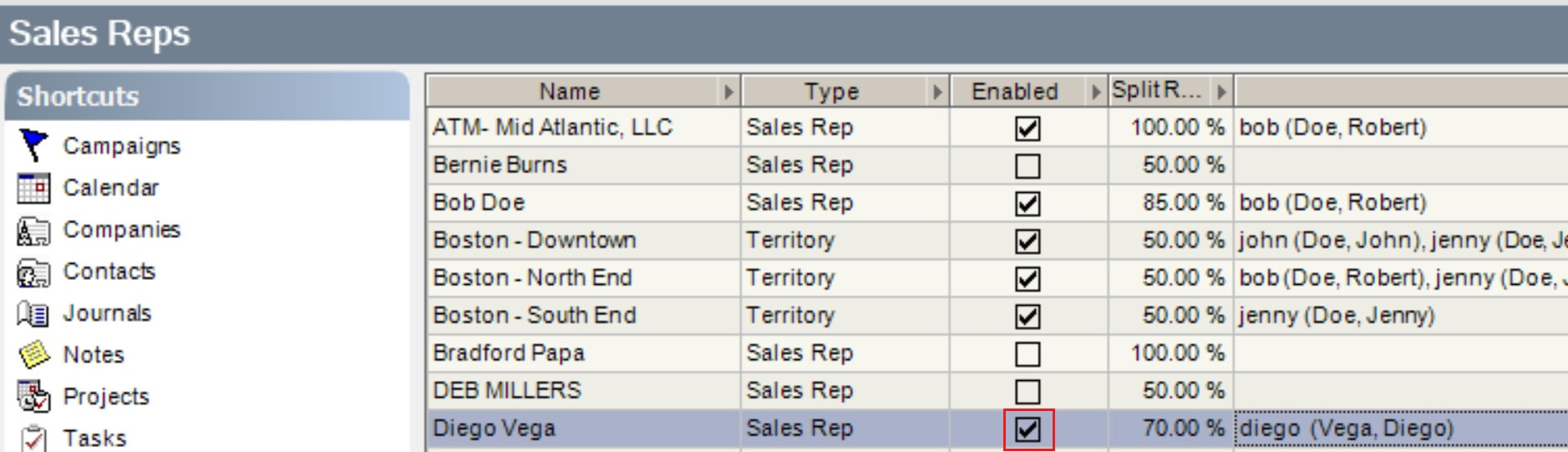
When you hire a sales rep (for example, Diego Vega), you create a new MRSware User, and enable the sales rep in Sales Rep Management. Diego moves to another part of the country, so you disable him as a User and disable his entry in Sales Rep Management. A year later, Diego moves back and you re-hire him. You once again set Diego up as a MRSware User and re-enable him in Sales Rep Management.
Here are the steps to re-enable a sales rep in Sales Rep Management:
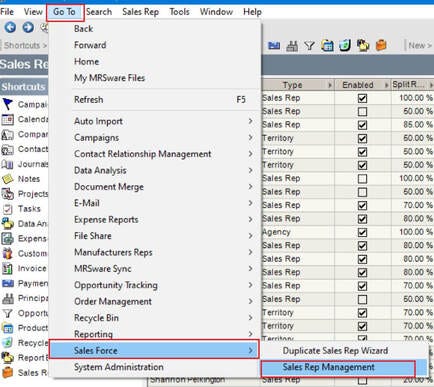
1. On the menu bar, click
"Go To -> Sales Force ->
Sales Rep Management"
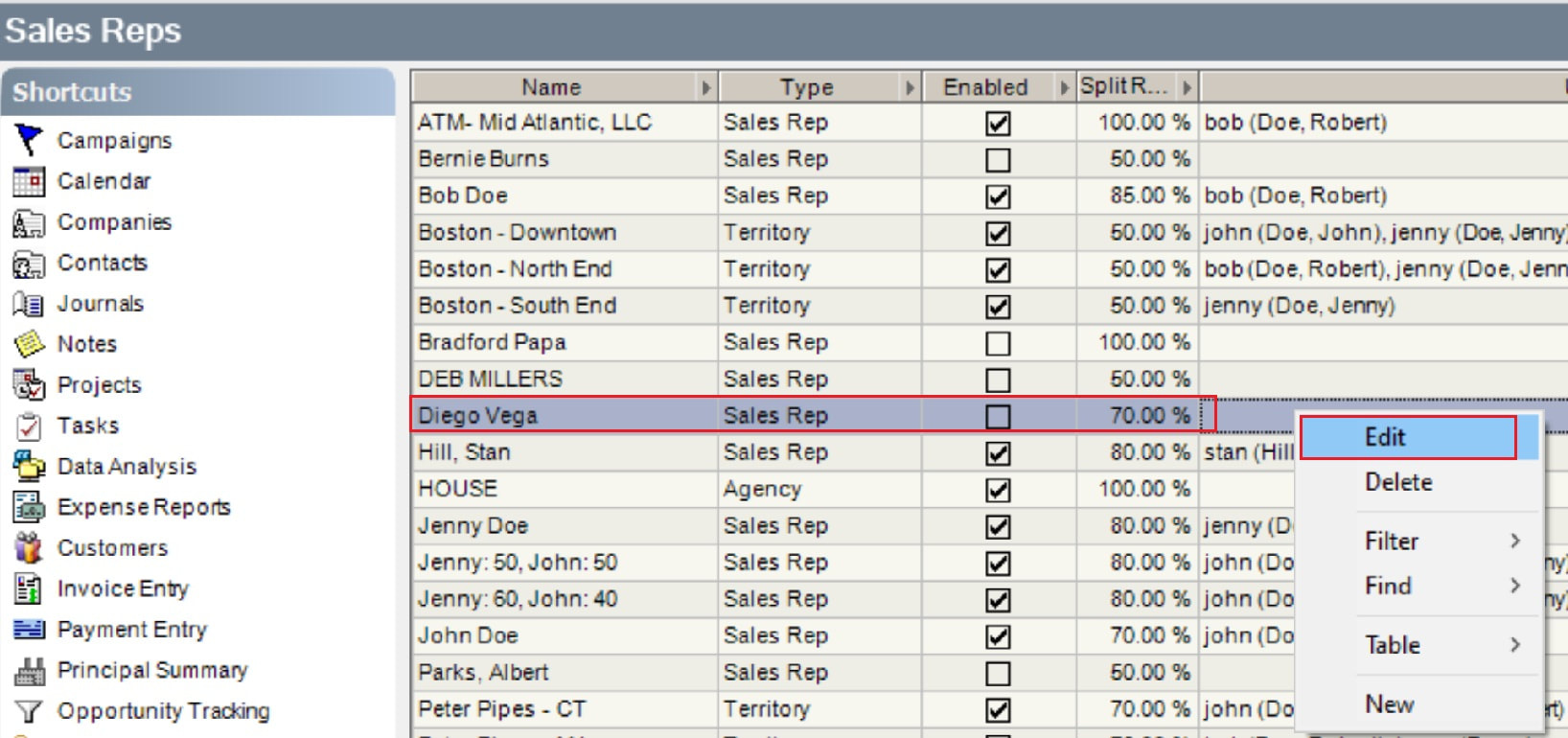
2. In the Sales Rep table, right-click on the sales rep's name and select "Edit"
(In our example - Diego Vega)
Notice in the Enabled column the checkbox is unchecked.
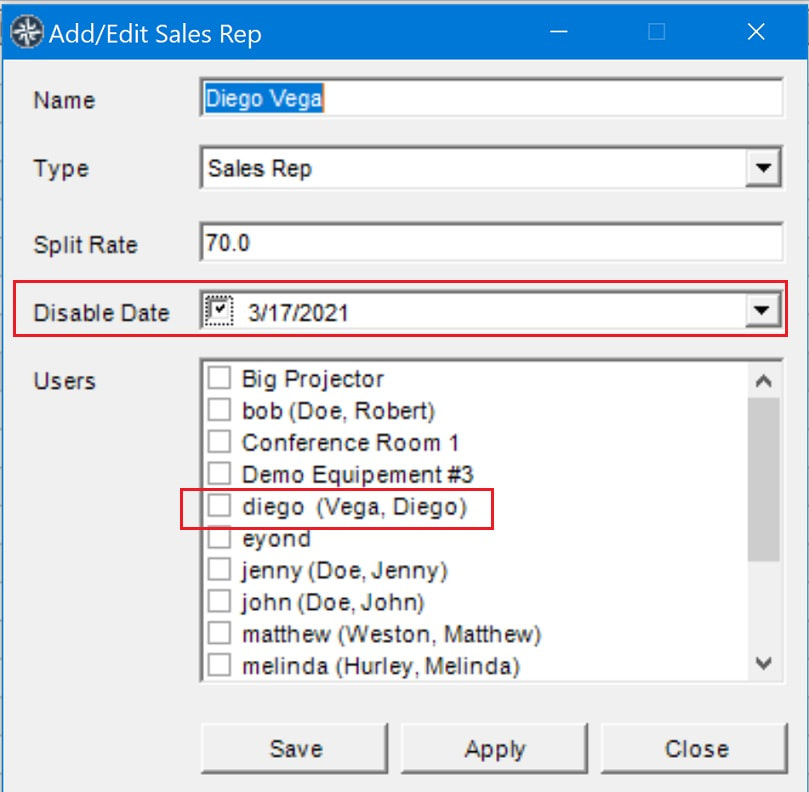
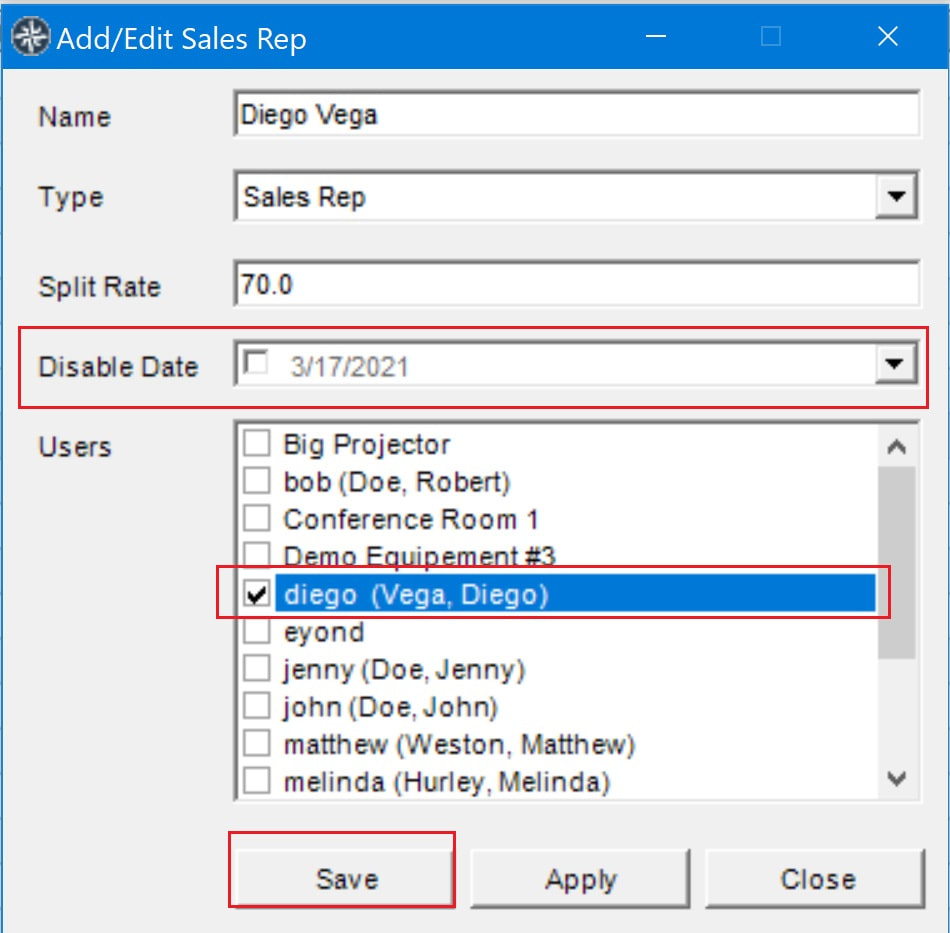
3. In the Disable Date field, click in the checkbox with the date to the right of it. (screenshot below, to the left)
When you click the checkbox, the checkmark will disappear.
4. In the Users field, scroll to find the sales rep's name.
Click the checkbox next to the sales rep's name. (screenshot below, to the right)
5. Click "Save".
In the Sales Reps table, notice the checkmark in the Enabled column.