This report is a list of Students for a selectable Class. It is meant to be run in Excel format, and is typically used for various document merge tasks at MRERF.
Special Fields
Discount is entered as a Student Payment dated "1/1/YYYY", where "YYYY" represents the year of the Course Term. Any payment entered on the 1st day of the new year will be considered a discount for this report. Enter it as a positive number, e.g. $discount + $payment(s) = $course tuition.
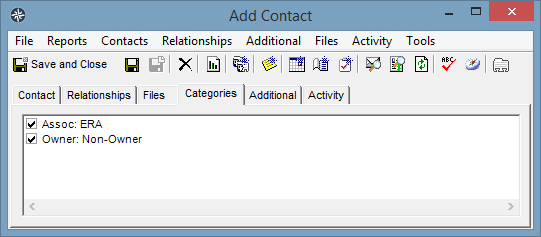
Member/Non-Member designation is controlled by a Student Categories, "Member" and "Non-Member". If neither category is selected for a student, the default is "Member".
Student Tuition is either the Class Tuition (for Members) or the Term Tuition (for Non-Members) as controlled by selecting the appropriate category.
Renamed Fields
This report contains special fields that are derived from various places in the system. Following is a description of these fields and how to enter the data in MRSware to appear correctly on the report.
Certificate Name is the First Name of the Student
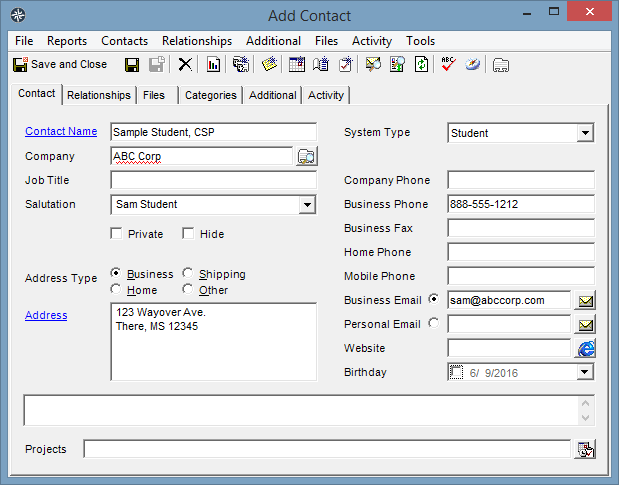
Badge is from the Contact's Salutation field found on their contact card
Designation is the Name Suffix from the contact card
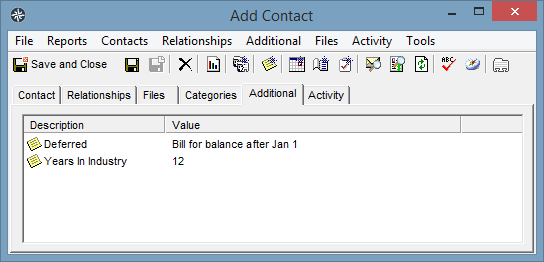
Deferred is entered as an Additional Information field with the Description "Deferred"
Association is a Contact Category that starts with the label "Assoc:"
Study Group is the Student Number field
Non-special Fields
These are the regular fields on the report, taken from their corresponding spots in MRSware. No special entry technique is needed for these.
[blank] column to enter the Study Group
Business Email
Middle is the Middle Name
Last Name
Company Name
Address from Business Street1
State from Business State
City from Business City
Zip from Business Zip
Business Phone
Mobile Phone
Total Paid from the sum of the Students Payments for the Course Term
Balance Due calculated by subtracting the Total Paid from the Tuition
Example Entries for Special Fields
These screenshots show the fields being used from the contact card on the report, compare the names with the list of Special Fields noted above.