
You may have sales rep entries in your system that are duplicated, either from an error in a file that was imported or from a typing error. The example below shows 2 sales rep entries with the same name, but with a misspelling in the second first name. You can remove the unwanted entry(ies) by using MRSweb's Merge duplicate process.
In many cases, you won't be able to simply Delete the entry since it will be assigned to Customers, Orders, or Invoices in the system. Instead of manually going through each of those screen to reassign and be able to delete the incorrect Sales Rep entry, the Merge Duplicate process will do all that for you, reassigning all of the associated entries in the system to the Sales Rep entry that you want to keep.
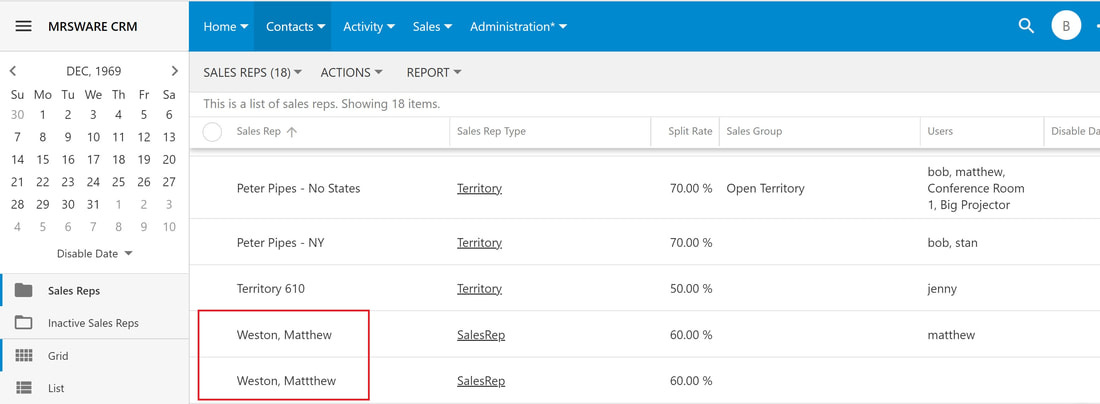
The Merge Duplicates process has 2 major steps to complete: rename the entry that you want to Merge to the same name as the one your want to Keep; and mark the Merge Duplicate selector with a Yes, so that the system knows you are intentionally trying to merge these duplicates.
Only users with the Owner permission can perform a Merge Duplicate.
Here's how to merge duplicate sales reps:
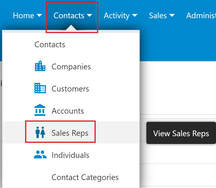
1. Go to the menu bar and click or tap "Contacts -> Sales Reps"
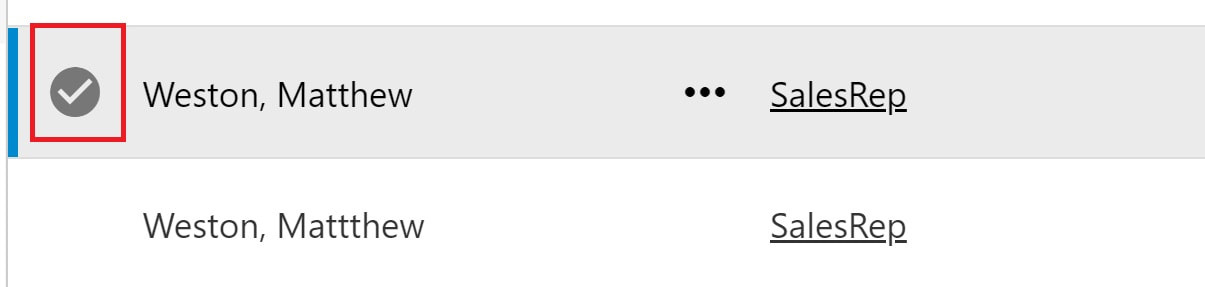
2. Click or tap the sales rep's name you want to keep
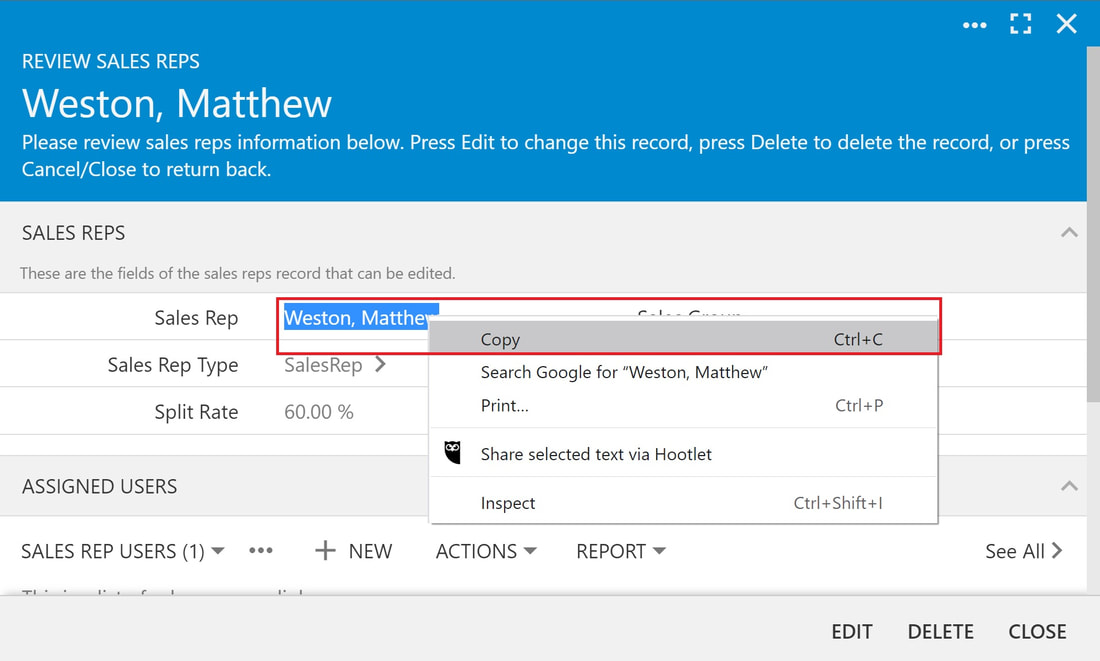
3. When the Review Sales Reps form opens:
Highlight the sales rep's name
Right click, select "Copy"
Click or tap "Close"
4. Click or tap the sales rep's name you want to merge
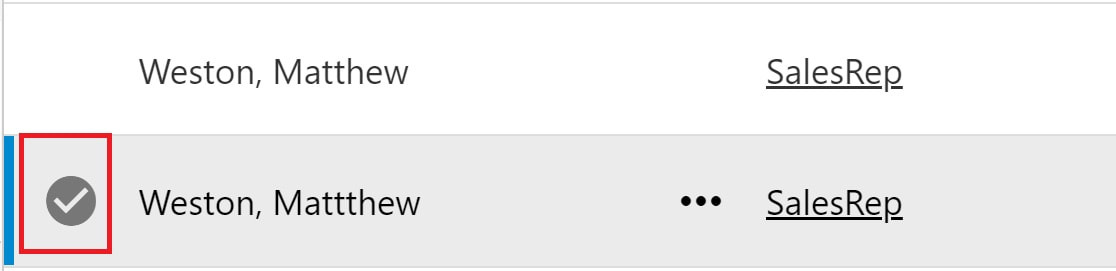
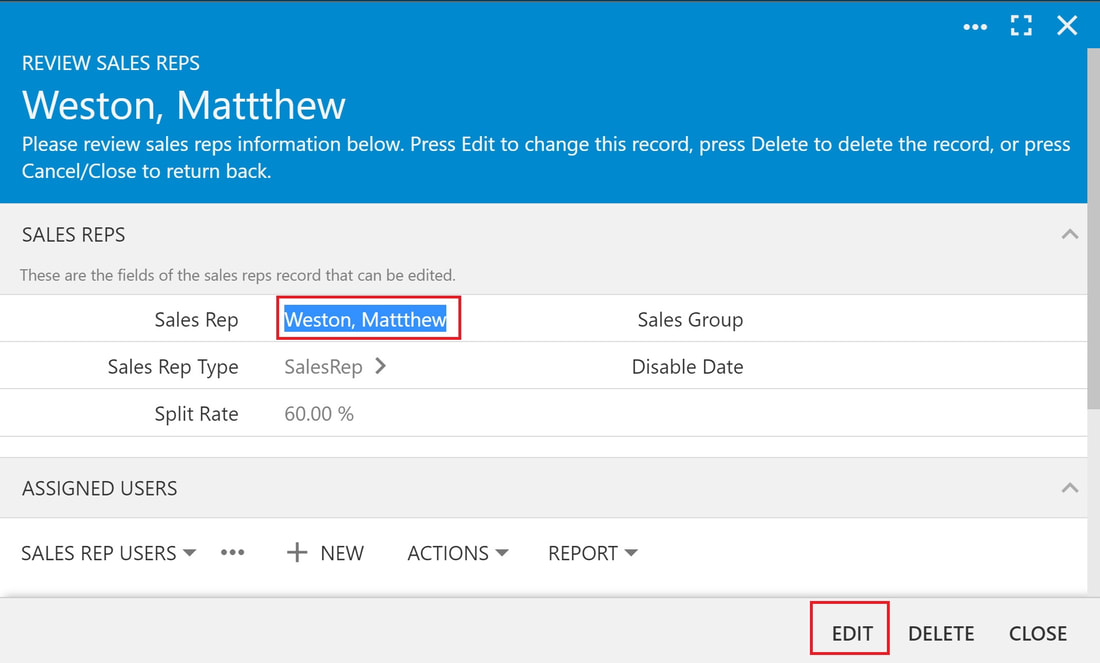
5. When the Review Sales Reps form opens:
Click or tap "Edit"
Highlight the sales rep's name you want to merge
Right-click, select "Paste"
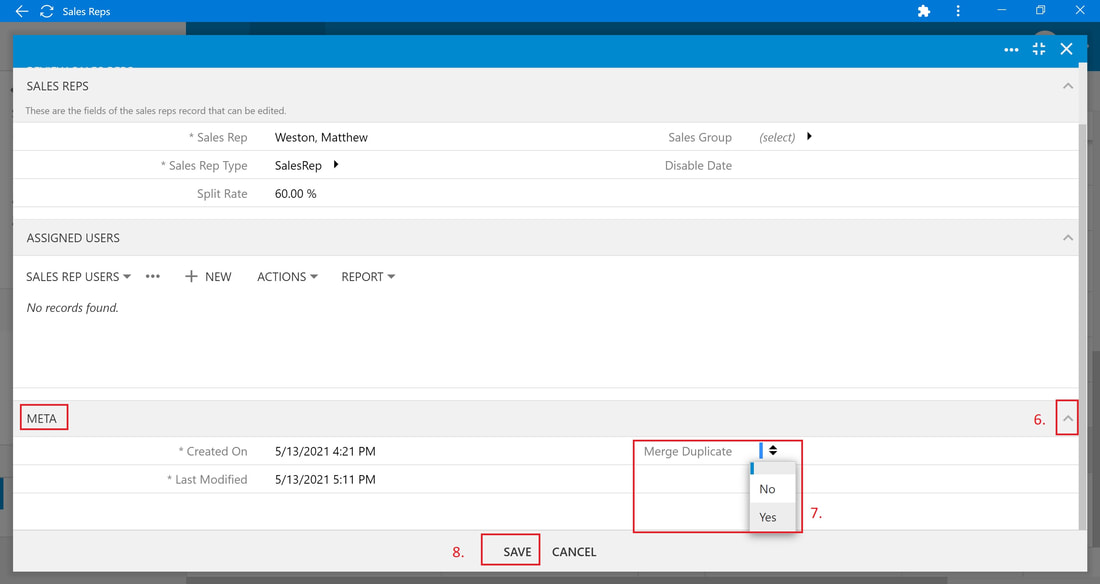
6. Scroll down to the bottom of the form and expand the "Meta" section by clicking or tapping the down arrow on the right.
7. Click or tap the up/down arrows next to "Merge Duplicate" and select "Yes"
8. Click or tap "Save"
The merge is complete.
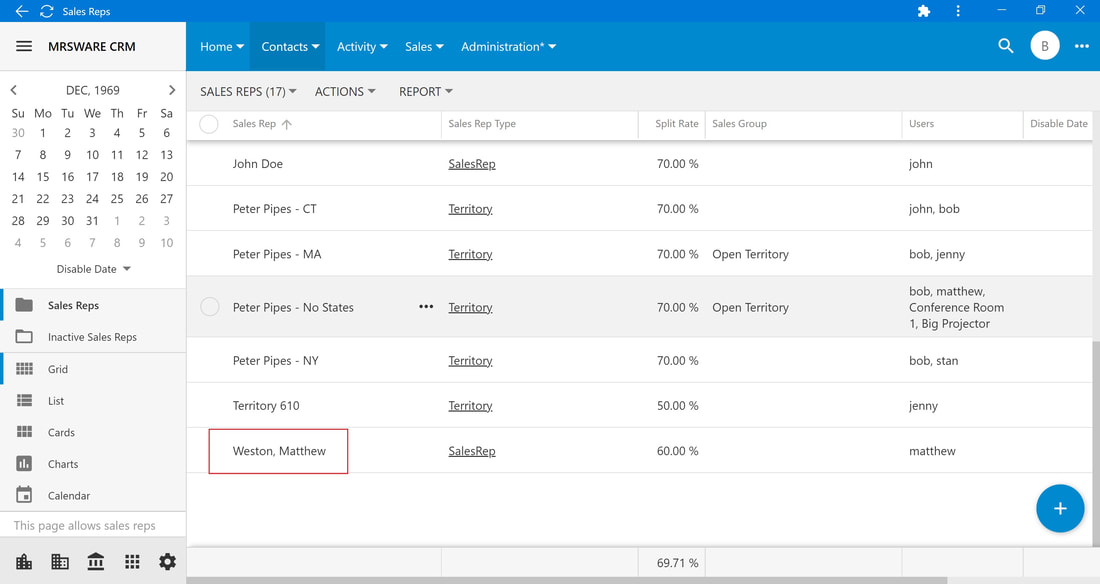
TIP: You can remove more than one duplicate in one go using the Batch Edit feature. Multi-select the entries you would like to Merge, then Batch Edit to rename them all to match the one you want to Keep and mark the Merge Duplicate selector Yes.