

When you have 2 or more people working on a project, you want to have a central location for all activity that's taking place. Knowing how and where to report on project activities keeps everyone in the loop.
In MRSware, you can group appointments, reports, tasks, files, communications, and opportunities in a Project so all team members can update their activities and check on the results of others' activities as well as the overall status of the project and make sure the project's timeline is on target.
Here's how to give and/or get a project update:
In MRSware -
To get a project update:
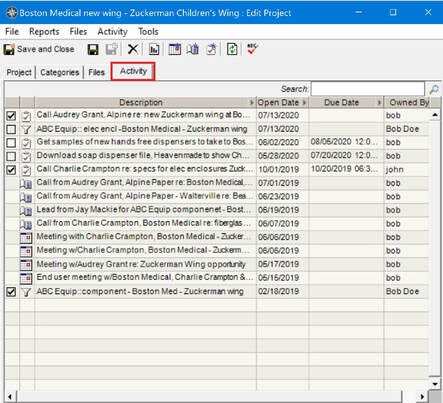
1. Open a Project
2. Click on the "Activity" tab
3. Click on any of the activities to see what's going on
i You can see who added the activity by looking at the "Owned By" column on the right side of the table.
To give a project update:
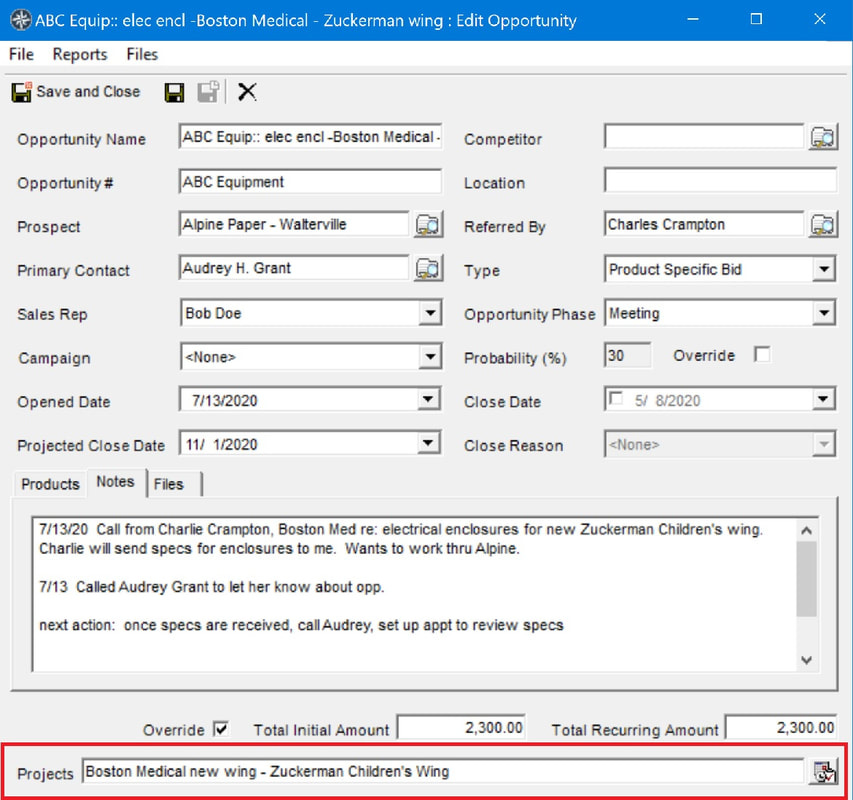
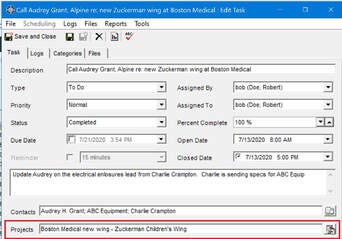
1. Link your activity (appointment, journal, task, opportunity to the project by adding the name of the project in the Projects field at the bottom of the dialog
2. Save and close your activity dialog
In MRSweb -
To get a project update:
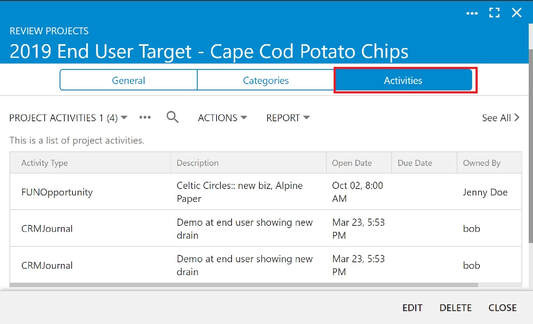
1. Open a Project
2. Tap on the "Activity" tab
3. Tap on any of the activities to see what's going on
To give a project update:
The Project linking field is in development