
The Quick Add dialog, found in the Orders and Invoices has received a few updates to enhance the speedy entry of PO, Order, and Invoice totals into MRSware.
Updates:
Entering an PO Number or Order Number into Quick Add that already in MRSware will update that entry with any new Sales total, if it is different.
Entering an Invoice Number with an existing PO or Order Number will create the Invoice and link it to the existing entry. If the Sales totals are different, the PO/Order total will be updated via a Discount entry and the Description will be updated to note the change.
Entering whole numbers in the % fields automatically converts them to percentages. E.g. enter “2” for 2%. The previous way of entering “0.02” to get 2% continues to work as well.
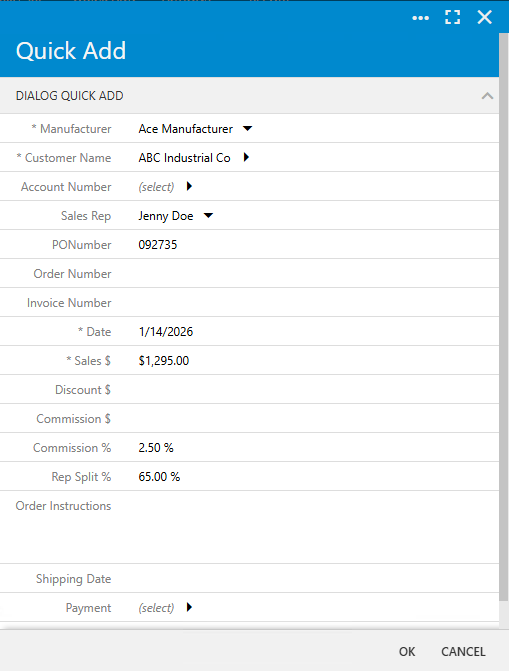
Some fields on the Quick Add continue to auto-fill in other fields when selected, which makes data entry go a little quicker, including:
Account Number is filled in when a Manufacturer and Customer combination is selected that has an Account Number in the system.
Sales Rep is automatically selected when the selected Customer has an assigned Rep. That Rep’s Split % is also filled in. Changing the Rep for this specific Order/Invoice will also select the correct default Split %.
References:
Quick Add article in Documentation: