MRSweb - Lesson 4.3 - Create a New Contact | MRSweb Online Training
← Back to Web Training Curriculum Hub
Lesson 25 of 69
Lesson 4
Chapter 3 - Create a New Contact
Here's how to add a new company or individual:
i - As in the MRSware desktop client there is more than 1 way to add a new company or individual
Chapter 3 - Create a New Contact
Here's how to add a new company or individual:
i - As in the MRSware desktop client there is more than 1 way to add a new company or individual
Desktop Options
In the examples shown, we will add new individuals.
There are 2 different types of new individuals:
1 - a new individual at an existing company
2 - a new individual not associated with an existing company
In Option 1 we will add a new individual to an existing company.
Option 1:
1. Click or tap "Contacts -> Companies" from either the Menu bar or "Companies" from the Menu list
In the examples shown, we will add new individuals.
There are 2 different types of new individuals:
1 - a new individual at an existing company
2 - a new individual not associated with an existing company
In Option 1 we will add a new individual to an existing company.
Option 1:
1. Click or tap "Contacts -> Companies" from either the Menu bar or "Companies" from the Menu list

2. Scroll to select or Search for a company in your database

3. Click or tap the selected company to open a Review Company form
4. Click or tap the "Individuals" tab
5. Click or tap "New Individuals"

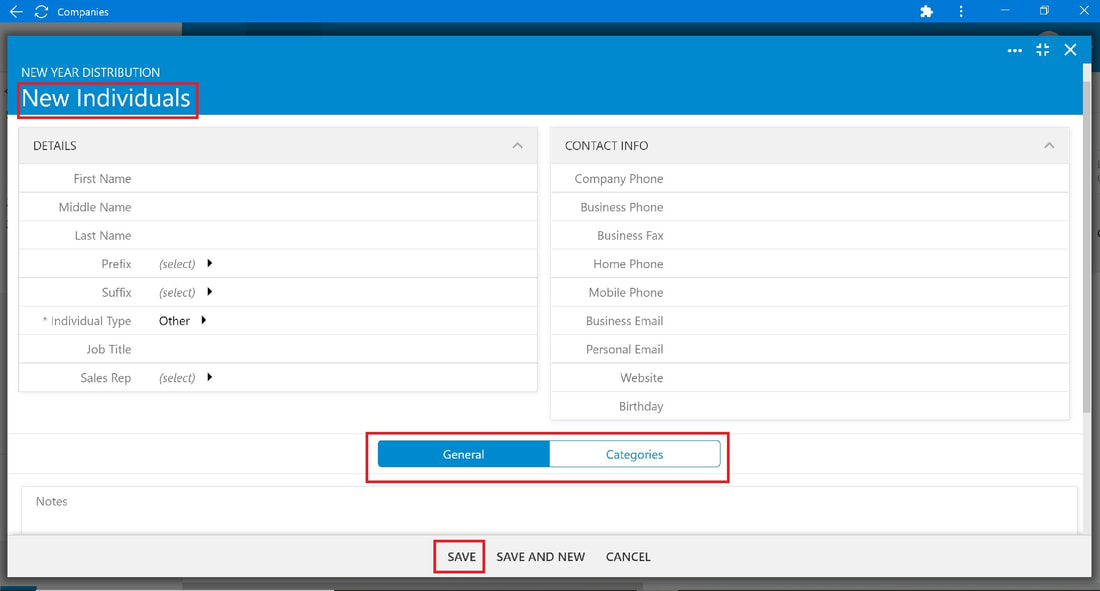
6. Fill out the "New Individuals" form
* Note there are 2 tabs:
- General - the form opens in the General tab; this page contains the basic information about the person
- Categories - displays attributes assigned by you to aid in keyword searches
7. Click or tap the "Categories" tab to select
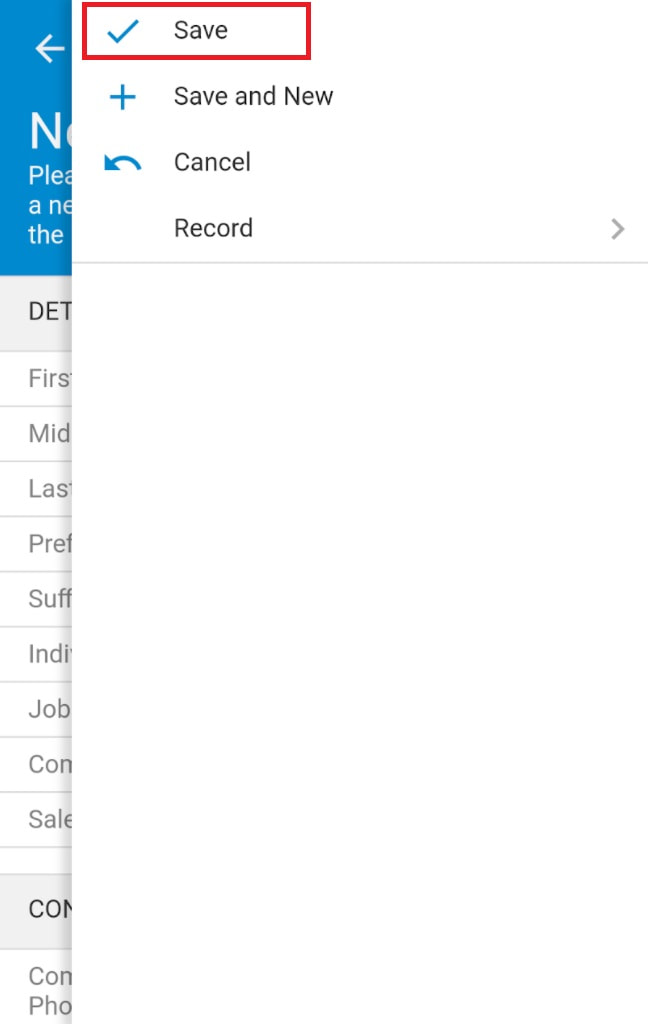
8. When the form is complete, click or tap "Save"
Once saved, the Review Individual record opens.
* Note there are now 4 tabs :
- General - the form opens in the General tab; this page contains the basic information about the person
- Categories - displays attributes assigned by you to aid in keyword searches
- Additional - displays extra information that doesn't fit elsewhere
- Activity - displays all touchpoints with the person
9. Click or tap the other tabs to add more information.
There is also a Notes field where you can add important information about the person.
10. When the record is complete, click or tap "Save".


In Options 2 & 3 we will add a new individual, not associated with an existing company.
Option 2:
1. Click or tap "Contacts -> Individuals" on the Menu bar, or "Individuals" from the Menu list

2. Click or tap the large "+" icon in the lower right corner of the page (screenshot below)
3. Fill out the "New Individuals" form.
4. Click or tap on each tab to add more information.
5. When the form is complete, click or tap "Save".

Option 3:
1. Click or tap "Contacts -> Individuals" on the Menu bar, or "Individuals" from the Menu list
2. Click or tap the "3 dots" icon on the Menu bar

3. Click or tap "New Individuals" on the slidebar
4. Fill out the "New Individuals" form.
5. Click or tap on each tab to add more information.
6. When the form is complete, click or tap "Save".

Mobile Options:
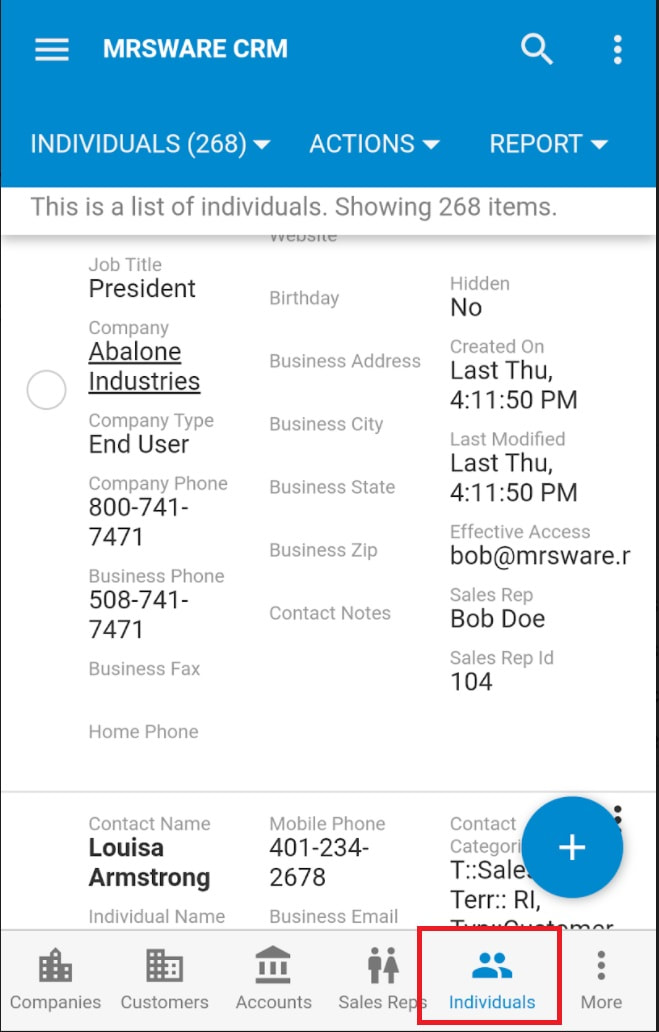
2. Tap the "Plus" icon (lower right corner) to open the New Individuals form.