MRSweb - Lesson 11.3 - Projects' Sidebar | MRSweb Online Training
← Back to Web Training Curriculum Hub
Lesson 58 of 69
Lesson 11
Chapter 3 - Projects' Sidebar
In Lesson 2.4 Settings, we learned about customizing your MRSweb with the use of Settings. The Sidebar setting is not available on the Home page, but is available in all other areas of MRSweb.
! In Settings, check "Landscape" to make sure the Sidebar appears in your pages.
The Sidebar provides a calendar and page view options.
i The Sidebar is available in Projects, Appointments, Journals, Tasks, and Notes with slight differences in page view options.
Desktop view (below) shows the Sidebar on the left side of your screen.
Click or tap "Projects" on the Menu bar to access the Sidebar.
Chapter 3 - Projects' Sidebar
In Lesson 2.4 Settings, we learned about customizing your MRSweb with the use of Settings. The Sidebar setting is not available on the Home page, but is available in all other areas of MRSweb.
! In Settings, check "Landscape" to make sure the Sidebar appears in your pages.
The Sidebar provides a calendar and page view options.
i The Sidebar is available in Projects, Appointments, Journals, Tasks, and Notes with slight differences in page view options.
Desktop view (below) shows the Sidebar on the left side of your screen.
Click or tap "Projects" on the Menu bar to access the Sidebar.
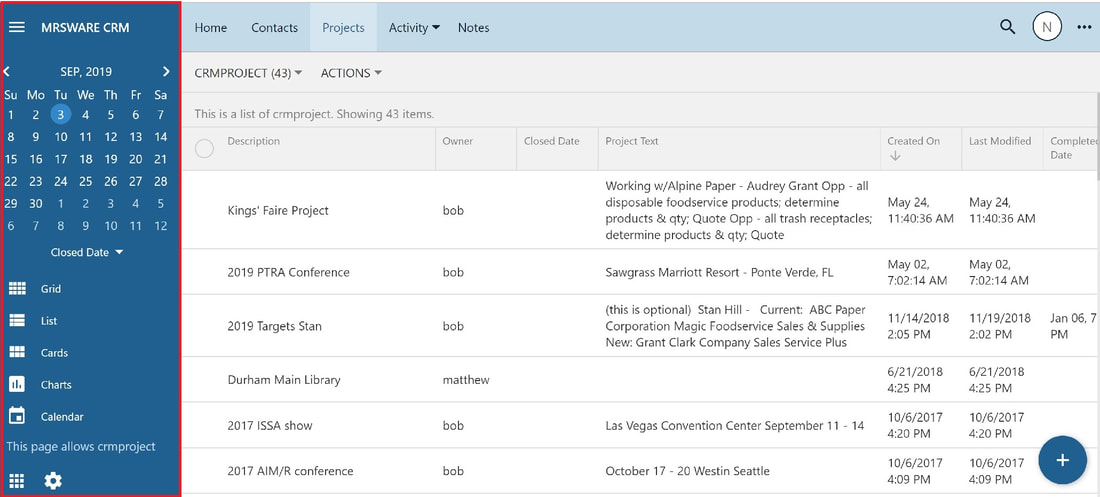
Desktop view - Projects Sidebar
Starting at the top:
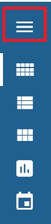
- Hamburger icon to the left of MRSware CRM
- click or tap on the icon to minimize the Sidebar
- click or tap on the icon to maximize the Sidebar
- Monthly calendar
- click or tap on the arrows to move the month back
or forward
- note the current day is highlighted
Desktop view - Projects Sidebar
Starting at the top:
- Hamburger icon to the left of MRSware CRM
- click or tap on the icon to minimize the Sidebar
- click or tap on the icon to maximize the Sidebar
- Monthly calendar
- click or tap on the arrows to move the month back
or forward
- note the current day is highlighted
- Closed Date - the date when the project is closed
- click or tap on the down arrow next to Closed Date
to view your options:
- Created On - when the project was initially
entered into the system
- Last Modified - the last time the project was updated
- Completed Date - when the project is finished
- Due Date - when the project is due
- Today - move to today's date
- click or tap on your preference
- a checkmark will appear next to your selection
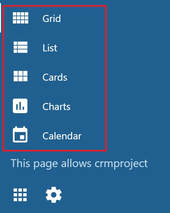
- Data views - the format in which you view your
projects
- Grid - spreadsheet format - column headers with
rows below; scroll up and down to view next
project
- List - block format - information is contained
in a single block; scroll up and down to view next
project
- Cards - file card format - information is
contained in a file card block; scroll left, right, up,
and down to view next project
- Charts - displays information in chart form
- Calendar - displays projects in your calendar by day, week,
month, year, or in an agenda format
- Settings icon
- Click or tap on this icon to open the Settings
sidebar