MRSweb - Lesson 9.5 - Journals - Sort, Filter | MRSweb Online Training
← Back to Web Training Curriculum Hub
Lesson 46 of 69
Lesson 9
Chapter 5 - Journals - Sort, Filter
You are able to sort and filter your journals in the tables of MRSweb.
Chapter 5 - Journals - Sort, Filter
You are able to sort and filter your journals in the tables of MRSweb.
Sort
Sorting data makes it easier to see and review the data displayed.
Here's how to sort in a table:
Sorting data makes it easier to see and review the data displayed.
Here's how to sort in a table:
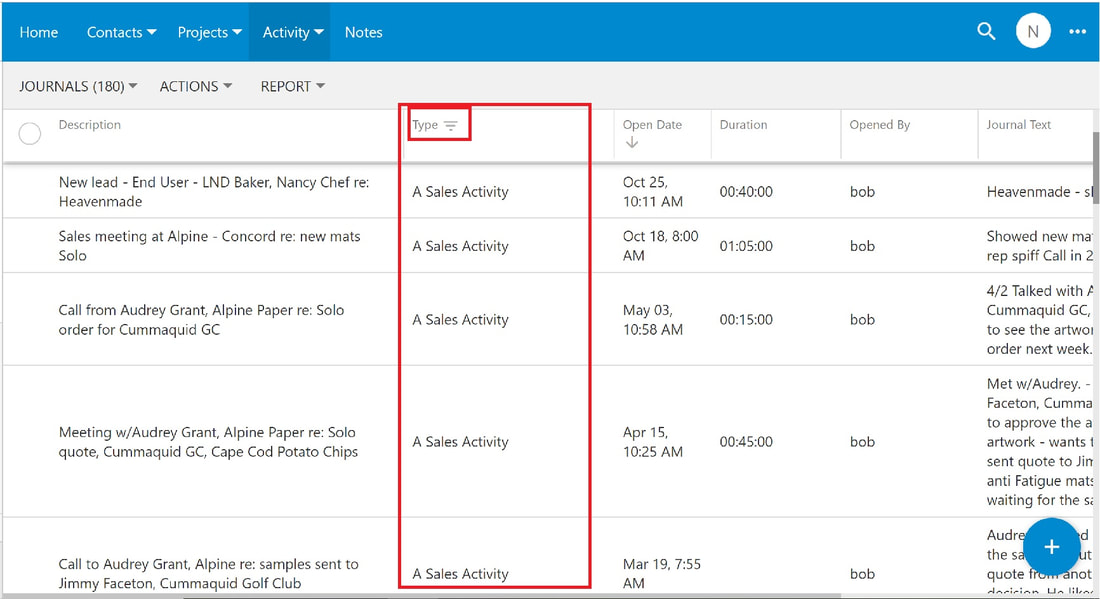
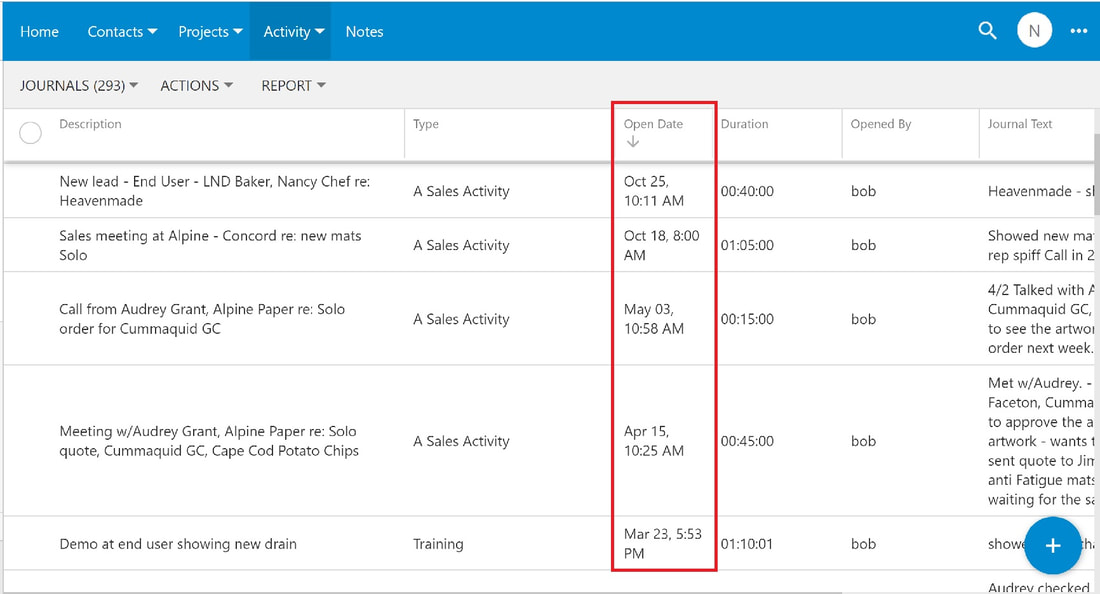
The screenshot seen below is sorted by Open Date so that the listing displays journal open dates with the latest date on top.
Note the down arrow in the Open Date column header.
Note the down arrow in the Open Date column header.
Filter
Filtering data separates out the unwanted information, hiding the information that doesn't meet your filter criteria.
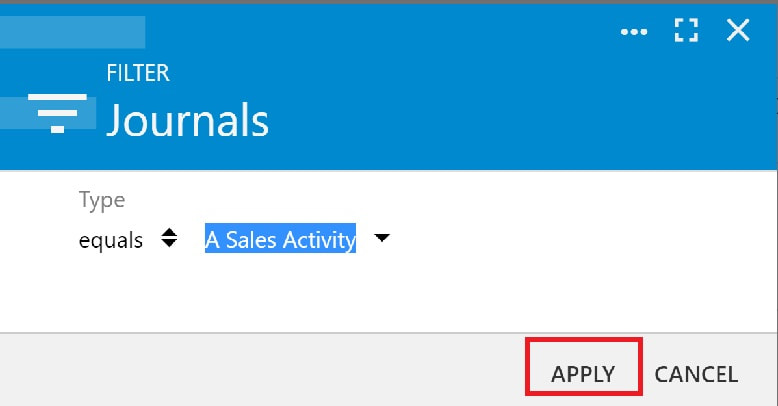
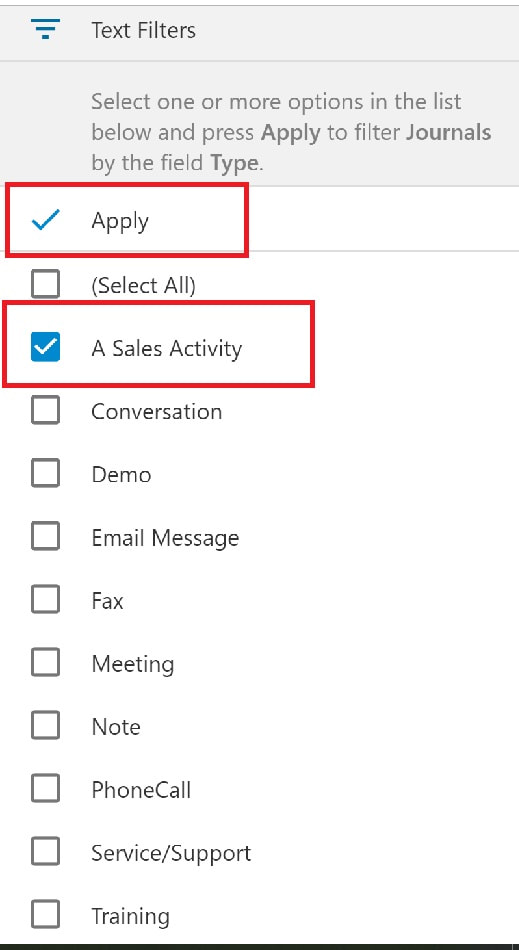
Here's how to filter in a table:
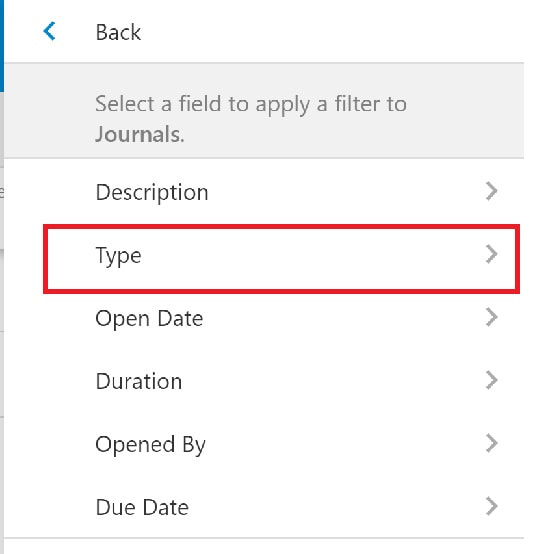
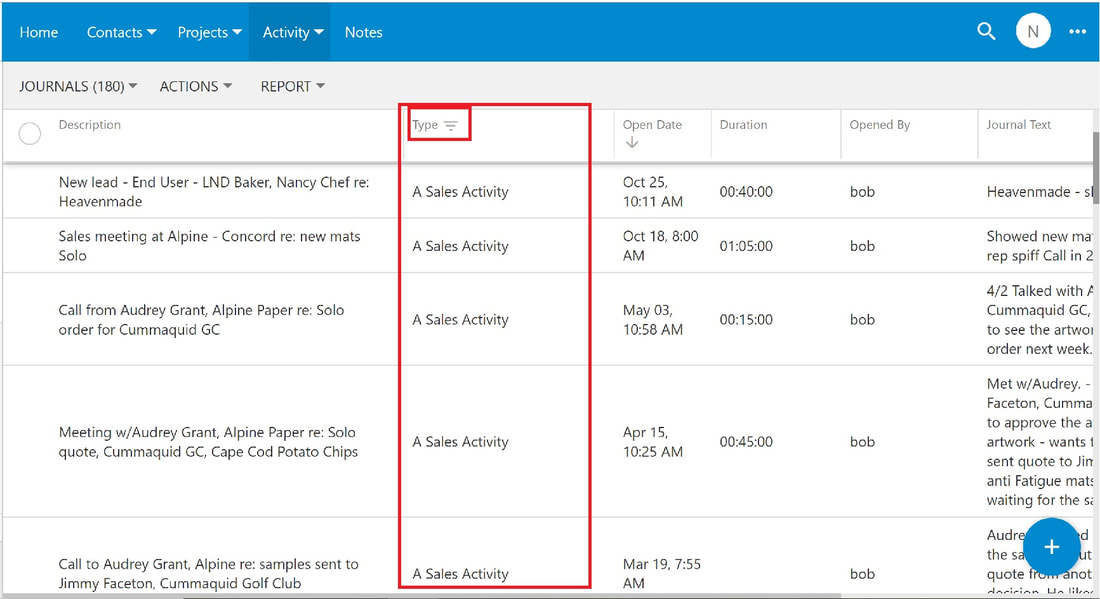
In the Grid view you can filter by any of the column headers.
In the example shown in the following screenshots, we want to show only the journals that are sales journals. So we will filter the Type column.