MRSware Logo MRSware Web Web & Mobile Guide
💻 Desktop Guide 📱 Web & Mobile Guide

MRSweb - Lesson 10.3 - Tasks - Sidebar | MRSweb Online Training

← Back to Web Training Curriculum Hub Lesson 51 of 69
Lesson 10

Chapter 3 - Tasks' Sidebar


In Lesson 2.4 Settings, we learned about customizing your MRSweb with the use of Settings.  In Lesson 2.7 Sidebar, we learned more about the Sidebar in MRSweb.  The Sidebar setting is not available on the Home page, but is available in all other areas of MRSweb. 

! In Settings, check "Landscape" to make sure the Sidebar appears in your pages.

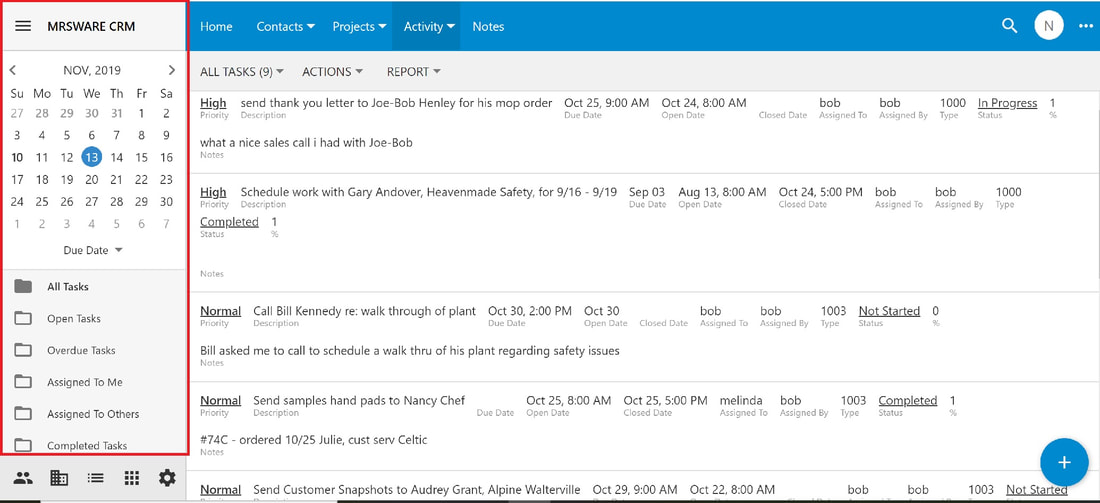
The Tasks' Sidebar provides a calendar, page view options, a Due Date, and more.  ​

Desktop view (below) shows the Sidebar on the left side of your screen.​

Click or tap "Tasks" on the Menu bar to access the Sidebar.
​Mobile View - Tasks Sidebar
Starting at the top:

i - Notice there is no Sidebar calendar in the             mobile view.

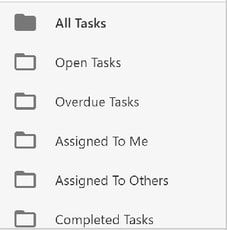
​​- Tasks Type - the list of tasks on display
  - All Tasks - all tasks you have access to
  - Open Tasks - tasks that have not been completed
  - Overdue Tasks - tasks that have not been                     completed by their due date
  - Assigned to Me - only the tasks that I am to                 complete
  - Assigned to Others - only the tasks to be                     completed by someone other than yourself
  - Completed Tasks - all tasks that have been                   completed
  

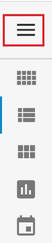
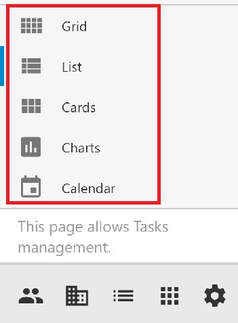
 - Data views - the format in which you view your 
   journals
  - Grid - spreadsheet format - column headers with
     rows below; scroll up and down to view next 
     task
  - List - block format - information is contained
     in a single block; scroll up and down to view next
     task
  - Cards - file card format - information is 
     contained in a file card block; scroll left, right, up,
     and down to view next task
  - Charts - displays information in chart form
​  - Calendar - displays tasks in your calendar by               day, week, month, year, or in an agenda format


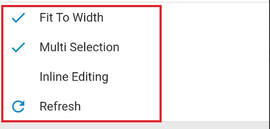
​ - Fit to Width - this setting changes the width of your     columns; when checked you can view more column     headers

- Multi Selection - allows you to multi-select journals,     for filtering, sorting, grouping, etc

- Inline Editing - provides editing in a specific field         without having to click or tap "edit"

- Refresh - refreshes your screen
Ready for the next lesson?
Continue through the structured MRSweb online training curriculum.
All Lessons Next Lesson →