
Categories are attributes created and assigned by you to aid in searches. In CRM you will find categories in Appointments, Companies, Contacts, Journals and Tasks. Categories may be assigned individually or in bulk. Below are the instructions to assign categories in bulk.
1. Click on Companies or Contacts in the Shortcut Bar.
You can also use the Search → Companies feature to search for a specific group of companies to assign a category to.
2. Once the list opens multi select (CTRL + left click) the Companies/Contacts for the new Category.
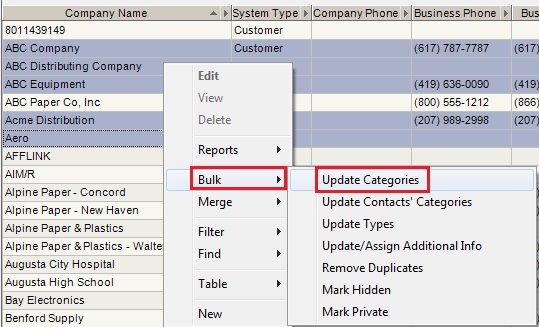
3. Right click on one of the selected Companies/Contacts → Bulk → Update Categories
1. Click on Companies or Contacts in the Shortcut Bar.
You can also use the Search → Companies feature to search for a specific group of companies to assign a category to.
2. Once the list opens multi select (CTRL + left click) the Companies/Contacts for the new Category.
3. Right click on one of the selected Companies/Contacts → Bulk → Update Categories
The Bulk Edit Categories window will open.
*** If the categories are already listed in the Categories table:
4. Check all of the categories that apply to the companies you selected.
5. When finished, click "Save".
*** If the categories are not shown in the Categories table, you will have to Create your categories before you assign them.