
Sales Force Automation – Leads, Opportunities & Expense Reports
Lead Management & Qualification Pipeline
Leads in MRSware Desktop provide agency sales teams with structured capture, rapid qualification, and follow-up discipline for prospective business before deals mature into formal opportunities or projects. Leads bridge early inquiries—from trade shows, manufacturer web referrals, phone inquiries, and distributor tips—directly into the CRM relationship graph.
Every Lead record seamlessly links to a primary Contact, Company, assigned Sales Rep, and Preferred Distributor. Leads also capture an Est. Value ($) to quantify prospective deal size and support multi-select Categories for industry or product line classification.
User-Manageable Lead Statuses
Lead progression is driven by configurable Lead Status workflows. Rather than hardcoding qualification stages, MRSware empowers administrators and authorized users to tailor statuses to match their agency's unique sales methodology.
- Configuring Statuses: Navigate to Tools > Preferences > Entries > Leads > Lead Status, or right-click the Lead Status selector directly on the Lead form and choose Manage Entries....
- Standard Workflow Examples: Agencies commonly configure stages such as
Open / Unassigned,In Qualification,Contacted,Sample Sent,Specification In Progress,Converted to Opportunity, andDisqualified / Inactive. - Dynamic Lookups & Filtering: Custom lead statuses appear instantaneously across table filter dropdowns, card view badges, and search dialogs throughout the desktop.
Lead Duration & Active Stopwatch Timer
Accurate time tracking is essential for evaluating sales rep qualification efficiency and justifying agency marketing investments to manufacturing principals. MRSware Desktop brings high-precision stopwatch time tracking directly into the Lead Add/Edit form.
⏱️ Real-Time Stopwatch Timer
The embedded TimerBox allows sales reps to start, pause, resume, or reset an active stopwatch while on the phone with a prospect or reviewing project specifications. Time accumulates automatically to the second.
🕒 Cumulative Lead Duration
Cumulative effort is stored in seconds and displayed intuitively as {0}d {1}h {2}m or {0}h {1}m {2}s across grids and cards. Reps can also manually adjust the duration box or reset hours as needed.
🔔 Background Timer Awareness
Active running timers persist in the background. If a rep minimizes or navigates away, MRSware's system tray integration alerts the user to active timers, preventing accidental runaway logs.
Sales reps do not need to run the live stopwatch to account for qualification time. You can type elapsed time directly into the Duration field using the standard duration format: 1h 20m 34s. Shorthand entries such as 15m, 30m, 1h 15m, 2h, or 1d 2h are also supported. MRSware automatically converts the entry into exact seconds and rolls it into the lead's cumulative duration counter.
Quick Logs & Detailed Audit Trail (Logs Tab)
To preserve complete history of interactions across multi-touch lead qualification, the Lead form features a dedicated Logs tab coupled with rapid logging dialogs.
- Dedicated Logs Tab (
CRMTimerLog): Provides a clean tabular audit trail of every discrete work session performed on the lead. Each entry logs:- Start & End Timestamps: Exact date and time the qualification activity began and finished.
- Elapsed Duration: Formatted hours, minutes, and seconds spent during the specific session.
- Logged By: User identity stamp indicating which sales rep or team member completed the work.
- Session Notes & Activity: Free-form text capturing call highlights, prospect feedback, technical requirements, or next steps, automatically prefixed with the selected Activity Type.
- Quick Log & Add/Edit Lead Timer Log Dialog: Click the Quick Log button on the lead toolbar—or double-click / add an item in the Logs tab—to open the Add/Edit Lead Timer Log modal dialog:
- Quick Set Presets (+15m, +30m, +1h, +2h): Rapidly set session end times and durations with single-click presets without typing timestamps.
- Activity Type Dropdown: Categorize the action as General, Phone Call, Product Demo, Email, Discovery, Meeting, Follow-up, Research, or Other. Non-general selections are automatically recorded as
[Activity] Notesfor consistent filtering and reporting across the agency. - Live Duration Calculation: Directly displays calculated session length (e.g.
0h 30m 0s) next to the End Time picker, updating live whenever timestamps change. - Dedicated Notes Field: Multi-line text box for recording prospect pain points, qualification criteria, and commitments.
- Active Timer Lockout Safeguard: When editing an active, running stopwatch session, End Time and Quick Set buttons are disabled to protect in-progress timing.
Due Dates & Centralized Follow-Up Reminders
Lead qualification requires timely follow-through. MRSware Desktop equips Leads with full due-date scheduling and integrates directly with the desktop client's centralized Reminder Dialog engine.
MRSware unifies follow-up alerts across all modules. Reminders for Leads, Tasks, and Appointments trigger from a single, centralized desktop notification window, ensuring sales reps never drop a high-value prospect commitment.
1. Scheduling Lead Due Dates & Reminder Lead Times
- Due Date Picker: Enable the Due Date checkbox to assign a target qualification or follow-up deadline.
- Reminder Checkbox & Lead Time Dropdown: Check Reminder and select your preferred notification lead time from the dropdown:
0 minutes, 5 minutes, 10 minutes, 15 minutes, 30 minutes, 1 hour, 2 hours, 3 hours, 4 hours, 5 hours, 6 hours, 7 hours, 8 hours, 9 hours, 10 hours, 11 hours, 12 hours, 18 hours, 1 day, 2 days, 3 days, 4 days, 1 week, 2 weeksMRSware automatically computes the exact trigger threshold (e.g.
DueDate - ReminderMinutes) and monitors it in the background.
2. Centralized Reminder Window: Snooze, Dismiss & Direct Navigation
When a lead reminder matures, the native Windows Reminder Dialog appears in the foreground:
- Auto-Foreground & Audio Chime: The dialog automatically restores from minimized and forces itself to the front of all open windows whenever a new alert arrives or reaches the active 15-minute mark. An Enable Chime checkbox allows users to toggle audio notifications, with preferences saved across sessions.
- Snooze Flexibility: Postpone the reminder for custom intervals (5 minutes, 15 minutes, 1 hour, 1 day, or 1 week) before being re-alerted.
- Dismiss Action: Dismiss the alert once the prospect inquiry has been resolved or advanced.
- Zero-Click Direct Navigation: Double-click the lead entry directly in the reminder list (or select Open Item) to immediately launch the Lead Add/Edit form via
UIServices.EditRequest, ready for immediate data entry.
Leads in Grid Views, Compact Cards & Preview Window
Leads integrate seamlessly with the desktop client's presentation framework:
- Table Grid View: Display leads in customizable columns including Due Date, Duration, Contact, Company, Lead Status, Est. Value, Sales Rep, and Preferred Distributor. Group by Lead Status or Sales Rep, sort by Due Date, and sum total estimated pipeline value in footer summaries.
- Compact Card View (2-Line Cards):
- Line 1: Prospect Contact, Company, Lead Status badge, and formatted cumulative Duration (e.g.
1h 15m). - Line 2: Assigned Sales Rep, Preferred Distributor, Est. Value, and dynamic Due Date badge (e.g.
Due: 10/15) with visual cues for upcoming or overdue follow-ups.
- Line 1: Prospect Contact, Company, Lead Status badge, and formatted cumulative Duration (e.g.
- Dockable HTML Preview Window: Zero-click inspection pane displaying structured lead contact info, qualification notes, formatted due date, active duration tally, and linked distributor without opening modal windows.
Opportunity Pipeline Management
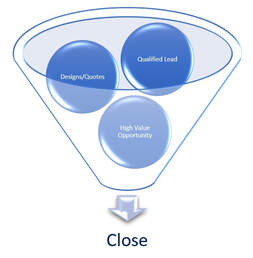
Track potential sales deals from initial lead through closing. Define Sales Phases (Lead, Qualification, Proposal, Bid Submitted, Won/Lost), Close Probability percentages, and Estimated Close Dates.
Scientific Commission & Value Forecasting
Calculate weighted revenue and commission forecasts automatically across sales reps, product lines, and territories using historical win/loss ratios.
Marketing Campaigns & Target Lists
Create targeted customer audience lists based on purchase history or CRM categories. Distribute email blasts and track campaign conversion rates.
Expense Reports & Receipt Allocation
Track sales rep travel expenses, meals, entertainment, and mileage. Allocate expenses to specific Principals or Projects and export approved expense reports to QuickBooks.
In addition to manual expense entry, MRSware Desktop automatically generates mileage expense line items directly from the Appointment Mileage Tracker. When appointments are saved, mileage entries are categorized under Category 1010 (Mileage / Travel) and Payment Type 1004 (Mileage Reimbursement) with full origin, destination, distance, and routing provider audit logs. Once submitted, approved, or paid, linked appointments are automatically locked to safeguard accounting integrity.