
CRM – Companies, Contacts & Data Management
Master Relationship Database Architecture
At the core of MRSware Desktop is the Master Relationship Database. Companies and Contacts form the central foundation to which all journals, tasks, calendar events, projects, customer accounts, orders, invoices, and commissions are tied.
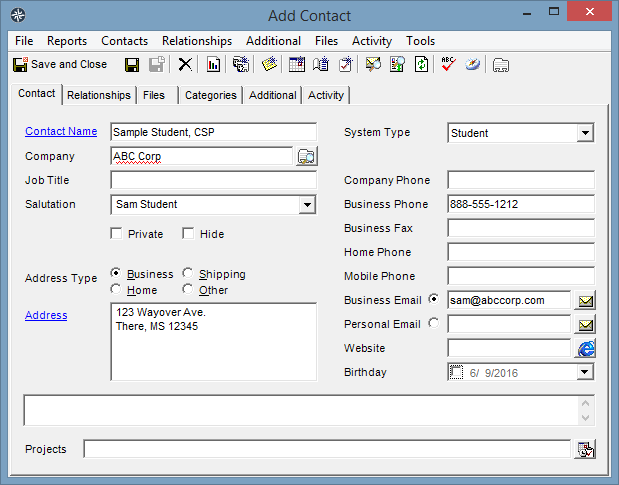
Company & Contact Hierarchy
MRSware supports multi-tier organizational structures:
- Parent / Division / Branch Relationships: Connect corporate headquarters to regional branches and job sites.
- Individual Contact Roles: Associate contacts with specific departments (Purchasing, Engineering, Management, Accounts Payable) with custom job titles and direct contact info.
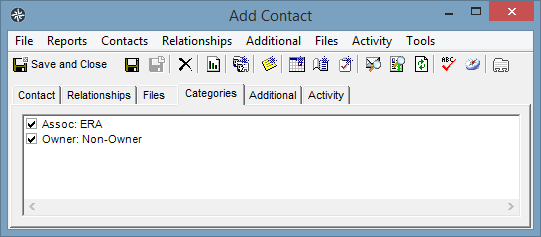
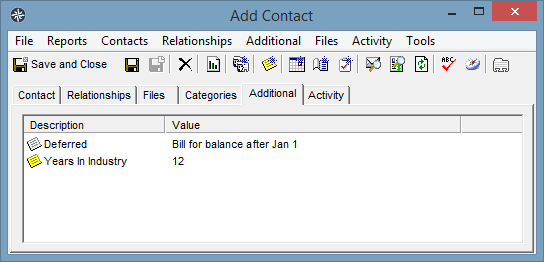
Categories vs. Additional Custom Fields
Categories are best for multi-select, non-exclusive groupings (e.g. Industry Tags: 'HVAC', 'Plumbing', 'ISSA Member').
Additional Custom Fields are best for structured, single-value parameters requiring specific data types (e.g. Credit Limit [Currency], Birthday [Date], Tax Exempt ID [Text]).
CRM View Modes: Table View, Compact Cards & Multiline Cards
MRSware Desktop provides three standardized view modes across all CRM listings (Companies, Contacts, Tasks, Journals, and Projects):
- Table View (Standard Grid): High-density data grid displaying all custom fields in tabular columns with multi-column sorting, column reordering, dynamic header grouping, and summary aggregate footers.
- Compact Card View (2-Line Cards): High-efficiency 2-line cards rendered via custom GDI+ drawing:
- Line 1: Primary name (Company or Contact), status badge, and quick action icons. On Task cards, includes an interactive click-to-complete checkbox to mark tasks done without opening the task dialog.
- Line 2: Contextual details including direct phone extension, email address, physical location (City/State), category tags, or due date.
- Interactive Sort Menu: Dedicated toolbar sort button and context menu to sort cards by Name, Date Created, Due Date, or Category.
- Multiline Card View (Expanded Cards): Multi-line structured card presentation (
CardsView):- Displays full category badges, note previews, and user-defined custom fields.
- Expand All / Collapse All controls to quickly adjust screen density.
- Card Field Settings... Dialog: Choose exactly which fields appear on the card layout (e.g. Phone, Mobile, Direct Email, Street Address, Categories, Custom Fields).
Tip: You can customize your font family and font size for both card views in Tools > Preferences > Settings (Font for Card Views). Card heights dynamically adjust to accommodate your chosen text size.
Dockable Record Preview Window & Rich HTML Formatting
The Record Preview Window provides real-time, zero-click inspection of Company and Contact details directly within the primary CRM workspace. Docked at the bottom or right side of your window, the Preview Panel eliminates modal dialog fatigue when navigating customer lists.
Key architectural highlights of the Preview Window include:
- Rich Read-Only HTML Rendering: Generates cleanly formatted HTML summaries with structured section headings, contact badges, and financial metrics.
- Line-Break (
<br/>) Preservation: Multi-line account notes and call interaction logs preserve natural formatting and line breaks seamlessly. - Top Action Bar: Features an instant Edit button (opens the record dialog) and a Print button (invokes native Windows print dialog for WYSIWYG hard copies).
- Debounced 250ms Selection Timer: Keeps scrolling fast and fluid even across databases with tens of thousands of contacts.
- Comprehensive Sub-Entity Tabs:
- Summary & Contact Info: Primary directory info, direct phone extensions, physical addresses, custom fields, and account notes.
- Journals & Activity History: Full chronological log of past calls, meetings, emails, and touch-point interaction notes.
- Open Tasks & Follow-ups: Scheduled tasks, delegated team members, task priorities, and upcoming due dates.
- Opportunities & Quotes: Active sales pipeline deals, bid specifications, forecasted values, and close probabilities.
- Contact Roster: For Company records, lists all linked individual contacts, job roles, and direct contact details.
- Orders & Invoices: Recent purchase orders, invoice numbers, shipment status, and year-to-date sales totals.
- File Share & Attachments: Linked contracts, specification PDFs, drawings, and uploaded documents stored in File Share.
Pivot & Paste High-Speed Data Entry
To eliminate tedious record creation, MRSware Desktop supports Pivot & Paste. You can copy formatted customer data directly from Excel or email spreadsheets and paste entire rows directly into the MRSware CRM grid, automatically mapping columns to Company Name, Address, Contact, Phone, and Email.
Drag-and-Drop Record Conversion
MRSware Desktop allows instant workflow record conversion via drag-and-drop:
- Drag an Email or Journal entry onto the Task Panel to turn it into a follow-up task.
- Drag a Contact onto the Project Panel to assign them as a participating stakeholder.
- Drag an incoming inquiry onto Opportunities to initiate pipeline tracking.
Merging Duplicate Contacts & Companies
Over time, duplicate entries may occur. Admins and users can utilize the Merge Duplicate Sales Reps / Contacts / Companies tool under the Tools menu. Specify the primary record to retain; MRSware will automatically re-associate all historical journals, tasks, quotes, invoices, and commission records from the secondary record into the master record before deleting the duplicate.
Email Address Hygiene: Show Invalid Email Addresses & Batch Correction
Maintaining clean, properly formatted email addresses is essential for sales rep agencies. Malformed or non-conforming email addresses disrupt broadcast communications (such as Mail all contacts in List who have an Email Address), cause document merge failures, and create delivery errors during automated correspondence.
Over time, agency databases accumulate formatting defects from third-party contact imports, legacy address books, or quick manual entry. Common formatting errors include:
- Parenthetical or bracketed notes: e.g.
John Doe (jdoe@example.com)or"Sales Dept" <sales@example.com>instead of pure email address parts. - Multiple delimited addresses: Semicolon- or comma-separated addresses entered into a single email field (e.g.
sales@rep.com; info@rep.com). - Trailing or leading artifacts: Trailing angle brackets (
jdoe@example.com>) or untrimmed whitespace. - Invalid syntax or misplaced data: Missing
@symbols, missing top-level domains, or website URLs (e.g.www.company.com) accidentally entered into the email field.
MRSware Desktop includes an integrated email address validator and filter in both the Company Listing and Contact (Individual) Listing. With one click, MRSware parses all loaded email fields against strict RFC-compliant address formatting and isolates every record requiring user correction.
Running the Invalid Email Filter
To run email validation on your active listing:
- Navigate to either the Companies or Contacts listing from the primary navigation tree.
- Choose Contacts → Show Invalid Email Addresses from the top menu bar (located directly beneath Mail all contacts in List who have an Email Address). You can also use keyboard shortcut Alt+C then I.
- Alternatively, right-click anywhere in the contact table and select Show Invalid Email Addresses from the context menu.
When activated, MRSware immediately inspects BusinessEmail (for Companies) or both BusinessEmail and PersonalEmail (for Individuals):
- Instant View Filtering: The table or card view dynamically updates to display only contacts whose email addresses fail formatting validation.
- Title Bar Count: The window title automatically updates to indicate the count of offending records, e.g.
Contact Listing (Invalid Email Addresses - 14 found). - Checked State: A checkmark appears next to Show Invalid Email Addresses in the menu. Clicking the menu item a second time clears the filter and restores your full listing.
- All-Clear Notification: If all contacts in the current view have valid formatting, MRSware prompts with an all-clear confirmation: "All contact email addresses conform to proper formatting."
Correcting Email Addresses via Edit in Spreadsheet
Once your listing is filtered down to the invalid records, you can correct them individually or in rapid bulk:
✏️ Individual Record Editing
Double-click any contact or press Ctrl+E to open the standard Add/Edit Contact dialog. Edit the Business or Personal Email field and click Save.
📊 High-Speed "Edit in Spreadsheet" Batch Cleanup
Select Contacts → Edit in Spreadsheet... (or click the Spreadsheet button on the toolbar). All filtered invalid records immediately open into the embedded spreadsheet editor, allowing you to rapidly tab through, clean, copy, paste, or split addresses across dozens of records at once. Saving the spreadsheet commits all updates directly to the database.
- Audit Both Companies and Individuals: Because Companies and Individuals have dedicated listings, be sure to run Show Invalid Email Addresses in both views.
- Include Hidden Contacts: Inactive or retired contacts are hidden by default in normal listings (
Hidden = 0). To perform a thorough agency-wide database audit, check Contacts → Show Hidden first, then run Show Invalid Email Addresses to surface legacy records that may still reside in your synchronized address book. - Select Root Folder: Make sure you select the top-level Contacts or Companies folder in your left-hand folder tree rather than a specific sub-type (such as Customer or Lead) to ensure the audit evaluates all contact types across your database.
📚 Related Documentation & Deep-Dive Articles (33)
View in Documentation Library →Explore additional procedural tutorials and technical documentation references for this chapter:
Account View vs. Customer View in Customers Listing
Technical guide for Account View vs. Customer View in Customers Listing.
Assigning Categories
Technical guide for Assigning Categories.
Bulk Update a Company's Contacts' Addresses
Technical guide for Bulk Update a Company's Contacts' Addresses.
Bulk Update Companies' Categories from the Customers Listing
Technical guide for Bulk Update Companies' Categories from the Customers Listing.
Bulk Update Company's Contact(s) Categories
Technical guide for Bulk Update Company's Contact(s) Categories.
Bulk Update Contacts' Categories
Technical guide for Bulk Update Contacts' Categories.
Company Types vs. Categories for grouping and descriptive terms
Technical guide for Company Types vs. Categories for grouping and descriptive terms.
Company/Contact Name "Matches" (green) and 'Matches' (red) squiggly lines
Technical guide for Company/Contact Name "Matches" (green) and 'Matches' (red) squiggly lines.
Contact Relationship Management User Manual
Technical guide for Contact Relationship Management User Manual.
Create a Customer entry
Technical guide for Create a Customer entry.
Creating & Assigning Types, Categories, & Other Attributes within MRSware
Technical guide for Creating & Assigning Types, Categories, & Other Attributes within MRSware.
Creating Categories
Technical guide for Creating Categories.
Creating Categories
Technical guide for Creating Categories.
Creating Customer in all CAPS is not necessary
Technical guide for Creating Customer in all CAPS is not necessary.
Creating one company-wide, "master" database of contact and companies
Technical guide for Creating one company-wide, "master" database of contact and companies.
CRM is the cornerstone of any company
Technical guide for CRM is the cornerstone of any company.
Customer Listing: Account View & Customer View
Technical guide for Customer Listing: Account View & Customer View.
Duplicate Removal Walkthrough
Technical guide for Duplicate Removal Walkthrough.
Generate a list of customers with contacts for a particular manufacturer
Technical guide for Generate a list of customers with contacts for a particular manufacturer.
How to find Top Selling Products by Manufacturer, by Customer
Technical guide for How to find Top Selling Products by Manufacturer, by Customer.
How to open a Contact Printout
Technical guide for How to open a Contact Printout.
How to open a Customer Snapshot
Technical guide for How to open a Customer Snapshot.
How to Print a List of Categories
Technical guide for How to Print a List of Categories.
How to remove duplicate contacts
Technical guide for How to remove duplicate contacts.
Link Files to Companies in MRSweb
Technical guide for Link Files to Companies in MRSweb.
Manage Contact Types
Technical guide for Manage Contact Types.
MRSweb - Use the Filter button to easily find companies and contacts
Technical guide for MRSweb - Use the Filter button to easily find companies and contacts.
Reassigning or Changing Categories
Technical guide for Reassigning or Changing Categories.
Removing out-of-business Customer entries
Technical guide for Removing out-of-business Customer entries.
Show only New Customers in the Customer Listing
Technical guide for Show only New Customers in the Customer Listing.
Track Customer Preferences
Technical guide for Track Customer Preferences.
Video - Customers Top Down Sales
Technical guide for Video - Customers Top Down Sales.
Video - Show Hidden Companies, Contacts, Customers
Technical guide for Video - Show Hidden Companies, Contacts, Customers.