
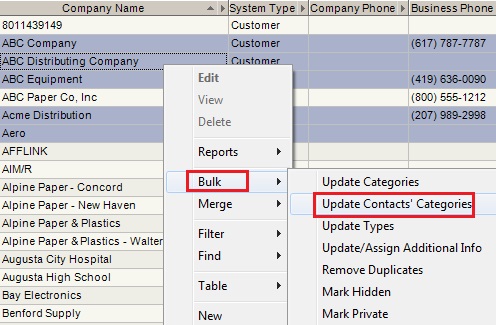
Users can assign Categories to the Contacts working at several Companies all at once. From the Company Listing:
- Multi-select the Companies whose Contacts you want to assign your Category to.
- Right-click and select "Bulk" → "Update Contacts' Categories".
- Check all the Categories from the list that you want to assign to the Contacts.
- Click "Save".
Here are some examples on what this feature can be used for:
a) I want to send out a product promotion to all of my distributor sales reps from one of my buying groups. The buying groups are in the categories, but are currently only maintained at the company level. Let's bulk update the categories for all of those companies' contacts to move the category down to the contacts level. Now from here, I can do a combined search on the Job Title field, along with my buying group category, and get the exact distribution list I am looking for.
b) I have all of my customers assigned to me via a category in the company listing. I want to copy that category over to the individuals at those customers, so that I can synchronize them to my phone. Bulk update the contacts' categories to assign your sync category, then synchronize away to get them all down to your phone.