
MREPS – Customer Master & Territory Management
Multi-Line Customer Master Concept
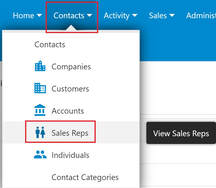
As multi-line sales reps, your customers buy products from multiple manufacturer principals. MRSware MREPS allows you to assign unique Manufacturer Account Numbers for each principal under a single Customer record.
Tracking Customer "Share of Wallet" (SOW) Potential
For high-performing manufacturers' representative agencies, tracking historical sales volume is only half the battle. To uncover aggressive growth opportunities, agencies must understand their Share of Wallet (SOW)—the percentage of a customer's total annual spend that the agency actually captures versus competitor lines.
Share of Wallet (%) = (Actual Sales Revenue ÷ Estimated Spend Potential) × 100
When customer spend potential exceeds actual sales, the remaining dollar balance represents Uncaptured Spend (Whitespace)—the target dollar opportunity available to win from competing manufacturers or distributors.
1. Customer Share of Wallet Tab
Every Customer record in MRSware Desktop (AddEditCustomer) features a dedicated Share of Wallet tab directly alongside the traditional Accounts tab. This provides an organized, multi-year overview of estimated wallet size and competitive positioning:
- Potentials Table Grid: An embedded high-speed grid listing all spend potential records for the active customer account, displaying
Year,Product Category,Principal,Competitor,Estimated Spend, andNotes. - Inline Management Controls: Right-click anywhere in the table or use the dedicated toolbar buttons to Add, Edit, or Delete spend potential records.
- Multi-Year History: Maintain rolling annual benchmarks (e.g., 2024, 2025, 2026) to track wallet expansion and agency penetration over time.
2. Flexible Target Modeling: Product Category & Principal Levels
Agencies operate across different business models and manufacturer relationships. MRSware's Customer Potential dialog (AddEditCustomerPotential) supports granular modeling at multiple levels:
📦 By Product Category
Estimate total customer purchasing capacity within a broader product line or category (e.g. Commercial LED Lighting, HVAC Controls, Industrial Conduit) regardless of which factory supplies it. Perfect for benchmarking category-wide market share.
🏭 By Principal (Manufacturer)
Set dedicated wallet targets for a specific represented factory. Track how much of a customer's specific manufacturer purchases are flowing through your agency versus unauthorized channels or gray market suppliers.
🎯 Combined Category + Principal
Combine both fields to specify exact product line targets per manufacturer (e.g. Principal: Acme Electric, Category: Transformers, Estimated Spend: $350,000) for razor-sharp account planning.
3. Competitor Tracking & Account Strategy Notes
- Competitor Identification: Link any existing CRM Contact record as the incumbent competitor currently winning the uncaptured spend. This enables agency-wide competitive threat matrices and displacement campaigns.
- Strategic Account Notes: Capture contract expiration dates, customer pain points with existing suppliers, target RFQ dates, and pricing hurdles directly alongside the financial target.
Sales Rep & Territory Assignment Rules
Assign primary sales reps and territory codes by customer location or manufacturer line. MRSware automatically defaults sales rep splits on incoming orders, invoices, and commission statements based on territory rules.
Sales Rep Management: Card Views, Preview Pane, Spreadsheet & Statistics
The Sales Rep Management module (Tools > Sales Reps) has been engineered with modern presentation, batch editing, and live operational intelligence tools:
1. Modern View Modes (Table, Compact Cards & Multiline Cards)
- Table View: Standard grid displaying rep name, type, split rate, enabled status, customer counts, company counts, order volume, and query-based YTD / LYTD sales metrics with column reordering and visibility toggles.
- Compact Card View (2-Line Cards): Custom GDI+ rendered cards displaying Rep Display Name, Type (Sales Rep, Territory, Agency), Split %, and territory status.
- Multiline Card View: Structured expandable cards displaying territory codes, contact info, and performance metrics with Expand/Collapse All controls.
2. Right-Docked HTML Preview Pane
Zero-click preview pane docked on the right side of the workspace providing formatted HTML profiles of highlighted sales reps, direct Edit and Print actions, and territory roster breakdowns.
3. Edit in Spreadsheet Batch Editor
Click the "Edit in Spreadsheet" button (Ctrl+E) to open the dedicated spreadsheet editor (SalesRepSpreadsheetForm). Quickly maintain DisplayName, SalesRepType (Sales Rep / Territory / Agency dropdown), SplitRate, and Enabled status across all sales reps simultaneously with transactional atomic saving.
4. Collapsible Live Statistics Panel
A collapsible dock panel (clpStatistics) anchored at the bottom of the Sales Rep workspace provides live operational intelligence:
- # of Unassigned Customers: Real-time count of customer accounts missing sales rep assignments.
- # of Unassigned Companies: Live count of CRM company records without an assigned sales rep.
- Total Growth %: Real-time calculation comparing YTD sales vs. LYTD sales across active reps (excluding \$0/\$0 entries).
- See All Territories: Asynchronously generated list of user accounts with unrestricted agency-wide visibility permissions.
5. Table Aggregates, Whole-Number Averages & Show Counts Toggle
- Column Averages & Aggregates: The aggregate footer row computes and displays clean whole-number averages for
# Companies,# Prospects,# Opportunities,# Customers,# Orders,Lifetime Value, andChurn. - Show Counts Menu Toggle: Use View > Show Counts (or right-click context menu) to toggle count columns on or off for optimized grid performance.
Sales Rep Account Reassignment & Merging
When a sales rep leaves or changes territory, use Sales Rep Management to reassign accounts in bulk, edit territory split ratios, or re-enable inactive sales reps while preserving historical sales credit.
Resolving Duplicate Account Numbers
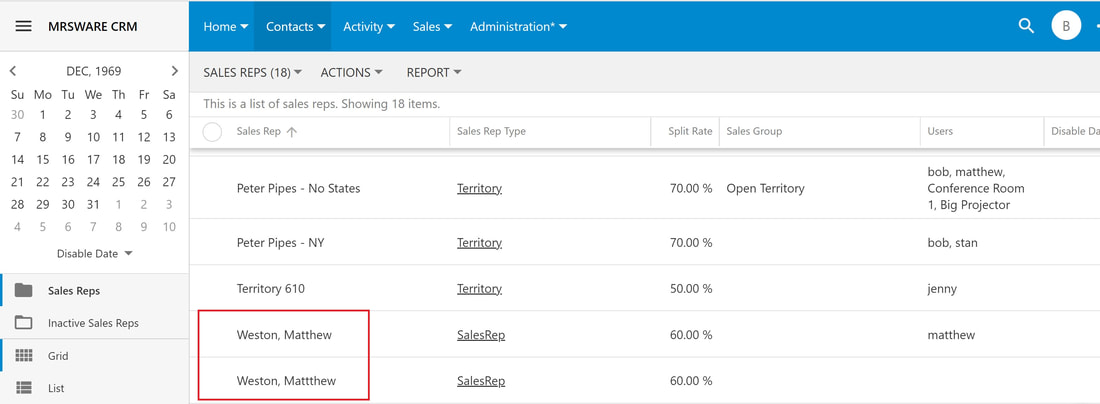
Prevent reporting skew by running the Duplicate Account Number Cleanup Wizard to consolidate duplicate account numbers assigned across different factory feeds.
📚 Related Documentation & Deep-Dive Articles (5)
View in Documentation Library →Explore additional procedural tutorials and technical documentation references for this chapter:
Bulk Update Customer Account Number
Technical guide for Bulk Update Customer Account Number.
Creating Customer Account Numbers
Technical guide for Creating Customer Account Numbers.
Customer Ranking view in Data Analysis Sales & Commissions
Technical guide for Customer Ranking view in Data Analysis Sales & Commissions.
How to find each Principal's Percentage of Total Sales in Data Analysis
Technical guide for How to find each Principal's Percentage of Total Sales in Data Analysis.
Principal Ranking - % of Total Sales or Total Commissions
Technical guide for Principal Ranking - % of Total Sales or Total Commissions.