
Users can set up companies' categories from the Customers table. (Steps 1 - 5)
You can take this one step further and set up contacts' categories from the results of the companies' category. (Steps 6 - 10)
One of the more common usages for this two step process is for setting up contacts to sync with mobile devices using MRSware Sync*.
You can take this one step further and set up contacts' categories from the results of the companies' category. (Steps 6 - 10)
One of the more common usages for this two step process is for setting up contacts to sync with mobile devices using MRSware Sync*.
| Here's how: 1. Click on Customers in the Shortcuts panel or on the Shortcuts toolbar 2. Right-click on a name in the Sales Rep Column and select Filter -> By Selection |  |
3. Select all by holding down Ctrl + A
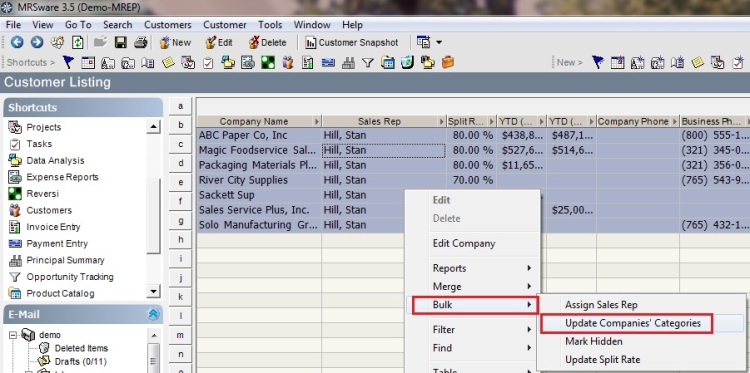
4. Right-click in the highlighted area and select Bulk -> Update Companies' Categories
4. Right-click in the highlighted area and select Bulk -> Update Companies' Categories
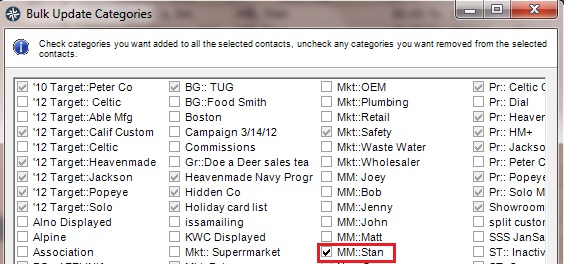
5. Check the category box in the Bulk Update Categories dialog and click Save
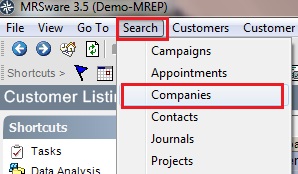
6. On the Menu bar, click on Search -> Companies
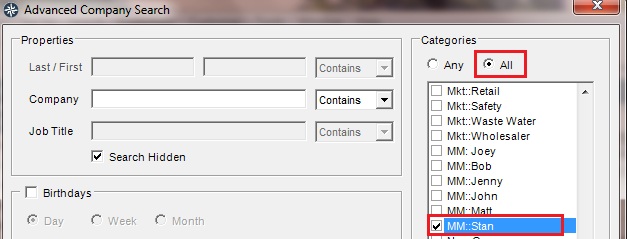
7. Check All and the category, then click Ok
8. Select all, by holding down Ctrl + A
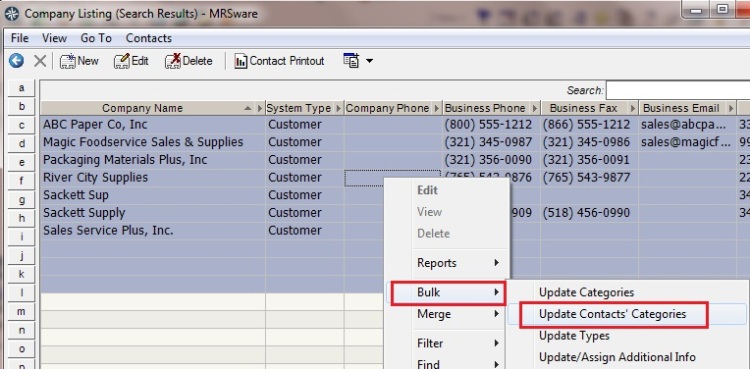
9. Right-click in the highlighted area and select Bulk -> Update Contacts' Categories
10. Check the category box in the Bulk Update Categories dialog and click Save (same as Step 5)
* In order to use the category used in our example "MM::Stan" to sync contacts with your mobile device, your System Administrator must setup your subscription.