There may be times when you want to reassign a company's or contact's categories. They may have changed buying groups or may have changed buying levels from a manufacturer - e.g. Bronze to Silver - or they may now be a "A" prospect instead of a "C" prospect because of a new line you just picked up.
Whatever the reason you need to update the categories for multiple companies. In MRSware you can easily change a company's or contact's category either individually or in bulk.
Whatever the reason you need to update the categories for multiple companies. In MRSware you can easily change a company's or contact's category either individually or in bulk.
Here's how:
In the example below, we are going to reassign companies who buy from Heavenmade Safety and have reached a new purchasing level "Silver". They used to be "Bronze" level customers.
1. Click on "Customers" in the Shortcuts panel, or click on the "Customers" icon on the Shortcuts tool bar.
2. On the Menu bar, click on "Customers" and select "Account View".
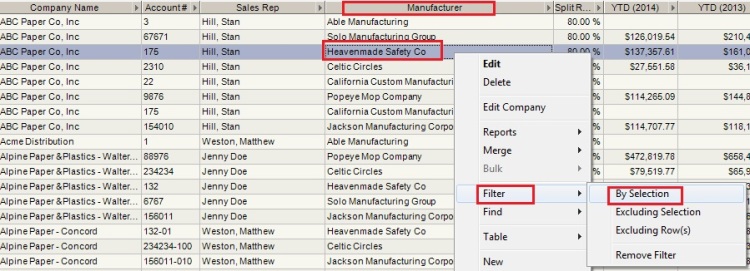
3. Right-click on "Heavenmade Safety Co" and select "Filter -> By Selection".
In the example below, we are going to reassign companies who buy from Heavenmade Safety and have reached a new purchasing level "Silver". They used to be "Bronze" level customers.
1. Click on "Customers" in the Shortcuts panel, or click on the "Customers" icon on the Shortcuts tool bar.
2. On the Menu bar, click on "Customers" and select "Account View".
3. Right-click on "Heavenmade Safety Co" and select "Filter -> By Selection".
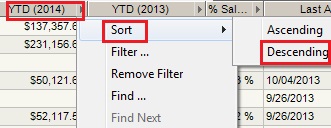
4. Right-click on the column header "YTD (2014)" and select "Sort -> Descending".
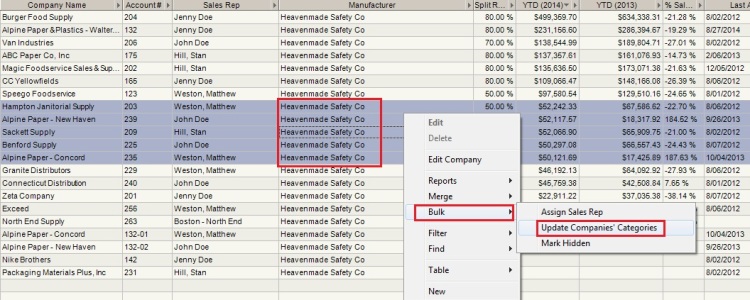
5. Multi-select the companies who need to have the category reassigned from Bronze to Silver.
To do this, highlight the first company in the list, hold down the Shift key on your keyboard, click on the last company who meets the criteria.
6. Right-click on the highlighted area and select "Bulk -> Update Companies' Categories"
7. Uncheck the "Bronze" category box. Check the "Silver" category box. Click "Save"
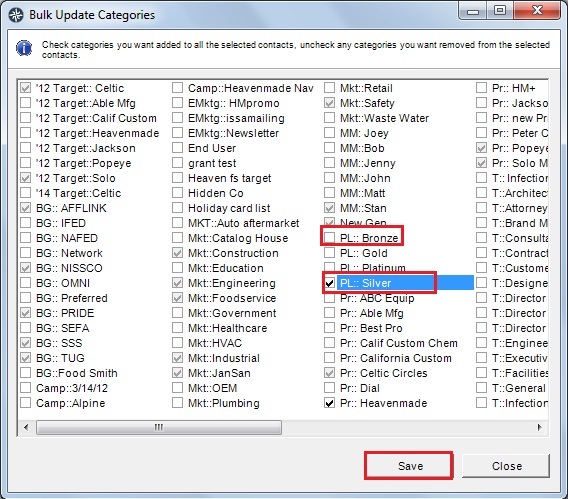
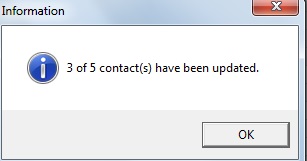
An information dialog will open to show you when the process is complete.