
When a new email arrives:
- If it is to schedule an appointment, click on the email and drag it to the Calendar icon in the Shortcuts panel or on the Shortcuts button bar. This will create a new Appointment in the system, with the advantage that the text of the email is already copied into the Notes section of the new appointment, the sender is already linked to it, and the Subject is the subject of the email.
From here the User can easily fill in the day and time, check availability, save the appointment, and even send out an iCal to other attendees.
2. If it is a To Do item, click on the email and drag it over to the Journal or Task icons. This will fill in the Subject and Notes and link the sender to the item, just like it did for an appointment.
Start the timer to record how much time it takes to complete. Link the item to other parties it involves, such as a quote or sample request linked to the manufacturer it is for.
This quick and easy way to log notes, set appointments, track time, and otherwise enter information into the CRM from an email can save a lot of time and help Users organize their work.
Start the timer to record how much time it takes to complete. Link the item to other parties it involves, such as a quote or sample request linked to the manufacturer it is for.
This quick and easy way to log notes, set appointments, track time, and otherwise enter information into the CRM from an email can save a lot of time and help Users organize their work.
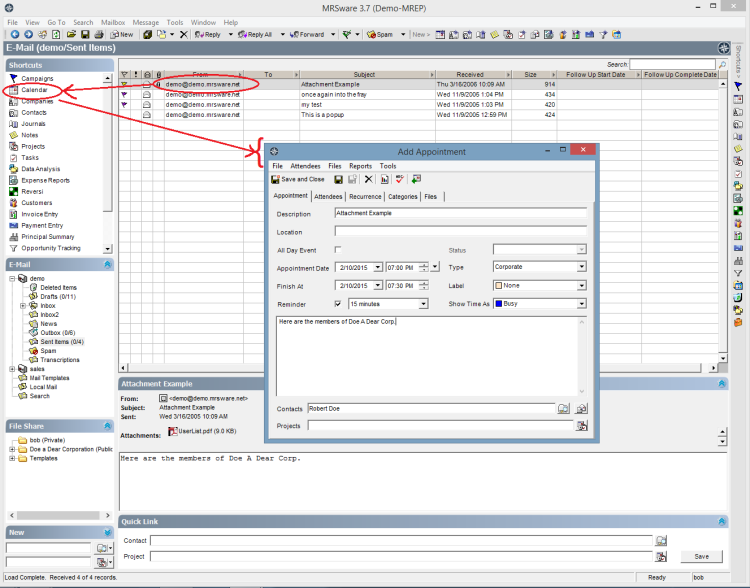
Another nifty aspect is that if the email had an attachment, the User is prompted to also attach that to the Files tab of the item that is being created -- a quick way to get those files into File Share for everyone to share.