
The Mailbox Options dialog allows users to set how their outgoing e-mail From address appears, and control the incoming spam filtering options.
Right-click on your mailbox and choose "Options" to see the following Mailbox Options dialog.
The "mailbox" is where your name/e-mail address is listed next to an icon that looks like a postal mail box. This is what should be right-clicked on, as apposed to right-click on one of the folders like the "Inbox".
Right-click on your mailbox and choose "Options" to see the following Mailbox Options dialog.
The "mailbox" is where your name/e-mail address is listed next to an icon that looks like a postal mail box. This is what should be right-clicked on, as apposed to right-click on one of the folders like the "Inbox".
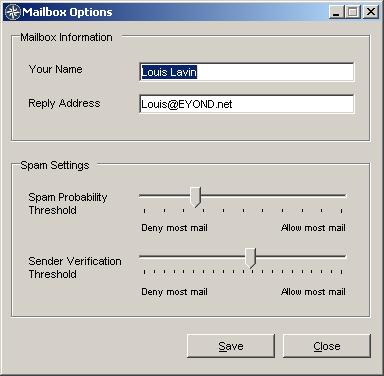
Your Name Type in your name as you would like it to appear in outgoing e-mail messages. This is how the recipient sees your name on e-mails they receive from you.
Reply Address The e-mail address that you would like your e-mails to show they are from. Leaving this entry blank, uses your default From address as determined by the mailbox settings in System Administration. Users can enter a custom, or alternate e-mail address if they wish. Replies to your e-mail will go to the Reply Address specified here. Typical use of this option is to redirect replies to your e-mails to an alternate e-mail address that is not set up in MRSware.