
Date columns can be a little trickier to filter on because they are actually stored in the database a little differently than they show in the columns of various listing.
To Filter or Search on a particular date is actually pretty straight forward:
If I want to pull up all items for the 20th of December, I would just type in the specific date I wanted to the Search box (or the Filter dialog):
If I want to pull up all items for the 20th of December, I would just type in the specific date I wanted to the Search box (or the Filter dialog):
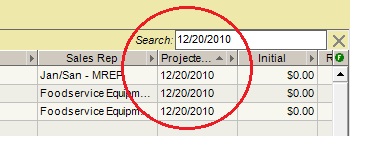
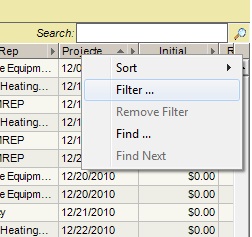
| The results of the search are all the columns that contain that specific date. Of course, note that using the Search box at the top of the listing searches all the columns. If you want to search a specific column of dates only, right-click on the column header (where the name of the column is) and select "Filter". | When the individual column is selected, the search results will be done against that column only. We could search for our 12/10/2010 again. For this example, say I wanted to find all items that occurred in the month of October-- this is the example that gets a little trickier. The entry looks like this: |
 | 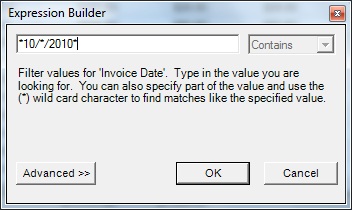 |
Note the use of the wildcards (*) in the expression. As the text below the filter box suggests, we use the * to indicate that we want everything that matches this string. We have to use the * before and after the text we are looking for so that we get just what we want (note that the "Contains" becomes grayed out, which allows for more exact searched.
That was it, the tricky part was putting the wildcards before and after our "10/*/2010". The results of this filter are all items that happened in October 2010.
Examples of places where this is useful:
Note that the first example above, using the Search box for 12/10/2010, will also work when using the wildcards -- entering *12/*/2010* will search all of the columns in the listing and show us all of the items for the month of December.
Give it a try and see how it works for you.
That was it, the tricky part was putting the wildcards before and after our "10/*/2010". The results of this filter are all items that happened in October 2010.
Examples of places where this is useful:
- When making a Payment Entry, if I want to just look at all of the Invoices in the Payment that occurred in a specific month (rather than all the eligible invoices). Filter on the Invoice Date column to just show 1 month. You could do this multiple times to make the list shorter while looking for invoices to check-off against a payment.
- When looking for all deals that are projected to close in the month of December. Filter on Projected Close Date for all the *12/*/2010* deals. This will show us what is projected to close by the end of the year.
Note that the first example above, using the Search box for 12/10/2010, will also work when using the wildcards -- entering *12/*/2010* will search all of the columns in the listing and show us all of the items for the month of December.
Give it a try and see how it works for you.