
We are often asked about tracking bids/quotes. This is easily done in MRSware by using Opportunity Tracking.
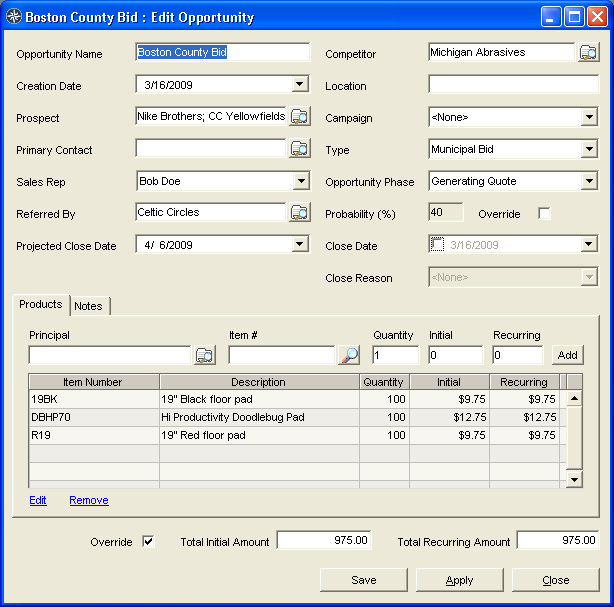
In the example above you see a fictional bid. Here are the steps taken to create this bid:
1. Opportunity Name - the name of your bid - "Boston County Bid"
2. Prospect - the name of your distibutors who have requested the bid quote - "Nike Brothers; CC Yellowfields" (you can enter any number of customers, distributors, prospects as long as they are separated by a semi-colon ";"
3. Primary Contact - the name of the person at your distributor (optional field) - left blank in the above example
4. Sales Rep - the name of the individual sales rep or the territory name - "Bob Doe"
5. Referred By - the name of the manufacturer you are quoting (in this case you can only list 1 company or name) - "Celtic Circles"
6. Projected Close Date - the bid opening date - "4/6/2009"
7. Competitor - the name of any competitors (an optional field) - (you can list more than one company) - "Michigan Abrasives"
8. Location - (an optional field)
9. Campaign - (an optional field)
10. Type - this field can be customized* - "Municipal bid"
11. Opportunity Phase - this field can be customized* - "Generating Quote"
12. Probability Date - this field is automatically configured according to the Type and Opportunity Phase selected. It can be overridden if required (not recommended)
13. Close Date - click on the box and select the date the bid was opened or awarded.
14. Close Reason - this field can be customized*
15. Products tab - enter the name of the manufacturer in the "Principal" field and then enter specific item numbers with pricing.
16. Notes tab - enter any pertinent comments in this area.
* Type, Opportunity Phase and Close Reason can all be customized to fit your requirements. Do this by clicking on "Go To" on the Menu bar and selecting "Opportunity Tracking -> Manage -> Type or Opportunity Phase or Close Reason". When the dialog box opens click on New and type in the new name of your Type, etc. Click "Save" and close.
1. Opportunity Name - the name of your bid - "Boston County Bid"
2. Prospect - the name of your distibutors who have requested the bid quote - "Nike Brothers; CC Yellowfields" (you can enter any number of customers, distributors, prospects as long as they are separated by a semi-colon ";"
3. Primary Contact - the name of the person at your distributor (optional field) - left blank in the above example
4. Sales Rep - the name of the individual sales rep or the territory name - "Bob Doe"
5. Referred By - the name of the manufacturer you are quoting (in this case you can only list 1 company or name) - "Celtic Circles"
6. Projected Close Date - the bid opening date - "4/6/2009"
7. Competitor - the name of any competitors (an optional field) - (you can list more than one company) - "Michigan Abrasives"
8. Location - (an optional field)
9. Campaign - (an optional field)
10. Type - this field can be customized* - "Municipal bid"
11. Opportunity Phase - this field can be customized* - "Generating Quote"
12. Probability Date - this field is automatically configured according to the Type and Opportunity Phase selected. It can be overridden if required (not recommended)
13. Close Date - click on the box and select the date the bid was opened or awarded.
14. Close Reason - this field can be customized*
15. Products tab - enter the name of the manufacturer in the "Principal" field and then enter specific item numbers with pricing.
16. Notes tab - enter any pertinent comments in this area.
* Type, Opportunity Phase and Close Reason can all be customized to fit your requirements. Do this by clicking on "Go To" on the Menu bar and selecting "Opportunity Tracking -> Manage -> Type or Opportunity Phase or Close Reason". When the dialog box opens click on New and type in the new name of your Type, etc. Click "Save" and close.