To embed an image, you need to be in HTML format. You can set the default format for all your e-mails to HTML in the Preferences dialog (same place as above), or you can switch to HTML format for an individual e-mail by going to "Format" -> "HTML" in the e-mail's menu.
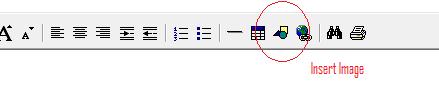
Once in HTML format, click the "Insert Image" button on the button bar. Press the "..." button to select the image from your hard drive to insert into the e-mail message.
Once in HTML format, click the "Insert Image" button on the button bar. Press the "..." button to select the image from your hard drive to insert into the e-mail message.
When you insert an image into an e-mail, it will be inserted at its full size. If that size is too big, you can select one of the boxes at the corner of the image and resize it down as desired (after insert); or resize it in an image program before inserting it.
Users can also insert images into their HTML format Signatures. This is done in exactly the same way in the Edit Signature box in Preferences. This allows the User to put their company logo, a very popular thing to do, at the bottom of their e-mail messages.
An important thing to keep in mind is that not all e-mail programs -- especially those on handheld devices and cell phones -- can view HTML messages at all, and especially not embedded images. To reach the broadest range of recipients consider using the simplest formatting, and attaching images instead of inserting them into the message body.
You cannot paste directly into the body of the message from your clipboard, you would need to save the image first and then use the Insert Image button. You can paste the contents of your clipboard directly into the Attach area of an e-mail, which, if it is an image, will save and attach a copy of the image as an attachment.
Users can also insert images into their HTML format Signatures. This is done in exactly the same way in the Edit Signature box in Preferences. This allows the User to put their company logo, a very popular thing to do, at the bottom of their e-mail messages.
An important thing to keep in mind is that not all e-mail programs -- especially those on handheld devices and cell phones -- can view HTML messages at all, and especially not embedded images. To reach the broadest range of recipients consider using the simplest formatting, and attaching images instead of inserting them into the message body.
You cannot paste directly into the body of the message from your clipboard, you would need to save the image first and then use the Insert Image button. You can paste the contents of your clipboard directly into the Attach area of an e-mail, which, if it is an image, will save and attach a copy of the image as an attachment.