
These are the step-by-step instructions for setting up an IMAP account to get your MRSware email on your iPhone.
- On your iPhone home screen tap the settings icon
- Tap on Mail, Contacts, Calendars
- Tap on Add Account
- Tap on Other
- Tap Add Mail Account
Enter the following information on the New Account page: - Name: Enter your name as you would like it to appear in the "From" field of your outgoing messages.
- Email: Enter your full mail address (e.g., [email protected]).
- Password: Enter your password.
- Enter in a description of this account
Note that your Mailbox password might not be the same as your regular MRSware login password. If you are not sure, have your Administrator reset it for you. - Tap Next
- Tap the IMAP selector at the top
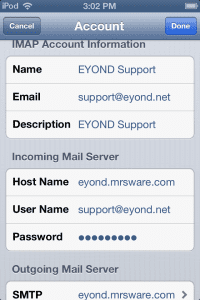
Under the Incoming Mail Server settings area, enter this information: - Host Name: Type your company's domain name followed by "mrsware.com" (e.g. example.mrsware.com)
- User Name: Enter your full email address
- Password: Enter your password
Scroll down to the Outgoing Mail Server section and enter this information: - Host Name: Type your domain name followed by "mrsware.com" (e.g. example.mrsware.com)
- User Name: Enter your full email address
- Password: Enter your password
- Tap Next
At this point the phone will attempt to connect using the settings enter. Depending on a number of conditions this operation could take up to a couple of minutes to complete. Please be patient. - If a screen comes up that says “Do you want to try setting up the account without SSL", select Yes
- Tap Save
- Tap Save
At this point setup is complete. Check for messages using the Mail app to make sure you are receiving emails. Send a test message to someone to verify that outgoing emails are being sent as well.
If you have any troubles sending or receiving emails, go back into Settings and check the SSL and Port Number options:
- Under Accounts, tap on your email account
- Under the IMAP heading, tap the Account
You should now be back at the Account page where the Host Name, User Name, and Password are entered. - Tap SMTP under the Outgoing Mail Server heading
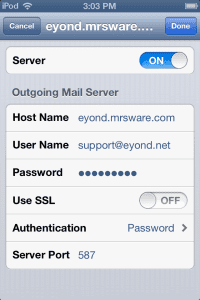
- Under Primary Server, make sure that this is your MRSware SMTP server entry, and that it is marked as On. If it is not the MRSware entry, find the mrsware.com entry in the list below, click it and turn it On
- In the Outgoing Mail Server section, make sure that SSL is set to Off and Server Port is set to 587
- Tap the Done button to save your changes
- Tap the Account button to go back to the previous page
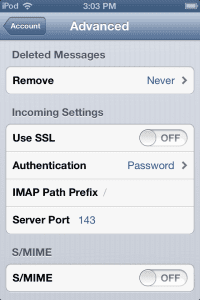
- Back on the Account page, tap on Advanced
- Scroll down to the Incoming Settings section and make sure that SSL is set to Off, and the Server Port number is set to 143
- Tap the Account button to go back. Click the Done button to save your changes.
Check your Inbox for message to make sure you are receiving emails. Send a test message to make sure emails are being sent.
If everything is working correctly, you should see all of the same emails in you Inbox on the device that you see currently in MRSware. IMAP will keep your device in sync with MRSware, so that changes you make in one place (such as deleting an email, moving it to a folder, or marking a message as read) will also be seen in the other.
 |  |  |
This article reflects the menus and options in iOS 6.0.1. Older and newer versions of iOS have slightly different page layouts for some of the options, but are fundamentally the same. All the settings remain the same regardless of iOS version installed on the device.
A notable change in iOS 6 is that the setup process will test the settings entered by connecting to the server. This means that the phone will need an active Internet connection in order to complete the setup process. It also means that you can't get past this step, and actually save the mailbox, until the settings are correct and the device can connect to your company's MRSware mail server.