
One of the most robust features in MRSware is the ability to add, edit, or update, at the same time, an attribute or an unique or distinctive component found in any table within MRSware. This saves the User an enormous amount of time and effort.
In MRSweb the feature is called Batch Edit; in MRSware Desktop it is called Bulk Update. Though the steps may be different, the results are the same.
Here are some examples of Batch Edit:
In MRSweb the feature is called Batch Edit; in MRSware Desktop it is called Bulk Update. Though the steps may be different, the results are the same.
Here are some examples of Batch Edit:
- update System Type on multiple companies or individuals
- assign Categories to companies or individuals
- assign or update Sales Rep assignments on multiple customers, territories, or invoices
- apply a Commission Split Rate to all selected invoices
- apply an Account Number to all selected invoices for a customer
- apply a Payment to all invoices on a commission statement
In the first example, below, we are going to assign a Sales Rep to multiple companies
Here are the steps to Batch Edit in MRSweb:
Here are the steps to Batch Edit in MRSweb:
| 1. First check to make sure you have "Multi Selection" selected Go to Contacts -> Companies Click or tap the down arrow next to Companies Select Multi Selection (if not already selected) 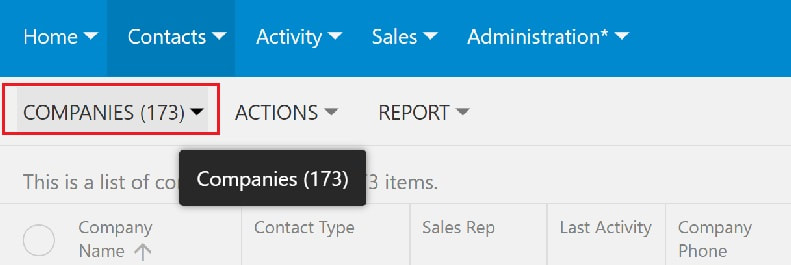 | 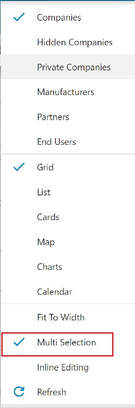 |
2. Click or tap the circle to the left of the company names that you are going to assign a sales rep (a checkmark will appear next to the company name)
Note that once you select the companies, the Sidebar now has an option "Batch Edit".
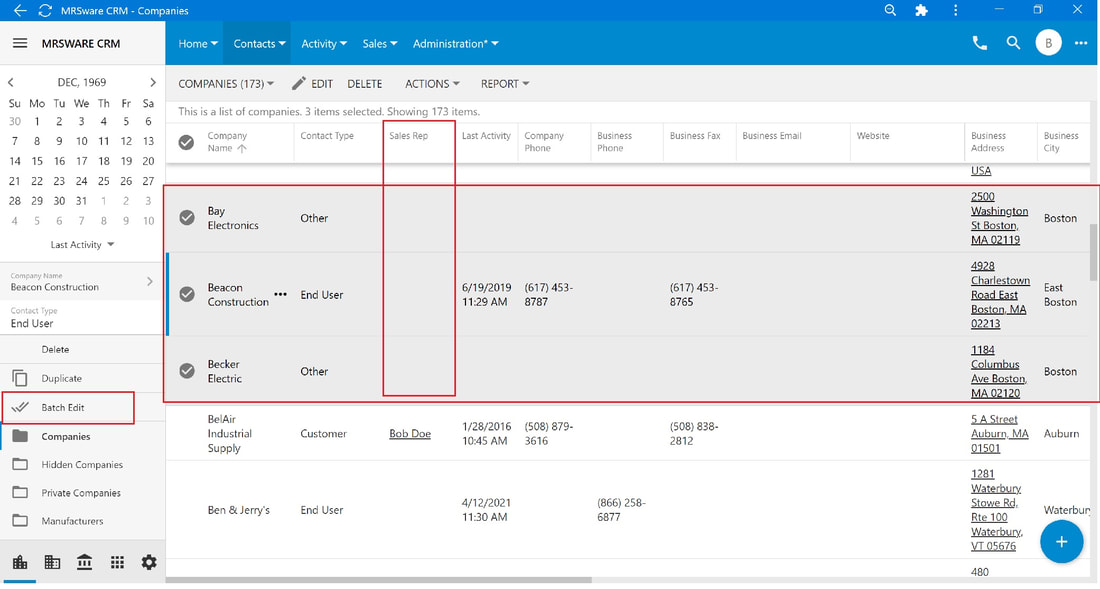
3. Click or tap Batch Edit
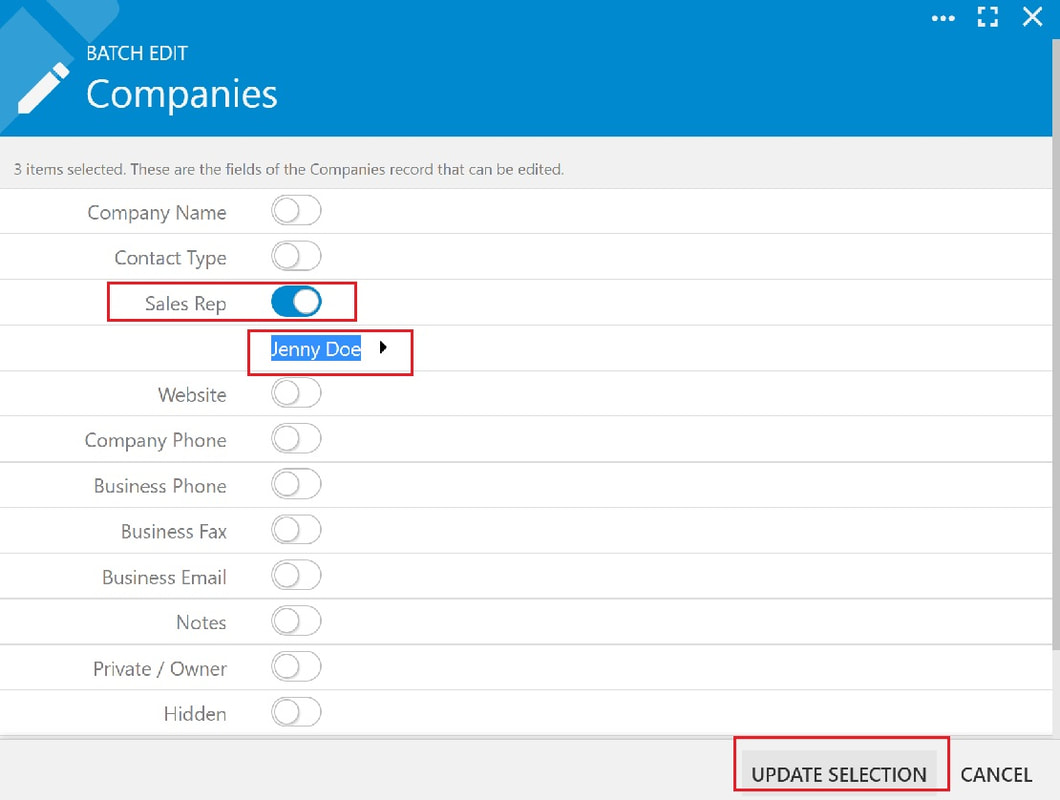
When the Batch Edit form opens, a sentence at the top will let you know how many items have been selected and what fields are available to editing. The available number of fields for editing will change depending on the items selected and the page.
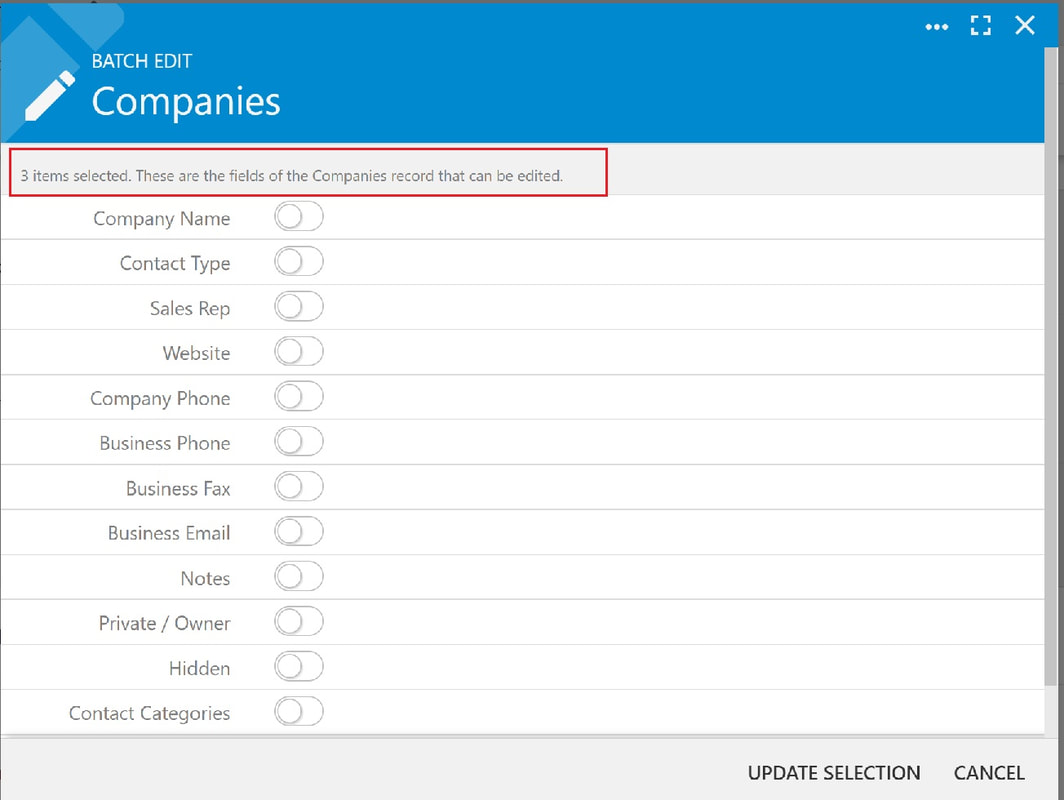
4. Toggle the field that you want to update
5. Enter the Sales Rep name (either start typing the name and autofill will complete it or select "Show Options" or "See All" to view a list of sales reps in the system)
6. Click or tap Update Selection
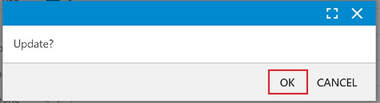
6. Click or tap OK to confirm the update
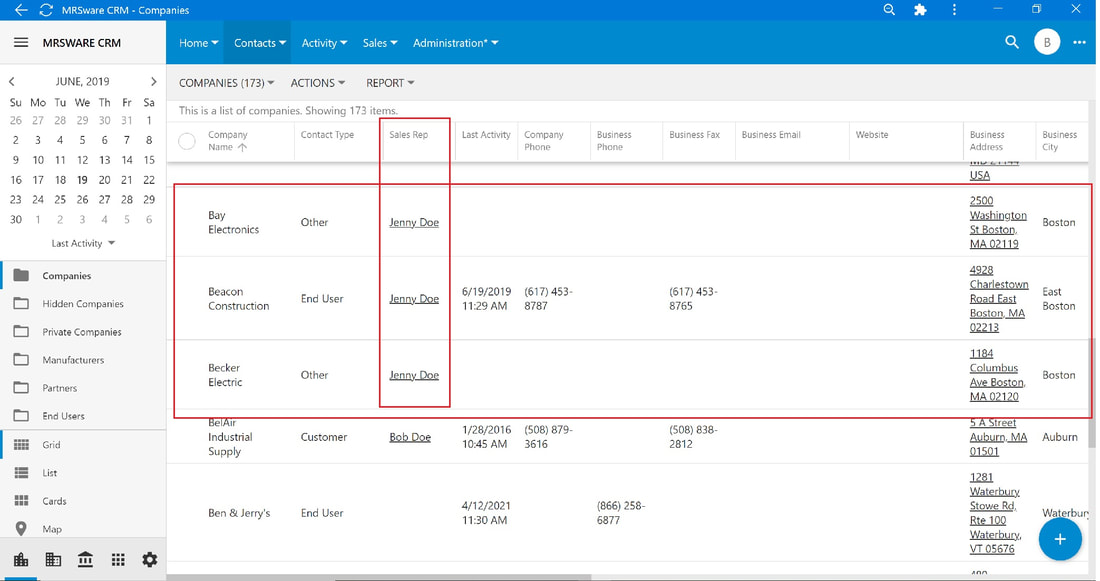
You can do more than one batch edit at a time, as long as all of the selected items match the criteria for all the edits being made.
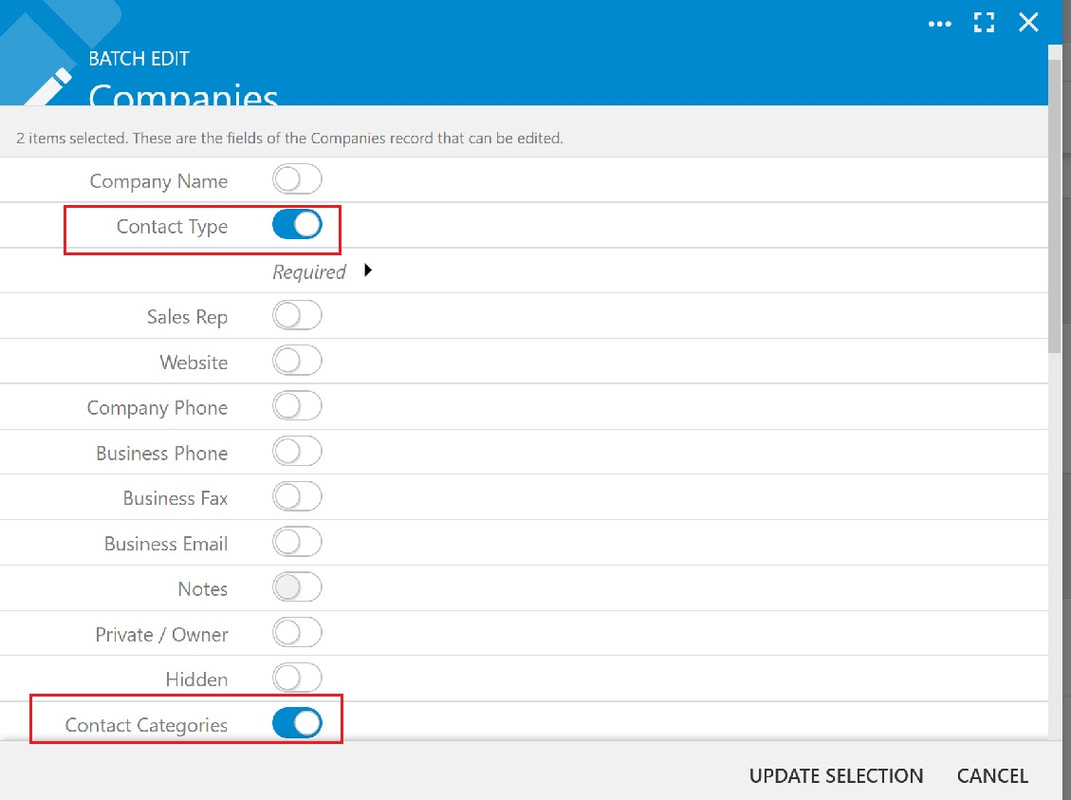
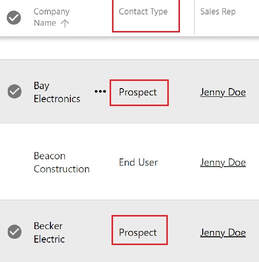
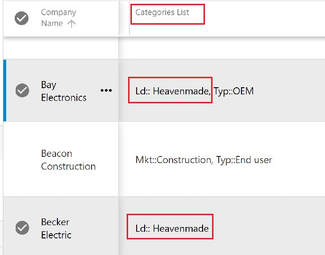
Here is an example of batch editing both the Contact Type and Contact Categories.
Two companies - Bay Electronics and Becker Electric - have been selected. As you can see from the screenshot below, the Contact Type and Contact Categories are to be updated.
Toggle both fields to be edited, then enter the updated information and click or tap Update Selection and OK.
The screenshot on the left shows the updated Contact Type - "Prospect"
The screenshot on the right shows the updated Categories List - "Ld: Heavenmade"
 |  |