In some cases it is possible to make the panels in the Sidebar area of MRSware larger than the viewable area of the screen. This is typically seen on a screen resolution change as might happen when the computer is used with an external monitor, when the computer's desktop resolution is reduced, or when an application changes the screen resolution. The effect of this would make it look like the panels in the Sidebar had disappeared or become blank.
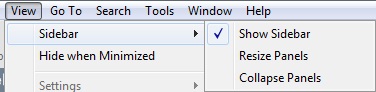
Two options have been added to reset the size of the panels in the Sidebar:
1. "View" → "Side Bar" → "Resize Panels"
The Resize Panels option adjusts your panels in the side bar area down to equal sizes within the viewable area of the Side Bar.
2. "View" → "Side Bar" → "Collapse Panels"
The Collapse Panels option minimizes all of the panels in the side bar area to their collapsed state.
Once either of these options are used, the user can then resize the panels to any desirable size. Panels are resized by clicking on the upper edge of the blue panel header and dragging it up or down to make the panel large or smaller.
Two options have been added to reset the size of the panels in the Sidebar:
1. "View" → "Side Bar" → "Resize Panels"
The Resize Panels option adjusts your panels in the side bar area down to equal sizes within the viewable area of the Side Bar.
2. "View" → "Side Bar" → "Collapse Panels"
The Collapse Panels option minimizes all of the panels in the side bar area to their collapsed state.
Once either of these options are used, the user can then resize the panels to any desirable size. Panels are resized by clicking on the upper edge of the blue panel header and dragging it up or down to make the panel large or smaller.