
To set up a signature, click on the "Tools" → "Preferences" menu option. In the Preferences window, click on E-mail. On the right, down towards the bottom, you will see the "Add" button; click Add to add one or more signatures.
Select a signature from the drop-down list above the text area and select "Set as default Signature" to set which signature should be shown by default when you start, reply, or forward an e-mail. Alternatively, when in an e-mail, you can insert the desired signature by clicking the "Insert Signature" button on the button bar.
Notice that there are both HTML and Text signatures. Users should create both formats of signature, so that the correct format gets placed in new, reply, and forward messages based on the format of the message itself.
Click on "Text" and add or edit the Plain Text format Signature, then click on "HTML" and add or edit the HTML format Signature.
Notice that there are both HTML and Text signatures. Users should create both formats of signature, so that the correct format gets placed in new, reply, and forward messages based on the format of the message itself.
Click on "Text" and add or edit the Plain Text format Signature, then click on "HTML" and add or edit the HTML format Signature.
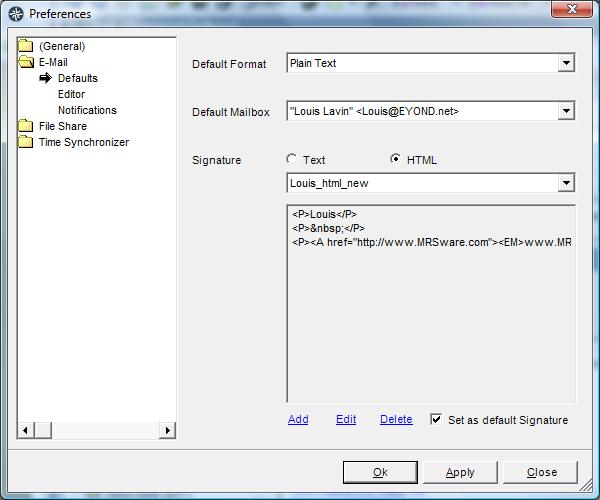
Default Format - The underlying format used in the e-mail message. Plain text is the simplest (and default) format, but has limited text-formatting capabilities. HTML allows for more text formatting, but is not viewable in all e-mail clients -- particularly notable is the lack of mobile device support for HTML e-mails.
Default Mailbox - The selected mailbox will be the one appearing at the top of the E-Mail panel in MRSware, and will be the default mailbox from which messages are sent (users can select an alternate mailbox for individual e-mails).
Set as default Signature - The signature to be automatically inserted in each New/Reply/Forward e-mail, and when the Insert Signature button is used. The Insert Signature button can also insert alternate signatures that have been added here.
Add - Create a New signature.
Edit - Change the selected signature.
Delete - Remove the selected signature.
Default Mailbox - The selected mailbox will be the one appearing at the top of the E-Mail panel in MRSware, and will be the default mailbox from which messages are sent (users can select an alternate mailbox for individual e-mails).
Set as default Signature - The signature to be automatically inserted in each New/Reply/Forward e-mail, and when the Insert Signature button is used. The Insert Signature button can also insert alternate signatures that have been added here.
Add - Create a New signature.
Edit - Change the selected signature.
Delete - Remove the selected signature.