
MRSweb - Lesson 1.3 - Get a New Password | MRSweb Online Training
← Back to Web Training Curriculum Hub
Lesson 5 of 69
Lesson 1
Chapter 3 - Get a New Password
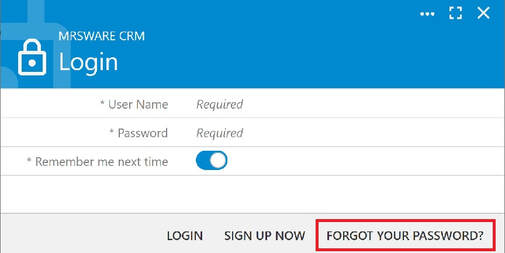
Okay, you've entered "https://web.mrsware.net" in your web browser and the Login dialog opens.
You enter your User Name, but realize that you've forgotten your Password.
Click or tap "Forgot your Password?"
Chapter 3 - Get a New Password
Okay, you've entered "https://web.mrsware.net" in your web browser and the Login dialog opens.
You enter your User Name, but realize that you've forgotten your Password.
Click or tap "Forgot your Password?"
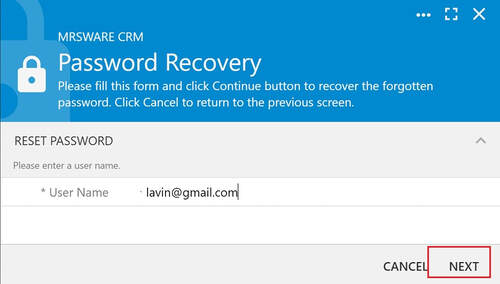
Enter your User Name
Tap or click "Next"
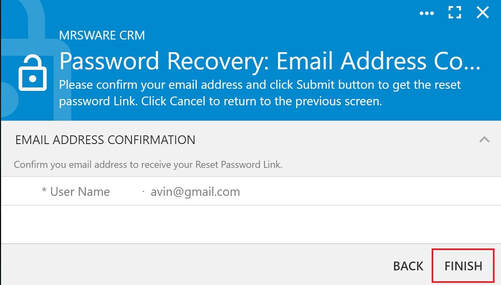
Enter your User Name again
Tap or click "Finish"
Tap or click "OK"
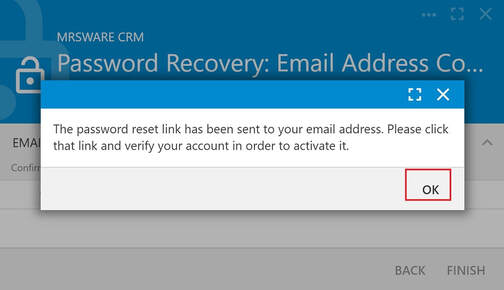
You will be sent an e-mail to the e-mail address you used in the Password Recovery section of the Account Sign Up dialog. It will be sent from "[email protected]".
i If you do not see the e-mail in your Inbox, please look in your Spam or Junk folder.
In the e-mail, tap or click "here"

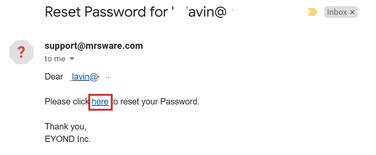
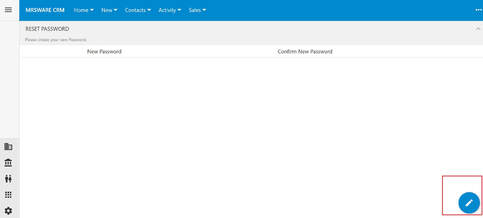
When you click on the link "here", the Reset Password page opens.
Tap or click the "Edit" icon (eraser) in the lower right hand corner of the page.
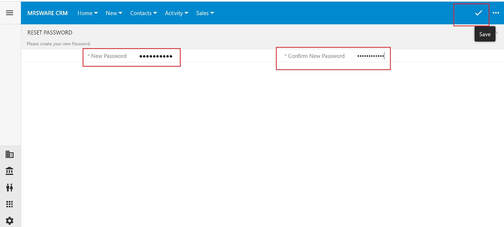
Go ahead and enter your "New Password" and then enter the same password in "Confirm New Password".
Tap or click the "Save" icon (checkmark) found in the upper right corner.
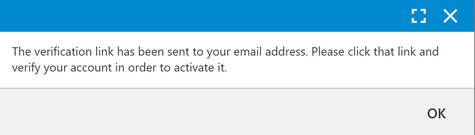
A pop up appears when you save your new password.
Tap or click "OK"
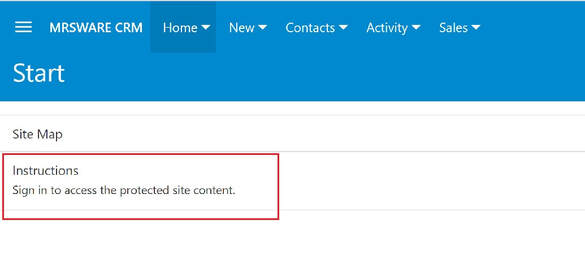
This will take you back to the Start page.
Tap or click "Sign in to access the protected site content." to begin the Sign in process again.
Ready for the next lesson?
Continue through the structured MRSweb online training curriculum.