MRSweb - Lesson 2.4 - Settings | MRSweb Online Training
← Back to Web Training Curriculum Hub
Lesson 10 of 69
Lesson 2
Chapter 4 - Settings
Settings provides options on how you want your system to look and work.
(For example, you can select a different color from the default color by clicking or tapping "Theme")
Settings selected will be the same across all devices you use.
i You can access Settings from every page in MRSweb.
Chapter 4 - Settings
Settings provides options on how you want your system to look and work.
(For example, you can select a different color from the default color by clicking or tapping "Theme")
Settings selected will be the same across all devices you use.
i You can access Settings from every page in MRSweb.
The Settings icon looks like a gear (screenshot to the left)



Let's review each option to see how you can customize your view.
Let's review each option to see how you can customize your view.
Display Density -
The Display Density changes the size of your display resolution.
There are 4 options:
- Tiny
- Condensed
- Compact (default)
- Comfortable
Click or tap each one to select your preference.
A check mark will show which option you have chosen.
Seen below, left to right:
Compact - Comfortable - Condensed - Tiny
The Display Density changes the size of your display resolution.
There are 4 options:
- Tiny
- Condensed
- Compact (default)
- Comfortable
Click or tap each one to select your preference.
A check mark will show which option you have chosen.
Seen below, left to right:
Compact - Comfortable - Condensed - Tiny

Theme -
The Theme changes the interface colors of MRSweb.
The first 2 options select the Menu list background color:
- Dark
- Light (default)
There are many options for the accent color:
- Aquarium (selected)
- Azure
- Belltown
- Berry
- Bittersweet
- Cay
And so on...
Click or tap each one to select your preference.
A check mark will show which option you have chosen.
The Theme changes the interface colors of MRSweb.
The first 2 options select the Menu list background color:
- Dark
- Light (default)
There are many options for the accent color:
- Aquarium (selected)
- Azure
- Belltown
- Berry
- Bittersweet
- Cay
And so on...
Click or tap each one to select your preference.
A check mark will show which option you have chosen.
Labels in List -
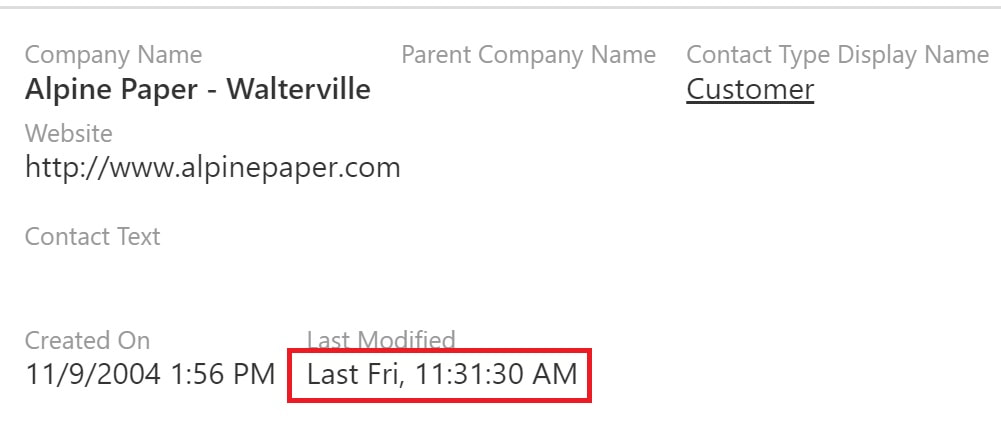
Labels in List provides the location of the field titles
There are 2 options:
- Displayed Above
- Displayed Below (default)
Click or tap each one to choose your preference.
When you select a different option, a pop-up asks if you want to Reload?
Click or tap "Ok" for yes, or "Cancel" for no.
A check mark will show which option you have chosen.
Seen below -
"Displayed Above" (top screenshot)
"Displayed Below" (bottom screenshot)
Labels in List provides the location of the field titles
There are 2 options:
- Displayed Above
- Displayed Below (default)
Click or tap each one to choose your preference.
When you select a different option, a pop-up asks if you want to Reload?
Click or tap "Ok" for yes, or "Cancel" for no.
A check mark will show which option you have chosen.
Seen below -
"Displayed Above" (top screenshot)
"Displayed Below" (bottom screenshot)