MRSware Logo MRSware Web Web & Mobile Guide
💻 Desktop Guide 📱 Web & Mobile Guide

MRSweb - Lesson 8.1 - Edit Appointment | MRSweb Online Training

← Back to Web Training Curriculum Hub Lesson 35 of 69
Lesson 8

​Chapter 1 - Edit Appointment


Edit Appointment is an appointment record containing information that is already in your system.  You access this record when you want to add to or change the information found within the current appointment.
 
Here's how to edit a current appointment:

i - As in the MRSware desktop client there is more than 1 way to edit an appointment​
Desktop options

Mobile Options


Option 1:

In this example we used Calendar - Agenda View

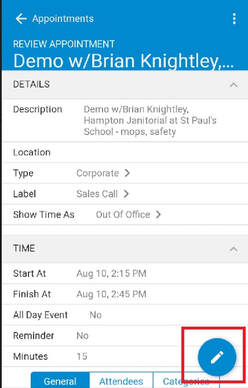
​1. Tap a current appointment (see the left screenshot below)

The Review Appointment form opens

2. Tap the pencil icon (Edit) in the lower right corner (see the middle screenshot below)

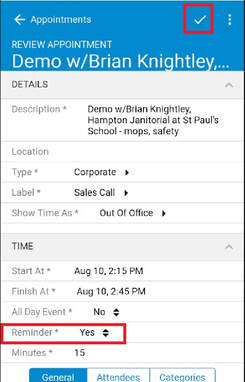
3. Change or add information to the form (we added a reminder in the right screenshot example below)

4. Tap the checkmark (Save) on the Menu bar ​(see the screenshot below, bottom right)


Option 2:

In this example we used Grid View

1. Tap a current appointment

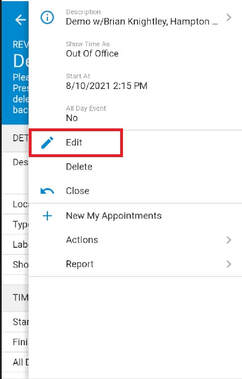
2. Tap the 3 dots on the menu bar, top of page (see the left screenshot below)

3. Tap "Edit" from the Slidebar (see the right screenshot below)

The Review Appointment form opens

4. Repeat steps 3 - 4 as shown in Option 1
Option 3:

In this example we used the Grid View

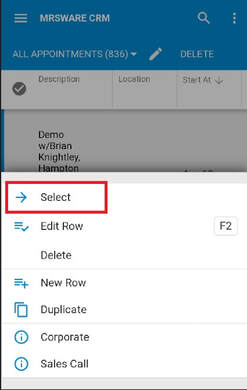
1. Tap the 3 dots next to a current appointment's name (see the left screenshot below)

2. Tap "Select" from the Slidebar that comes up from the bottom (see the right screenshot below)

3. Repeat steps 2 - 4 as shown in Option 1
Ready for the next lesson?
Continue through the structured MRSweb online training curriculum.
All Lessons Next Lesson →