
MRSweb - Lesson 8.2 - Create a New Appointment | MRSweb Online Training
← Back to Web Training Curriculum Hub
Lesson 36 of 69
Lesson 8
Chapter 2 - Create a New Appointment
Here's how to add an appointment:
i - As in the MRSware desktop client there is more than 1 way to add a new appointment
Desktop options
Chapter 2 - Create a New Appointment
Here's how to add an appointment:
i - As in the MRSware desktop client there is more than 1 way to add a new appointment
Desktop options
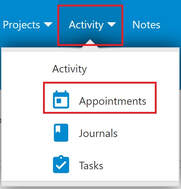
Option 1- Calendar - Month View
1 - Click or tap on "Activity - Appointments" on the Menu bar or Menu list
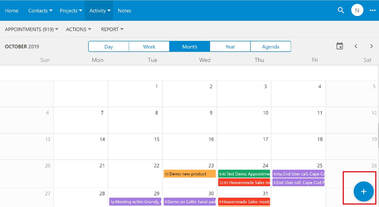
2 - Click or tap on the "Plus" sign on the bottom right of the page to open a New Appointment form
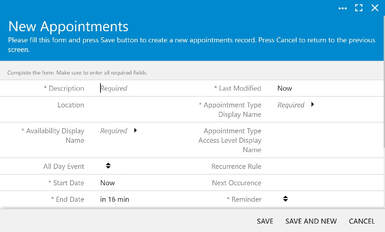
3 - The New Appointment form opens
4 - Fill out the form
5 - When finished, click or tap "Save"
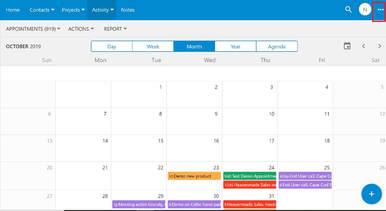
Option 2:
1 - Click or tap on the "3 dots" on the right of the Menu bar
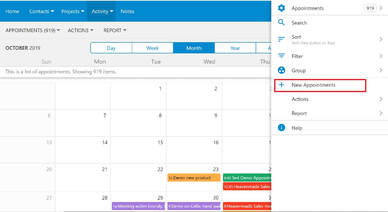
2 - Click or tap on "New Appointments" when the slidebar on the right opens to open the New Appointment Form
3 - The New Appointment form opens.
4 - Fill out the form
5 - When finished, click or tap "Save"
Mobile Options
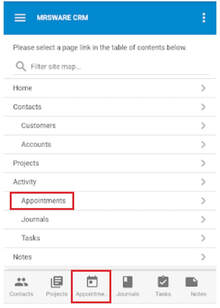
Option 1:
1 - Tap on "Appointments" on the Menu bar or from the Tab bar (bottom of the page)
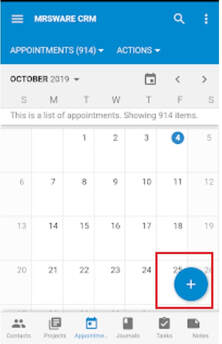
2 - Tap on the "Plus" sign at the bottom right of the screen to open a New Appointment form.
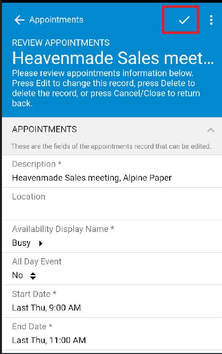
3 - Fill out the form
4 - When finished, tap the "checkmark" on the Menu bar (top of the page) to save the new appointment
Option 2:
When adding two or more new Appointments:
After completing the first New Appointment form
Instead of tapping the "checkmark" to save the new appointment
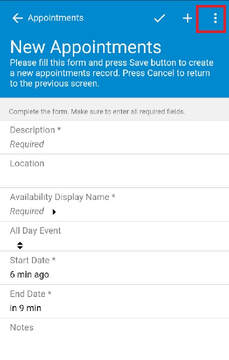
1 - Tap the 3 dots to the far top right of the Menu bar on the New Appointment form.
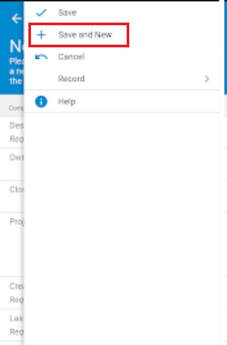
2 - Tap "Save and New" to save the just completed new appointment and open a New Appointment form.
3 - Fill out the New Appointment form
4 - Tap the 3 dots to the far top right of the Menu bar on the New Appointment
Repeat steps 2 and 3
Continue to add new appointments
When finished
5 - Tap the "checkmark" to save the new appointment
Or
5 - Tap "Save" on the slidebar menu
3 - Fill out the New Appointment form
4 - Tap the 3 dots to the far top right of the Menu bar on the New Appointment
Repeat steps 2 and 3
Continue to add new appointments
When finished
5 - Tap the "checkmark" to save the new appointment
Or
5 - Tap "Save" on the slidebar menu
Option 3:
When adding a new appointment from a Review Appointment form:
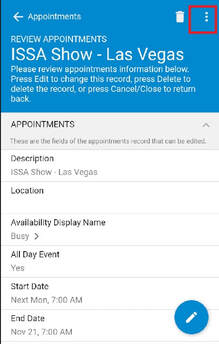
1 - Tap on the 3 dots on the Menu bar on the Review Appointment form
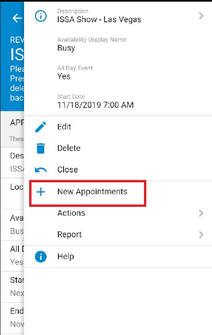
2 - Tap on "New Appointments"
3 - Fill out the New Appointment form
When finished
4 - Tap the "checkmark" to save the new appointment
Or
4 - Tap "Save" on the slidebar menu
Ready for the next lesson?
Continue through the structured MRSweb online training curriculum.