
There are other discussions in the Documentation section of Support that go over how to send out bulk e-mails and to create a customer list by manufacturer. In this discussion, I want to talk about how to create a list of your active customers, those with current sales, and a list of your customers over a certain dollar amount for marketing purposes.
Here are a couple of scenarios with instructions on how to set up the lists.
Scenario I. You want to notify your current, active customers about a management or sales rep change at your company and how it will affect them.
Questions:
A. How do I put together a list of current, active customers?
B. How do I send a bulk e-mail to them?
Scenario II. You want to notify your current, active Heavenmade [a manufacturer you represent] customers, with sales over $25,000/year, that you have hired a new sales rep to make health care end user calls for them.
Questions:
A. How do I put together a list of Heavenmade customers with sales over $25,000/year?
B. How do I assign John McNamara to them?
C. How do I send a bulk e-mail them?
Here are a couple of scenarios with instructions on how to set up the lists.
Scenario I. You want to notify your current, active customers about a management or sales rep change at your company and how it will affect them.
Questions:
A. How do I put together a list of current, active customers?
B. How do I send a bulk e-mail to them?
Scenario II. You want to notify your current, active Heavenmade [a manufacturer you represent] customers, with sales over $25,000/year, that you have hired a new sales rep to make health care end user calls for them.
Questions:
A. How do I put together a list of Heavenmade customers with sales over $25,000/year?
B. How do I assign John McNamara to them?
C. How do I send a bulk e-mail them?
Here are the answers with instructions:
Scenario I. Management, sales rep change notification
A. How do I put together a list of current, active customers?
1. Click on "Customers" in the Shortcuts Panel [make sure you are in the Customer view - "Customers -> Customer View"]
2. Change the column header "YTD 2009" to show an entire year's sales. On the menu bar, click on "Customers -> Change Sales Summary Dates"]
Scenario I. Management, sales rep change notification
A. How do I put together a list of current, active customers?
1. Click on "Customers" in the Shortcuts Panel [make sure you are in the Customer view - "Customers -> Customer View"]
2. Change the column header "YTD 2009" to show an entire year's sales. On the menu bar, click on "Customers -> Change Sales Summary Dates"]
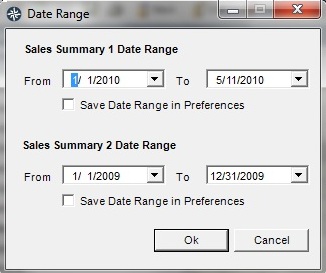
3. Change Sales Summary 2 Date Range "To 12/31/2009"
4. Click "Ok"
5. Click once on the column header with the dates selected [the inactive accounts or customers will be listed at the top of the list; click twice to show a top down list of customers
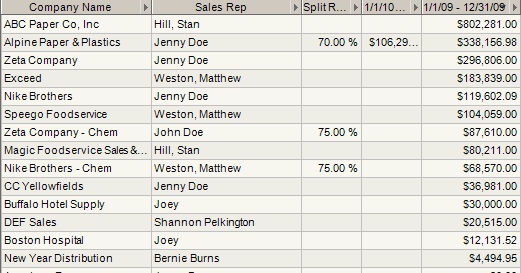
B. How do I send a bulk e-mail to them?
6. Multi-select the inactive accounts.
7. Right click and select "Filter Excluding Selection"
8. On the Menu bar, click on "Customers -> Mail all contacts in List who have an E-mail Address"*
9. The e-mail addresses will automatically populate the Bcc field.
10. Add your notification in the body of the e-mail and click "Send"
* If you have hundreds or thousands of companies in your list, multi-select a smaller grouping before Step 8 in order to make the mailing go faster. You can cut and paste the notification from one e-mail to another. For example, select "A-D", "E-H", etc until you have sent the message to everyone on your list.
Scenario II. Heavenmade customers over $25,000 have John McNamara as new end user sales rep
A. How do I put together a list of Heavenmade customers with sales over $25,000?
Follow Steps 1 - 4 from Scenario I, except in Step 1, make sure you are in Account view [Customers -> Account View]
5. In the Manufacturer column, right click on "Heavenmade -> Filter by Selection"
6. Double click on the 2009 column header to see a top down sales view
7. Multi-select the accounts under $25,000
8. Right click and select "Filter Excluding Selection"
B. How do I assign John McNamara to them?
9. Multi-select the accounts over $25,000
10. Right click and select " Bulk -> Update Companies' Categories11. Select the categories you have set up for this group [for example "HM+" to indicate the special status of this group of Heavenmade customers; "SR::JMcNamara" to indicate that John is going to be working with this group of Heavenmade customers]
Chances are you are going to want to update the contacts' categories at these companies
6. Multi-select the inactive accounts.
7. Right click and select "Filter Excluding Selection"
8. On the Menu bar, click on "Customers -> Mail all contacts in List who have an E-mail Address"*
9. The e-mail addresses will automatically populate the Bcc field.
10. Add your notification in the body of the e-mail and click "Send"
* If you have hundreds or thousands of companies in your list, multi-select a smaller grouping before Step 8 in order to make the mailing go faster. You can cut and paste the notification from one e-mail to another. For example, select "A-D", "E-H", etc until you have sent the message to everyone on your list.
Scenario II. Heavenmade customers over $25,000 have John McNamara as new end user sales rep
A. How do I put together a list of Heavenmade customers with sales over $25,000?
Follow Steps 1 - 4 from Scenario I, except in Step 1, make sure you are in Account view [Customers -> Account View]
5. In the Manufacturer column, right click on "Heavenmade -> Filter by Selection"
6. Double click on the 2009 column header to see a top down sales view
7. Multi-select the accounts under $25,000
8. Right click and select "Filter Excluding Selection"
B. How do I assign John McNamara to them?
9. Multi-select the accounts over $25,000
10. Right click and select " Bulk -> Update Companies' Categories11. Select the categories you have set up for this group [for example "HM+" to indicate the special status of this group of Heavenmade customers; "SR::JMcNamara" to indicate that John is going to be working with this group of Heavenmade customers]
Chances are you are going to want to update the contacts' categories at these companies
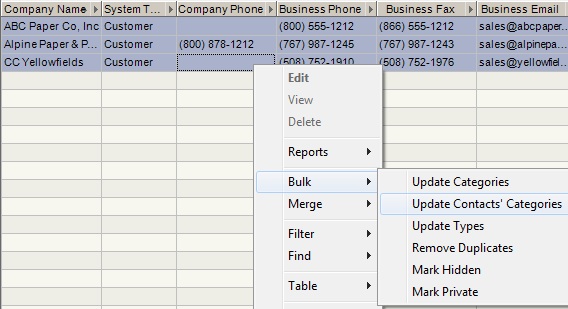
1. On the menu bar, click on "Search -> Companies"
2. Select "HP+" from the categories
3. Multi-select the companies to include in the category change [most likely that would be all]
4. Right click and select "Bulk -> Update Contacts' Categories"
5. Check the box "HP+" and "SR::JMcNamara"
6. Click "OK"
Now both the Heavenmade customers with sales over $25,000 and the contacts at these companies will be part of this group.
C. How do I send a bulk e-mail to them?
1. If you want to send a message to the sales managers at these companies, on the Menu bar, click on "Search -> Contacts"
2. Check "All" at the top of Categories
3. Check "HP+"; "T::Sales Manager"
4. Click "Ok"
5. On the Menu bar, click "Customers -> Mail all contacts in List who have an Email Address"
6. The e-mail addresses will automatically populate the Bcc field
7. Add your notification in the body of the e-mail and click "Send"
The above scenarios are just two of the many reasons why you would choose to start with Customers instead of Companies when selecting a group. Please feel free to respond to this discussion if you have used Customers to define a group.