
There are many reasons to get in touch with your customers – a price increase, new product, new line, etc. Whatever the reason MRSware can help you out with its Bulk E-mail option.
To use this feature:
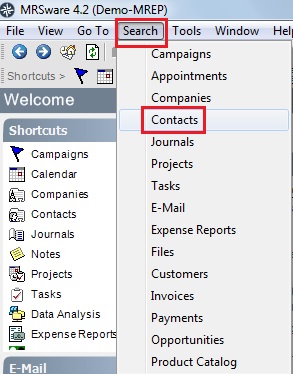
1. In the main menu go to Search → Contacts
[If you want to send this to companies instead of individuals, go to Search → Companies]
To use this feature:
1. In the main menu go to Search → Contacts
[If you want to send this to companies instead of individuals, go to Search → Companies]
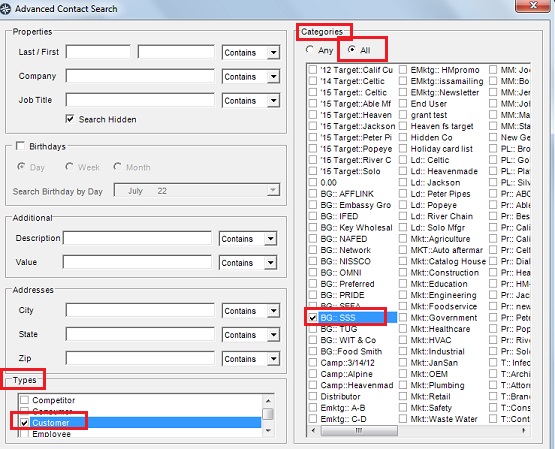
The Advanced Contact Search dialog box will open. [The Advanced Company Search dialog box will open.]
2. On the right side under Categories, first check All.
3. Select as many of the categories that fit the contacts [companies] you are searching for. You can also select any of the other options shown in the Search dialog.
4. When done selecting the criteria, click on Show results in separate window in the lower left side of the dialog.
5. Click OK
2. On the right side under Categories, first check All.
3. Select as many of the categories that fit the contacts [companies] you are searching for. You can also select any of the other options shown in the Search dialog.
4. When done selecting the criteria, click on Show results in separate window in the lower left side of the dialog.
5. Click OK
The All option means that all of the selected categories must be present on the contact [company] for that contact [company] to be included in the search results. The Any option means that as long as the contact [company] has at least one of the categories, it will be included in the search results list.
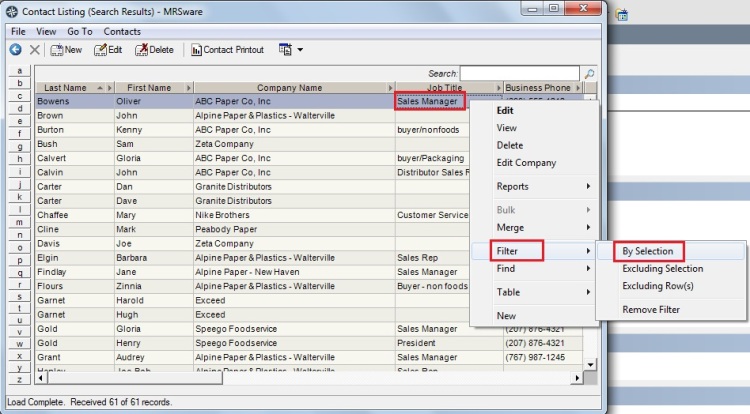
Your search results with the list of contacts [companies] will then open.
6. If you want to further filter your results, place your cursor in the appropriate cell, right-click and choose Filter → by Selection.
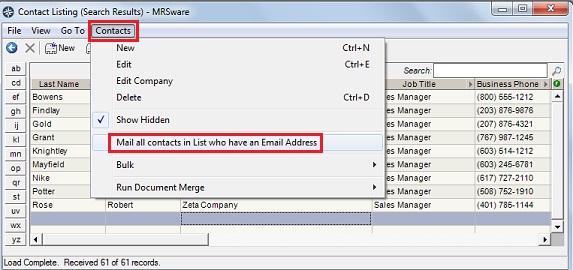
7. Go to the menu again, and select Contacts → Mail all contacts in List who have an Email Address.
A New Mail box will open. You may also see an Information box that shows which contacts [companies] do not have an email address listed. This gives you two options – call to see if there is a contact [company] Email or send the information another way.
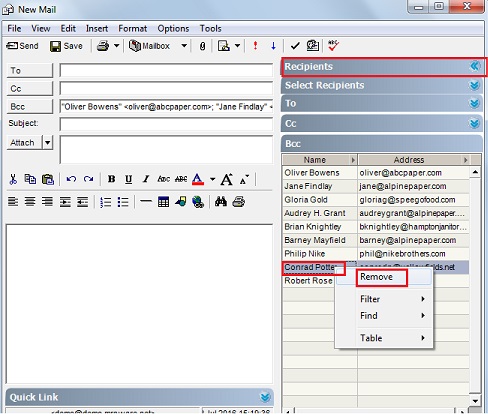
On the left hand side of the New Mail window, is a Recipients panel. You see the names of all the contact [companies] and their respective e-mail addresses. If you want to eliminate any of the contacts [companies], right-click on the name and select Remove.
To close the Recipients panel, click on the left-facing double blue arrow.
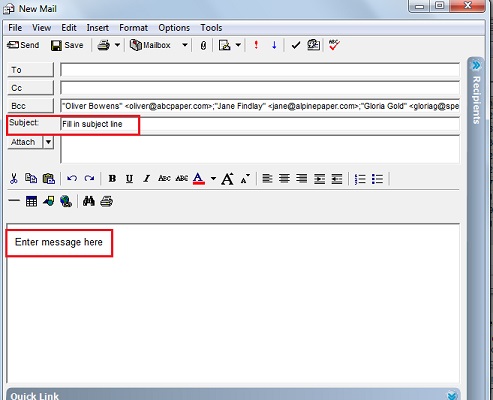
Enter your Subject Line in the Subject field of the E-mail.
You have two options for entering your message into the New Mail window:
8a - You can directly enter the information you are sending into the body of the e-mail and attach information in the “Attach” field. Be sure to use the HTML format to have access to the formatting tool bar. If the tool bar is not already showing, go to the Menu bar and click on Format → HTML.
OR
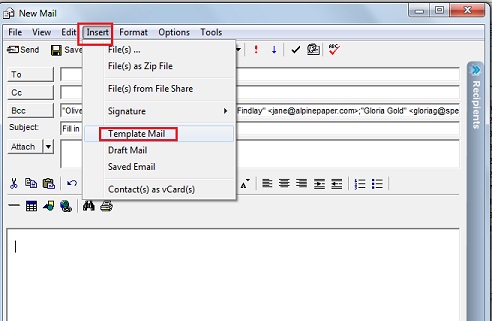
8b - You can insert a previously created e-mail into the body of the e-mail. To do this, go to the Menu bar and click on Insert → Template Mail.
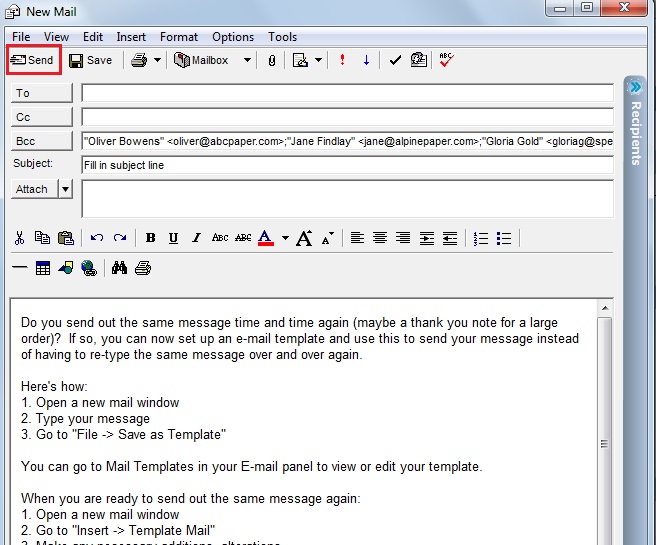
9. When finished, click Send and your message will be sent to all the contacts [companies] in the Bcc Field.
Take the opportunity to try this and see how easy it is to notify any of your Contacts [Companies] about something important to them!
See Also